Chat
Talk to the Lyna AI to build, change and explain your project. Send messages, steer the AI while it works, answer its questions and undo changes.
The chat panel on the right of the editor is where you work with the AI. It reads your project, edits files, runs commands and shows every step as it goes.
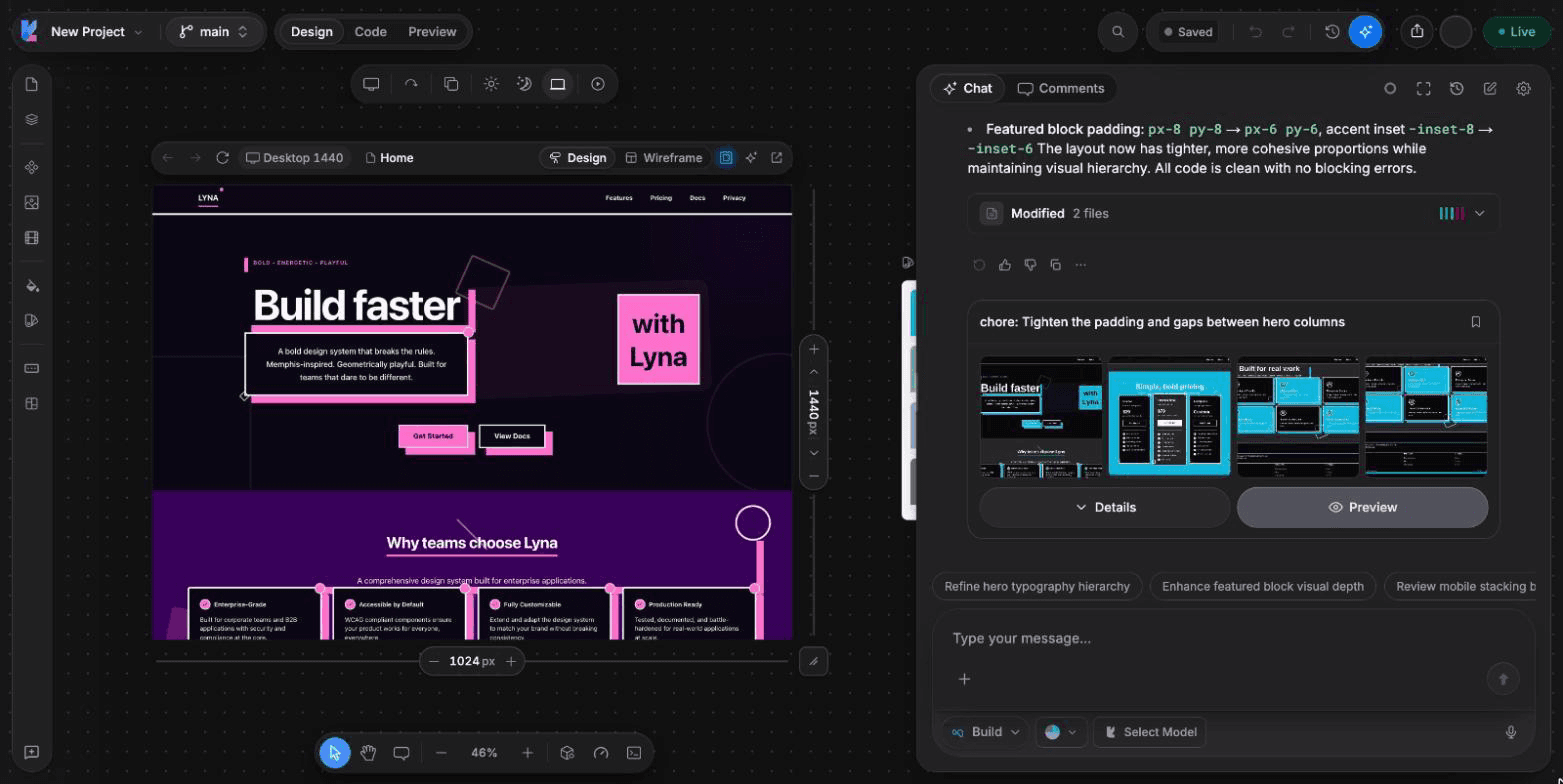
What you can do
- Ask for a feature, a fix or an explanation in plain words.
- Pick a chat mode (Build, Plan or Ask), a model and, on some models, a thinking effort.
- Attach images, screenshots and Figma frames, or dictate with your voice.
- Add files, folders, URLs, Git changes and problems with
@. - Run commands and skills with
/. - Send follow-up messages while the AI works.
- Answer the AI's questions and approve sensitive actions.
- Preview, revert or bookmark the version each turn creates.
- Keep several conversations and go back to any of them.
The composer
| Control | What it does |
|---|---|
| Mode menu | Switch between Build, Plan and Ask. See Chat modes. |
| Model picker | Choose the model for this project. See Models and providers. |
| Thinking effort | On models that support it. See Effort. |
| + menu | Knowledge, file reference, attachments, skills, and image and video generation. |
| Voice input | Dictate your message. |
| Send / Stop response | Send your message, or stop the AI while it works. |
Press Enter to send and Shift + Enter for a new line.
Start a conversation
When the chat is empty, it offers suggestions such as Plan a new feature, Review my project and Improve the design. Pick one or write your own message.
Start a fresh conversation with New Chat, Cmd/Ctrl + L, or /clear. Your earlier conversations stay in Chat History, grouped by date.
Give context
- Select an element on the canvas before you write. The AI gets that element as context.
Cmd/Ctrl + Shift + Ladds the selection to the chat. - Mention files and more with
@. See Mentions and context. - Attach an image or a screenshot. See Attachments and screenshots.
While the AI works
The AI shows each step: the files it reads, the edits it makes with their diffs, the commands it runs and a short summary of its reasoning when the model provides one.
You can send more messages without waiting. Choose how they are handled in Settings > AI > General > Follow-up mode:
- Queue: your messages wait and are sent one by one when the AI is done. You can Send, Edit or Cancel each queued message.
- Steer: your message reaches the AI during the current turn, so you can change direction.
Questions and approvals
- Questions: when your request is unclear, the AI may ask one or more questions with answers to choose from. You can also type your own answer.
- Approvals: some actions need your consent first, such as a database change or a tool call that writes important files. Choose Allow Once, Allow for this request or Deny.
Versions and undo
Each turn that changes files ends with a version card. Choose Preview to look at that version, Revert to this version to go back, or Bookmark this version. On your own messages you can Retry, Edit or Copy. See Version history.
Errors
If something goes wrong, the chat shows what happened and what to do, such as Retry, Reconnect or Start New Chat. Build and runtime errors in your app show a Fix button that sends the error to the AI.
Guardrails
Every message is checked before the AI reads it, and every turn is checked when it ends. When a check acts, the chat shows a short notice that says what happened:
- A secret in your message: a key or a token you paste is hidden before the AI reads it. To give your app a secret, add it in Secrets.
- A secret in the code: if a turn writes a secret into your code, the chat asks you to move it to the edge function secrets before you publish.
- Instructions in content the AI read: a web page or a file can contain text written to steer the AI. The AI treats it as data, and asks you to confirm before it takes a sensitive action.
- Messages sent very fast, or a message that is too long: the notice says how long to wait, or how to shorten it.
- A harmful request: requests that look like phishing, impersonation or malware are refused.
- Plain HTML: Lyna builds React apps. HTML you give is used as the design and turned into React components, so the page stays editable. If a turn breaks the React setup, the broken files go back to their last working version.
Long conversations
Every message adds to what the AI must read. When a conversation gets long, use /compact to summarize it, or start a new chat. Use /context to see how full the conversation is.
Shortcuts
| Action | Shortcut |
|---|---|
| New AI chat | Cmd/Ctrl + L |
| Add selection to chat | Cmd/Ctrl + Shift + L |
| Open the chat mode menu | Cmd/Ctrl + . |
| Toggle Plan mode | Shift + Tab |
| Toggle chat panel | Cmd/Ctrl + \ |
| Chat full screen | Cmd/Ctrl + Shift + \ |