Chat modes
Build makes changes, Plan discusses and writes a plan first, Ask answers without editing. Learn when to use each mode.
The mode menu in the composer sets what the AI does with your message. There are three modes.
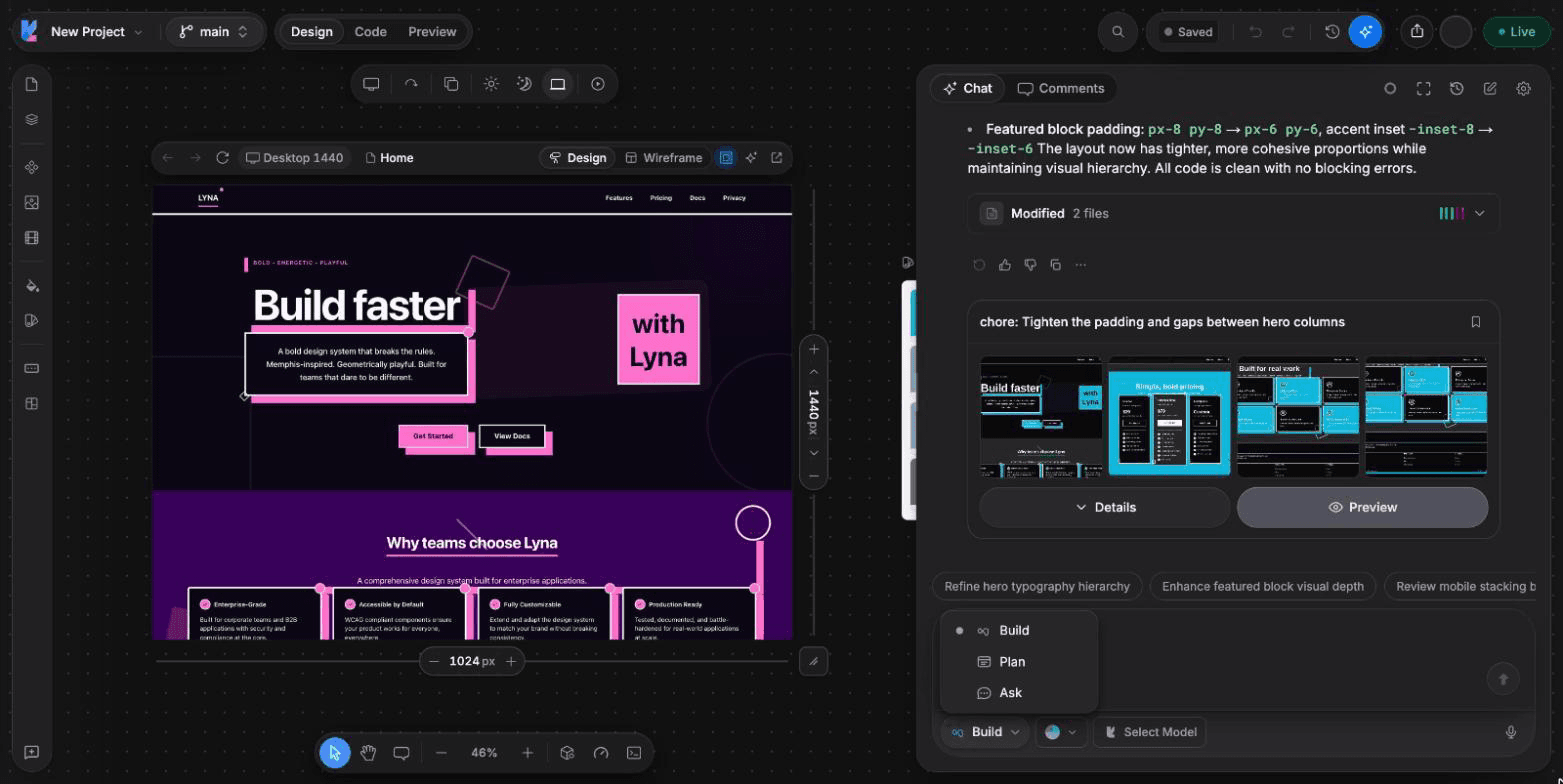
| Mode | In the menu | What it does |
|---|---|---|
| Build | Make changes directly | Reads the project, edits files, runs commands and checks the result. This is the default. |
| Plan | Discuss before building | Investigates the project and writes a plan you can review, edit and approve. No code changes. |
| Ask | Answer questions without editing | Explains code, answers questions and suggests approaches. No code changes. |
Switch modes
- Open the mode menu in the composer and pick a mode.
- Press
Cmd/Ctrl + .to open the mode menu. - Press
Shift + Tabin the composer to turn Plan mode on or off. - Type
/build,/planor/ask.
Build
Use Build for clear, contained changes: a new section, a style fix, a form, a new page. The AI works until the change is done, then leaves a version card you can preview or revert.
Add a contact form on the Contact page with name, email and message.
Show a success message after sending.
Plan
Use Plan for larger or riskier changes, when you want to shape the approach first. When your Build message looks complex, the composer may suggest This looks complex. Plan it first? Choose Switch to Plan to accept.
Describe the goal
Write what you want to achieve. The AI may ask you questions or offer approaches to choose from.
Review the plan
The plan card shows the Approach, the Key files and the Tasks. Switch between the Rich and Raw views. Add, edit or remove to-dos.
Build or keep planning
- Build from plan: switches to Build and implements the tasks in order. You can select only some tasks and choose Build selected.
- Keep planning: ask for changes to the plan.
- Save to project: keep the plan in your project for later.
While the AI builds, a to-do list above the composer shows the progress, for example "3 of 5 todos completed".
Ask
Use Ask to understand before you change anything:
How does the booking form send its data? Which files are involved?Ask is also the safest way to get a second opinion on an error. Nothing in your project changes.
Which mode should I use?
Not sure what to change? Start in Ask. Know what you want but it touches many files? Use Plan. Clear, small change? Use Build.
Next steps
Chat
Talk to the Lyna AI to build, change and explain your project. Send messages, steer the AI while it works, answer its questions and undo changes.
Models and providers
Pick the AI model for your project. Use the built-in Lyna models, or connect your own Claude, ChatGPT or Kimi Code account or API key.