Build with AI
Mentions and context
Type @ to add files, folders, a web page, your Git changes or current problems to a message, so the AI looks in the right place.
The AI can search your project on its own, but pointing it to the right place makes answers faster and more precise.
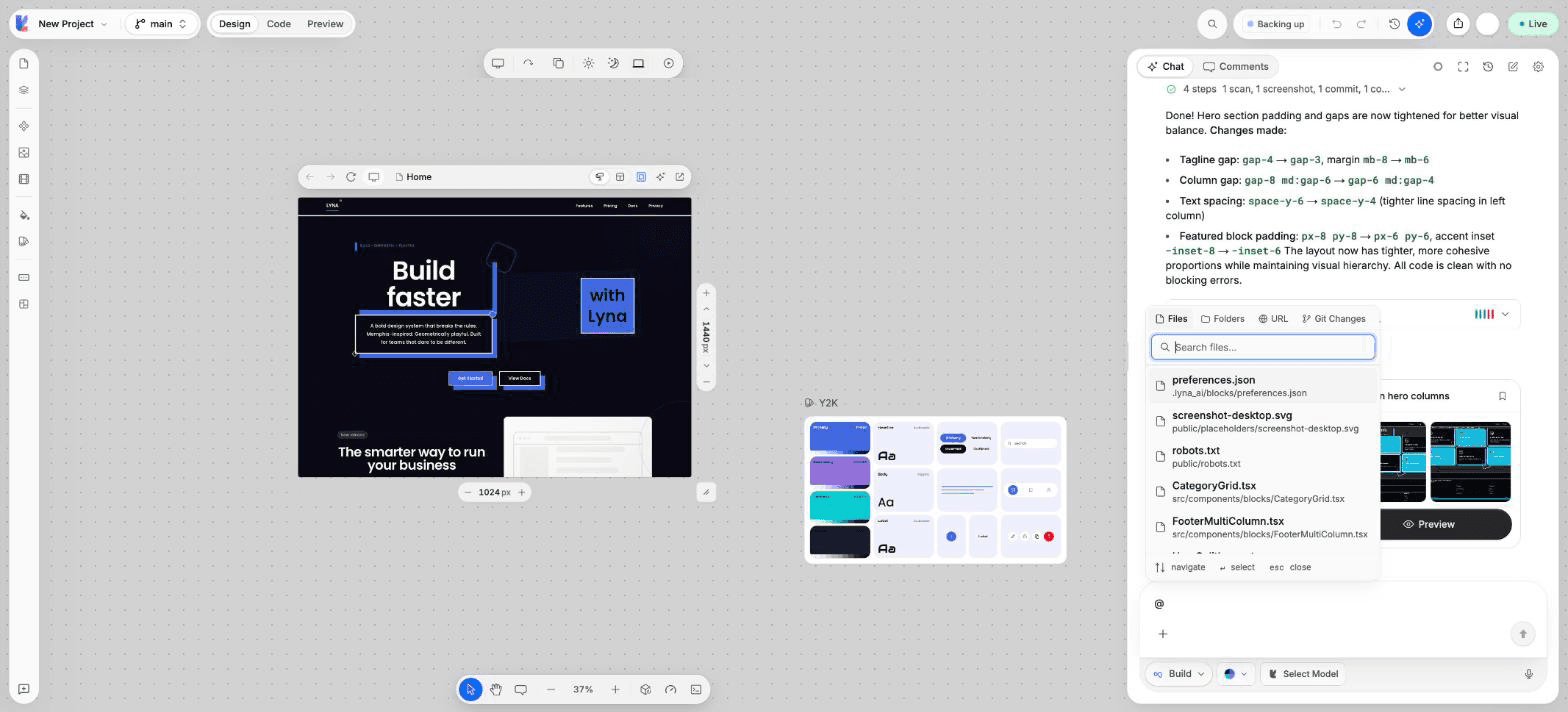
What you can add with @
| Option | What it adds |
|---|---|
| Files | One or more files from your project. |
| Folders | A whole folder. |
| URL | A web page. Lyna fetches it and adds its content. |
| Git Changes | Your current staged and unstaged changes. |
| Problems | The current errors and warnings from diagnostics. |
Add a mention
- In the composer, type
@. - Pick an option. Use the arrow keys to move and
Enterto select. - Search for the file or folder, or paste the URL and choose Add.
The mention appears in your message. You can add several.
Other ways to give context
- Select an element on the canvas before you write. The AI gets the element and its code location.
- Add to AI chat with
Cmd/Ctrl + Shift + Lto send the current selection. - Attach a screenshot or an image. See Attachments and screenshots.
- Knowledge, rules and memory give the AI lasting context on every turn. See Knowledge and memory and Rules.
See how full the context is
Type /context to see how many messages the conversation holds and an estimate of its tokens. When it gets long, use /compact or start a new chat.
Mention less, not more
Add only what the task needs. A focused mention of two files works better than a whole folder.