Attachments and screenshots
Show the AI what you mean. Attach images, capture the preview, mark it up, import Figma frames or dictate your message.
A picture often explains a change faster than words. The AI can read images you add to a message.
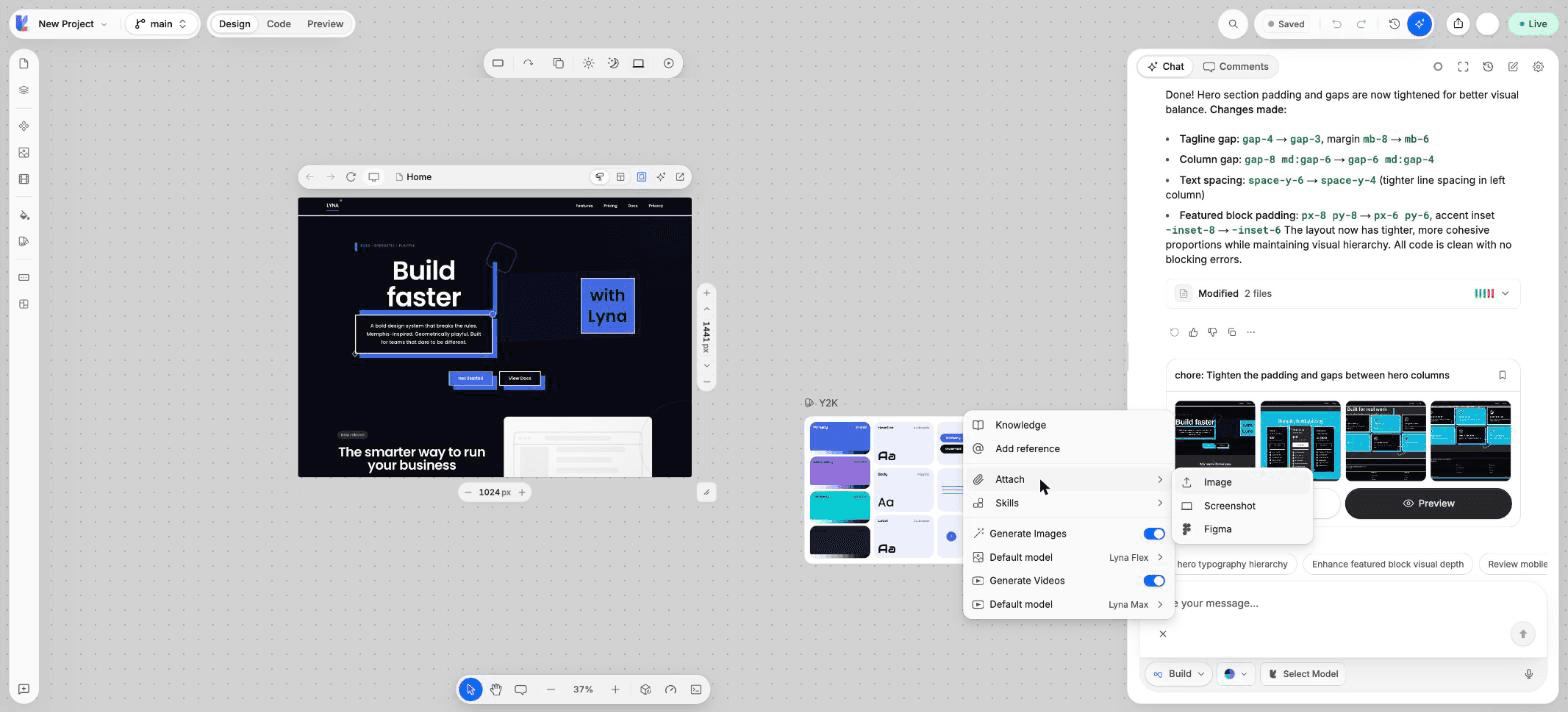
What you can do
- Attach one or more images from your computer.
- Capture a screenshot of your app's preview.
- Draw on an image to point at what should change.
- Import frames from Figma.
- Dictate your message with your voice.
Attach an image
Open the + menu in the composer and choose to add an image. You can add several at once. Use it for a reference design, a sketch, or a screenshot of a bug.
Capture the preview
Open the + menu and choose the screenshot option, or type /screenshot. Lyna captures your app's preview and adds it to the message.
Mark up an image
Open Annotate
On an image in the composer, choose Annotate.
Draw
Pick a tool: Pen, Circle, Rectangle, Arrow, Line, Text or Comment. Choose a Color and a Thickness. A Comment drops a numbered pin with a note, such as "Make this bigger".
Save
Choose Save. The marked-up image replaces the original in your message.
Import from Figma
Open the + menu and choose Figma, or type /figma. Connect Figma, pick frames, and Lyna adds them to the chat as images and frame data. See Figma import.
Dictate
Choose Voice input in the composer and speak. Choose Stop recording when you are done, then check the text before you send.
Model support
All Lyna models and the Claude, OpenAI and Kimi K3 models accept images.
Tips
- Circle the exact element you mean, and say what should change.
- Add a reference image and say which parts to copy: layout, colors or spacing.
- One clear image beats five similar ones.