Images and image studio
Manage the images of your project, and create or edit an image in the studio with photos, uploads, AI generation, text, shapes, drawing and effects.
The Images panel lists every image in your project. The image studio opens from it: a layered editor where you build or change an image, then save it to your project.
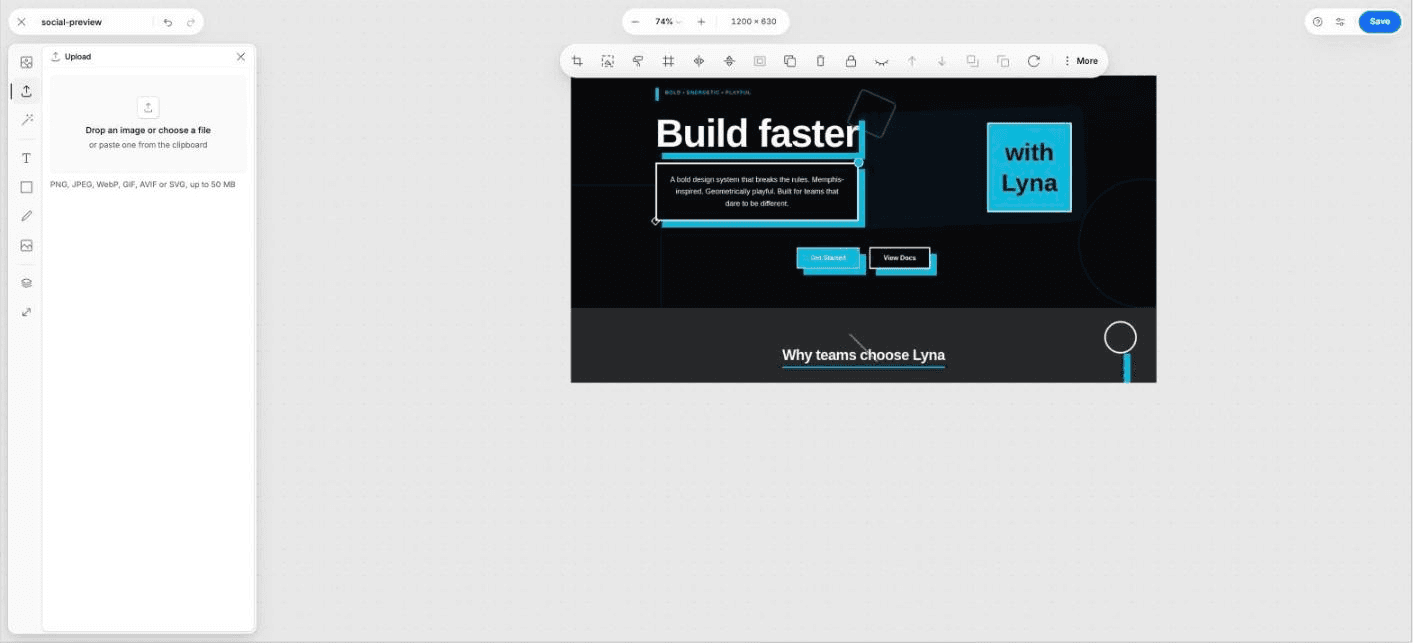
What you can do
- Browse, search and select the images of your project.
- Put an image on the selected element, or use it as a background.
- Add images to the chat, copy their path, download, rename or delete them.
- Build an image in the studio from photos, uploads or AI generation.
- Add text, shapes and drawings, then crop, mask and arrange layers.
- Remove the background of a photo.
- Save as PNG, JPEG or WebP, as a new image or over the original.
The Images panel
Choose Images in the rail on the left of the editor. Search with Search images.... Open the menu of an image for:
| Action | What it does |
|---|---|
| Set as Image | Use it as the source of the selected image element. |
| Set as Background | Use it as the background of the selected element. |
| Add to Chat | Attach it to your next chat message. |
| Copy Path | Copy its path in your project. |
| Download Image | Save it to your computer. |
| Edit in the studio | Open it in the image studio. |
| Rename / Delete | Rename it, or remove it from your project. Pages that show it lose it. |
Choose Select to pick several images and delete them at once.
Create an image in the studio
Open the studio
In the Images panel, choose Add Image, or Edit in the studio on an existing image.
Start from a source
Use the rail on the left:
- Photos: search free stock photos from Unsplash. Filter by shape and color, and sort by relevance or date.
- Upload: drop or choose a file (PNG, JPEG, WebP, GIF, AVIF or SVG), or paste one from the clipboard.
- Generate: describe an image and generate it with AI. See AI image generation.
Add the result to the canvas as a layer, or use it as the background.
Compose
- Text: add a Heading, Subheading, Body or Caption. Double click it to edit.
- Elements: add a rectangle, rounded rectangle, ellipse, line or arrow.
- Draw: draw freehand with a brush size, color, opacity and smoothing.
- Background: Transparent, Color or Image.
- Layers: reorder, hide, lock and rename layers.
- Resize: pick a page size such as Square post, Full-screen story, Link preview or A4 print at 300 dpi, or type a custom size.
Edit a layer
Select a layer to open its actions: Crop, Mask, Effects, Remove the background, flip, align, distribute, bring forward or send backward, duplicate and delete.
Save
Choose Save. Name the image, pick PNG, JPEG or WebP, and set the quality. Choose Save as a new image, or Replace the original so every page that uses it shows the new version. You can also Download it.
JPEG has no transparency
If you save a transparent design as JPEG, transparent areas are filled with a color you choose. Use PNG or WebP to keep transparency.
AI image generation
In Generate, describe the image, pick a Shape (square, landscape, portrait, classic landscape or classic portrait) and a model:
| Model | Best for | Cost |
|---|---|---|
| Lyna Min | Quick, inexpensive drafts | 2 credits |
| Lyna Flex | Balanced quality and speed | 3 credits |
| Lyna Pro | Top tier, for hero images | 6 credits |
You are not charged when a generation fails or is blocked by the safety check.
Plan availability
| Free | Pro | |
|---|---|---|
| Images panel and studio editing | Yes | Yes |
| Stock photos and uploads | Yes | Yes |
| AI image generation | No | Yes, uses credits |
| Remove the background | No | Yes, uses credits |
See Plans and credits.
Shortcuts
The studio has its own shortcuts. Choose Keyboard shortcuts in the studio toolbar to see the keys for your computer. They cover:
- Tools: select, pan, text, rectangle, ellipse, line, arrow, draw and crop.
- Editing: undo, redo, cut, copy, paste, duplicate, delete, select everything and deselect.
- Arrange: bring forward, send backward, flip, lock, hide, and nudge by one or ten pixels.
- View: zoom in, zoom out, fit the page, zoom to 100% and hold to pan.
- File: save.
Shortcuts pause while you type in a field.