Frames and devices
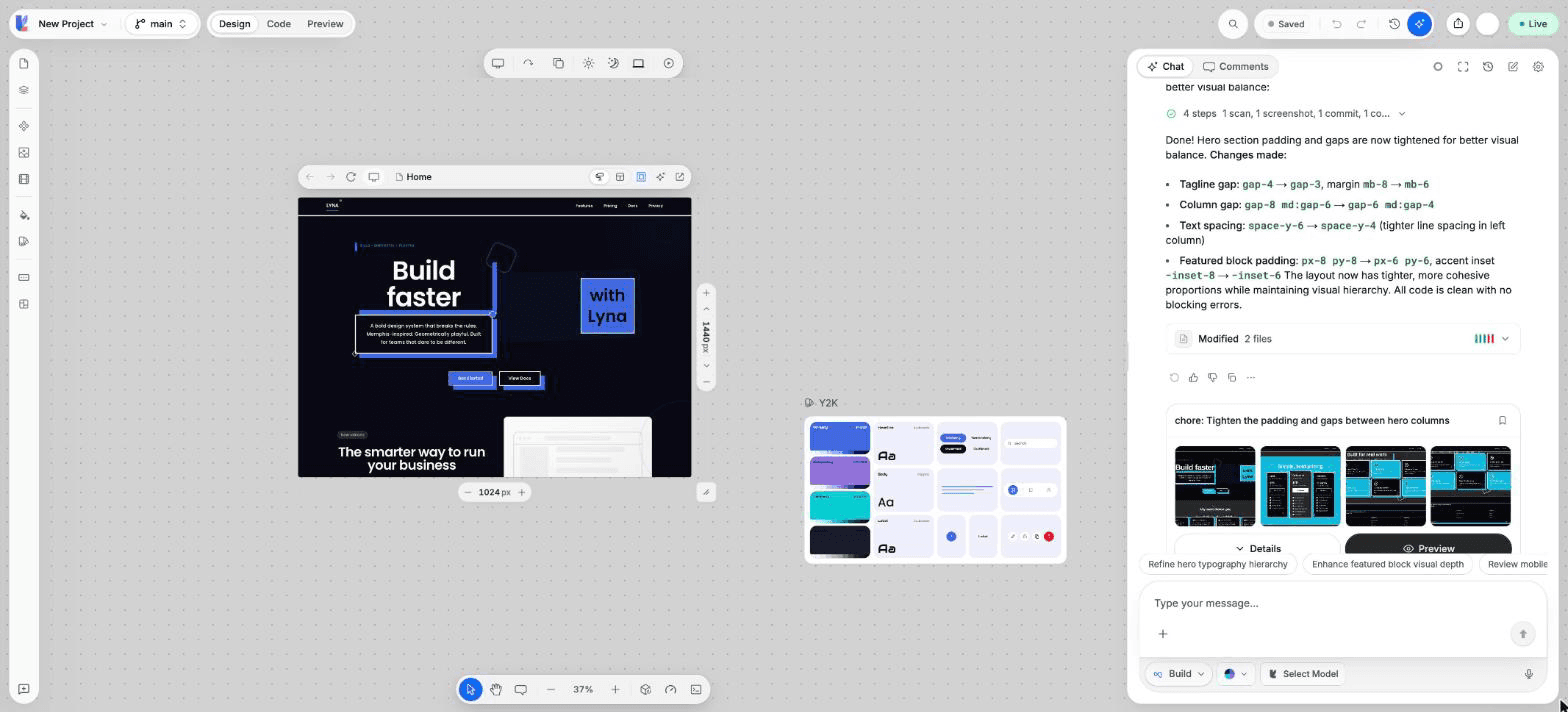
Show your app at desktop, laptop, tablet and phone sizes side by side, resize a frame, rotate it and preview it in light or dark.
A frame is one live view of your app on the canvas. Put several frames side by side to check a page at different screen sizes, or different pages at once.
What you can do
- Pick a device size for each frame, or type your own.
- Rotate a frame between portrait and landscape.
- Duplicate or delete a frame.
- Preview a frame in light, dark or system theme.
- Play or pause the animations of your page.
- Browse between pages inside a frame.
- Open the page in a new browser tab.
The frame bar
The bar above each frame holds the controls for that frame:
| Control | What it does |
|---|---|
| Go back / Go forward | Move through the pages you opened in this frame. |
| Device | Shows the device kind and width, for example Phone 393. |
| Page | The page this frame shows. Pick another page, choose New Page, or Manage Pages. |
| Show spacing overlay | Draws the padding and margins of the elements. |
| Show Mini Chat | A small chat about the selected element, right on the canvas. |
| Design / Wireframe | Switch the frame to a wireframe view. See Wireframe and blueprint. |
| Refresh | Reload the page in this frame. |
| Preview in new tab | Open the page of this frame in a new browser tab. |
Change the device
Select the frame
Click the frame bar. A floating toolbar appears over the frame.
Open Device
Choose Device, then a family and a device. The frame takes that size.
| Family | Devices |
|---|---|
| Desktop | Desktop (1440 x 1024), TV and iMac (1280 x 720) |
| Laptop | MacBook Air 15, MacBook Pro 14, MacBook Pro 16, MacBook Pro, Surface Book |
| Tablet | iPad Mini 5, iPad Mini 8.3, iPad Air 10.9, iPad Pro 11, iPad Pro 12.9, Surface Pro 4, Surface Pro 8, Android Expanded |
| Phone | iPhone 17 Pro Max, iPhone 17 Pro, iPhone 17, Android Large, Android Small |
Or type a size
Choose Custom, enter the Width and Height in pixels, then choose Apply.
The frame toolbar
| Control | What it does |
|---|---|
| Device | Choose a device size or a custom size. |
| Rotate | Swap the width and the height. |
| Duplicate | Add a copy of this frame next to it. |
| Delete | Remove this frame from the canvas. Your code is not touched. |
| Light / Dark / System | Preview the frame in a theme. |
| Play animations / Pause animations | Animations are paused while you design so selection stays accurate. Play them to watch the motion. |
When the toolbar is short on room, some controls move into More.
Resize a frame by hand
Drag the edges or the corner of a selected frame. The size updates as you drag.
Frames are views, not copies
Every frame shows the same code. A change you make in one frame shows in all of them. Deleting a frame only removes that view from the canvas.
Shortcuts
| Action | Shortcut |
|---|---|
| Duplicate the selected frame | Cmd/Ctrl + D |
| Delete the selected frame | Delete or Backspace |
| Selected frame to Desktop (1440 x 1024) | Cmd/Ctrl + Shift + 1 |
| Selected frame to iPad Pro 11 (834 x 1194) | Cmd/Ctrl + Shift + 3 |
| Add a frame to the selection | Shift + click the frame bar |