Design
Preview mode
Use your app like a visitor, right on the canvas. Click links, fill forms and test every screen size without the editing tools in the way.
Preview mode turns the frames on the canvas into your running app. Clicks go to the page instead of selecting elements, so you can test links, menus, forms and hover states.
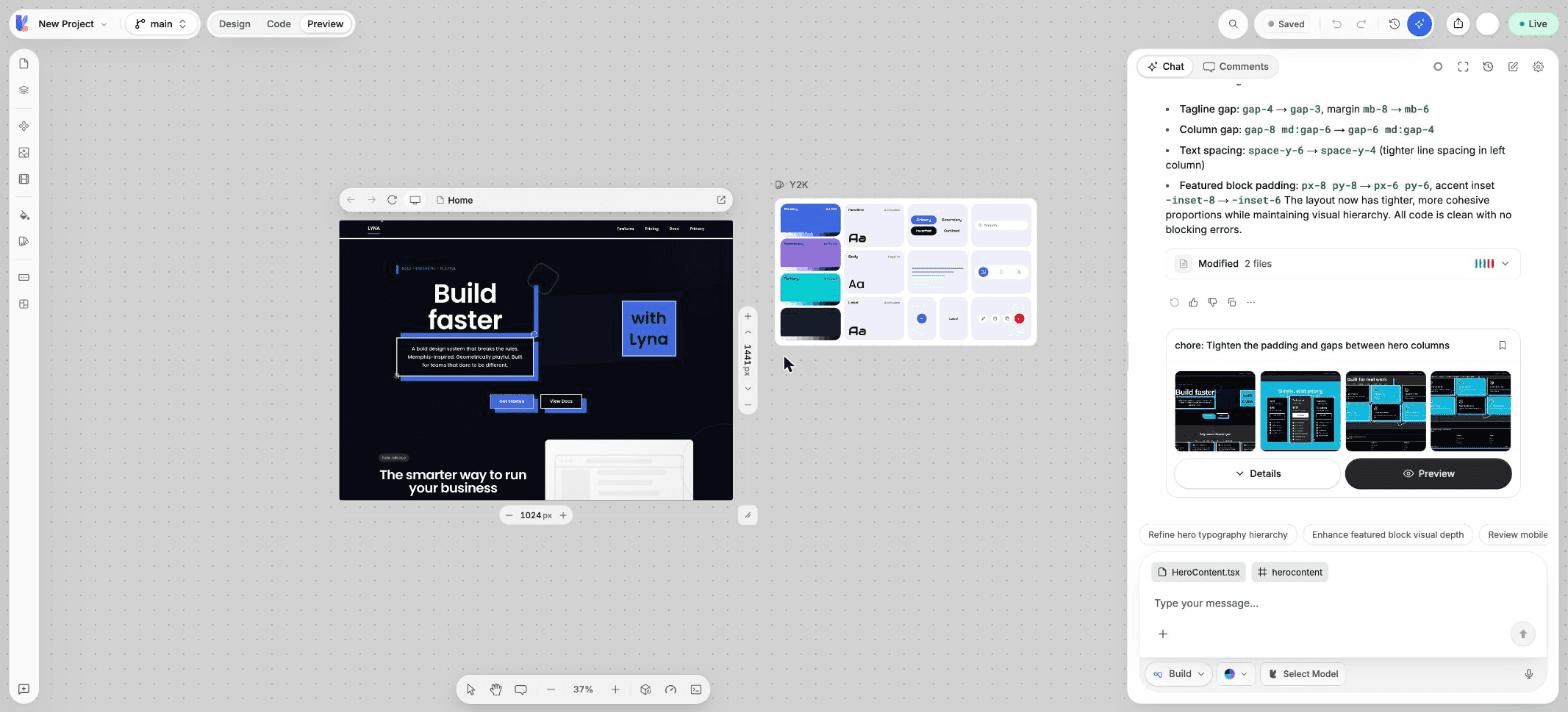
What you can do
- Click links and buttons, open menus and fill forms.
- Navigate between pages inside a frame.
- Check several screen sizes at once, one per frame.
- Watch animations and hover effects run.
- Open the page in a new browser tab.
Switch to Preview
Use any of these:
- Choose Preview in the mode toggle at the top of the editor (Design, Code, Preview).
- Press
P. - Press
Cmd/Ctrl + 3.
To go back to editing, choose Design, press V, or press Esc.
What changes in Preview
- Selection outlines, the element toolbar and the editing overlays are hidden.
- Pointer and keyboard input goes to your app.
- The frames, the canvas zoom and the chat stay where they are, so you can keep talking to the AI.
Test in a real browser tab too
Choose Preview in new tab in the frame bar to open the page in its own browser tab, at full size. The address is your sandbox preview, so it only works while the project is open.
Shortcuts
| Action | Shortcut |
|---|---|
| Preview mode | P or Cmd/Ctrl + 3 |
| Design mode | V or Cmd/Ctrl + 1 |
| Code mode | C or Cmd/Ctrl + 2 |
| Back to Design | Esc |