Wireframe and blueprint
See the structure of a page as a wireframe, and watch a live blueprint of what the AI is building while it works.
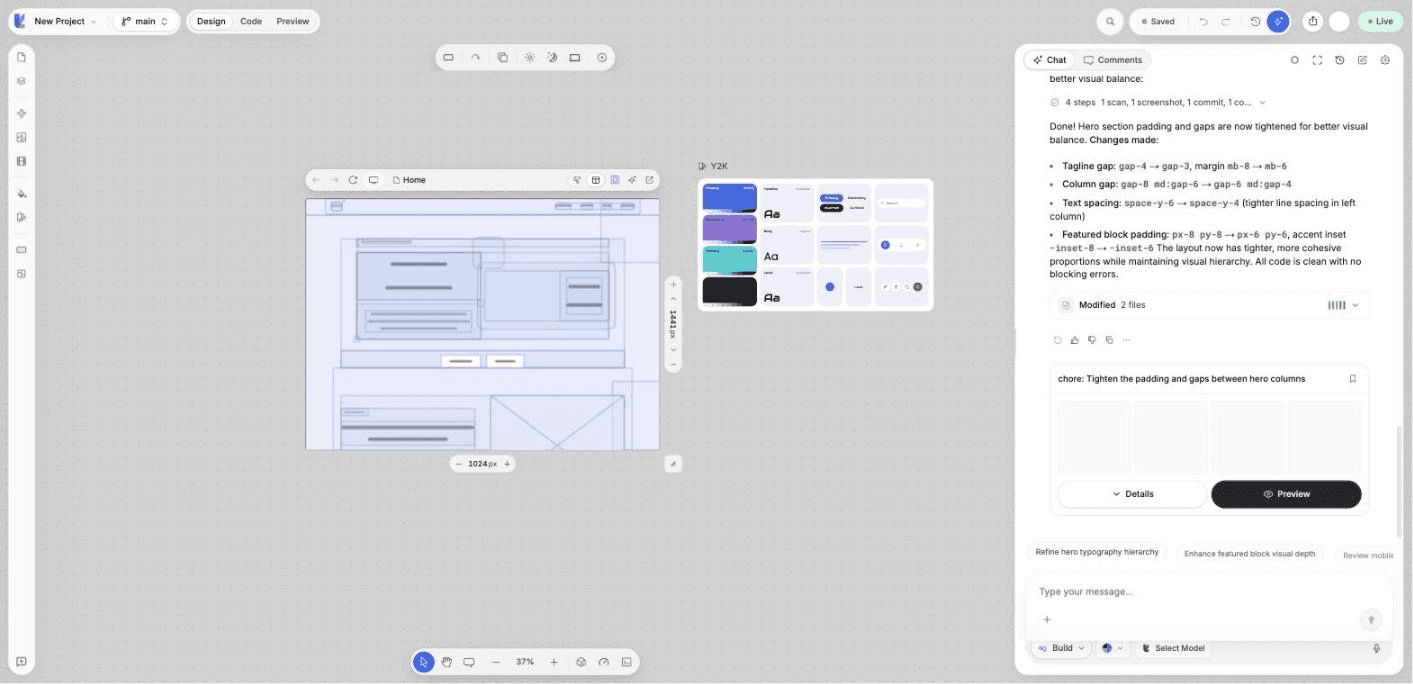
Two views show the structure of a page instead of its final look. The wireframe is a view you turn on for a frame. The blueprint appears on its own while the AI builds or while the project loads.
What you can do
- Switch any frame between Design and Wireframe.
- Read the layout of a page as labeled blocks: navigation, header, hero, sections, footer, headings, text, buttons, images and more.
- Follow what the AI is doing on a page while it builds.
Turn on the wireframe
In the frame bar above a frame, switch View mode from Design to Wireframe. The frame draws the page as blocks, each with its role and name, at the real position and size of each element. Switch back to Design to see the page again.
Each frame keeps its own view, so you can put a design frame and a wireframe frame of the same page side by side.
If the wireframe shows Reload the preview to enable the wireframe, choose Refresh in the frame bar.
The live blueprint
While the AI changes a page, the frame shows a blueprint of the page with a short line about the current step, for example:
- Planning changes
- Reading the project
- Building a named part of the page
- Installing packages
- Checking for errors
- Waiting for your answer
When the turn ends, the real page comes back with the changes.
The same blueprint is shown while the project opens, drawn from the last version of the page when Lyna knows it.
A view, never a change
The wireframe and the blueprint only change what you see. They never change your code.
Next steps
Preview mode
Use your app like a visitor, right on the canvas. Click links, fill forms and test every screen size without the editing tools in the way.
Code editor
Read and edit your project's code in a full editor with tabs, split views, breadcrumbs, language tools, blame and AI actions on any selection.