Layers
See the element tree of every frame, find an element by name or type, hide it, reorder it by dragging and add blocks between rows.
The Layers panel shows the elements of each frame as a tree, in the order they appear in your code. Use it to reach elements that are hard to click on the canvas, like a wrapper or a hidden menu.
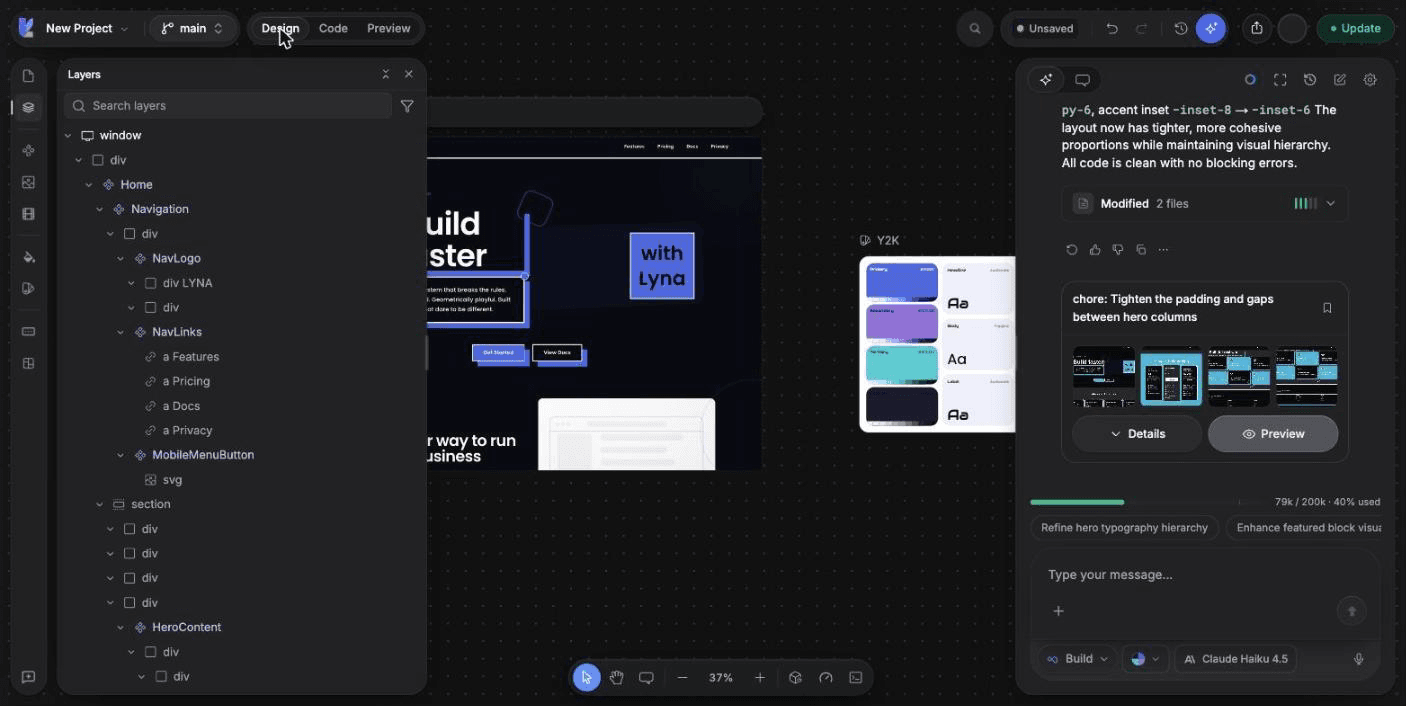
What you can do
- Select any element from its row. The canvas selects it too.
- Search layers by name and filter them by type.
- Hide or show an element.
- Reorder elements by dragging rows.
- Add a block between two rows with the + button.
- Expand or collapse the whole tree at once.
Open the panel
Choose Layers in the rail on the left of the editor. Choose it again, or the close button, to close the panel. Cmd/Ctrl + / shows or hides the whole left panel.
Read the tree
- There is one root row per frame. Under it, each row is an element of the page.
- An element that comes from one of your components shows the component icon.
- Hover a text row to see its text in a tooltip.
- Selecting an element on the canvas scrolls its row into view.
- Choose Expand all or Collapse all in the panel header.
Find a layer
Type in Search layers to find elements by name. Open Filter by type to show only Components, Text, Media, Links and controls or Containers. The panel shows the number of matches. Choose Clear filters to see the whole tree again.
Hide a layer
Hover a row and choose the eye button (Hide layer). The element becomes invisible on the page but keeps its space. Choose the button again (Show layer) to bring it back.
The change is written to your code as a style on the element, so it is also hidden in your published app. To remove an element from the layout instead, right-click it on the canvas and choose Hide Element.
Reorder by dragging
Drag a row
Press a row and drag it up or down. A line shows where the element will land. Drop it on a container row to move the element inside it.
Drop it
Release the row. Lyna moves the element in your code, even when the new parent lives in another file, and carries the imports it needs.
If a drop is not possible, the line turns red with the reason, for example:
- The page frame can't be moved or receive elements
- This element can't contain other elements
- This element isn't in your code yet
- Move one layer at a time
Clear the filters to reorder
Reordering is off while a search or a type filter is active, because hidden rows would make the drop position unclear.
Add a block between rows
Hover the gap between two rows, or an empty container, and choose the + button. The block picker opens and the block lands at that exact spot. See Blocks.
Shortcuts
| Action | Shortcut |
|---|---|
| Show or hide the left panel | Cmd/Ctrl + / |
| Add a row to the selection | Shift + click |
| Move the selected element up / down | Shift + Arrow Up / Shift + Arrow Down |
| Wrap / Unwrap | Cmd/Ctrl + G / Cmd/Ctrl + Shift + G |
| Delete | Delete or Backspace |
FAQ
Next steps
Frames and devices
Show your app at desktop, laptop, tablet and phone sizes side by side, resize a frame, rotate it and preview it in light or dark.
Styles
Edit every visual property of the selected element, from size and layout to typography, effects and animations. Changes are saved as Tailwind CSS classes.