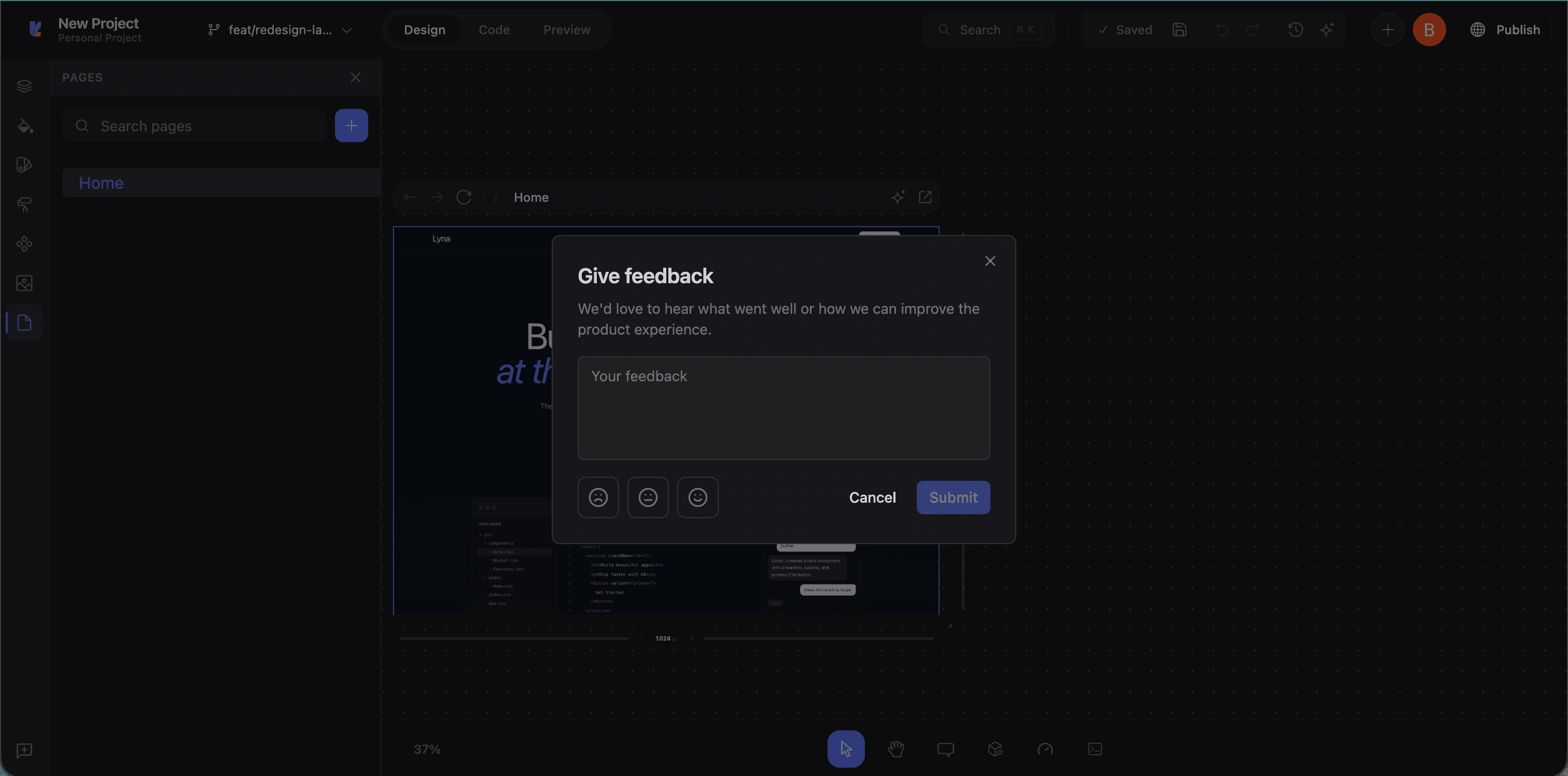
Visual Editor
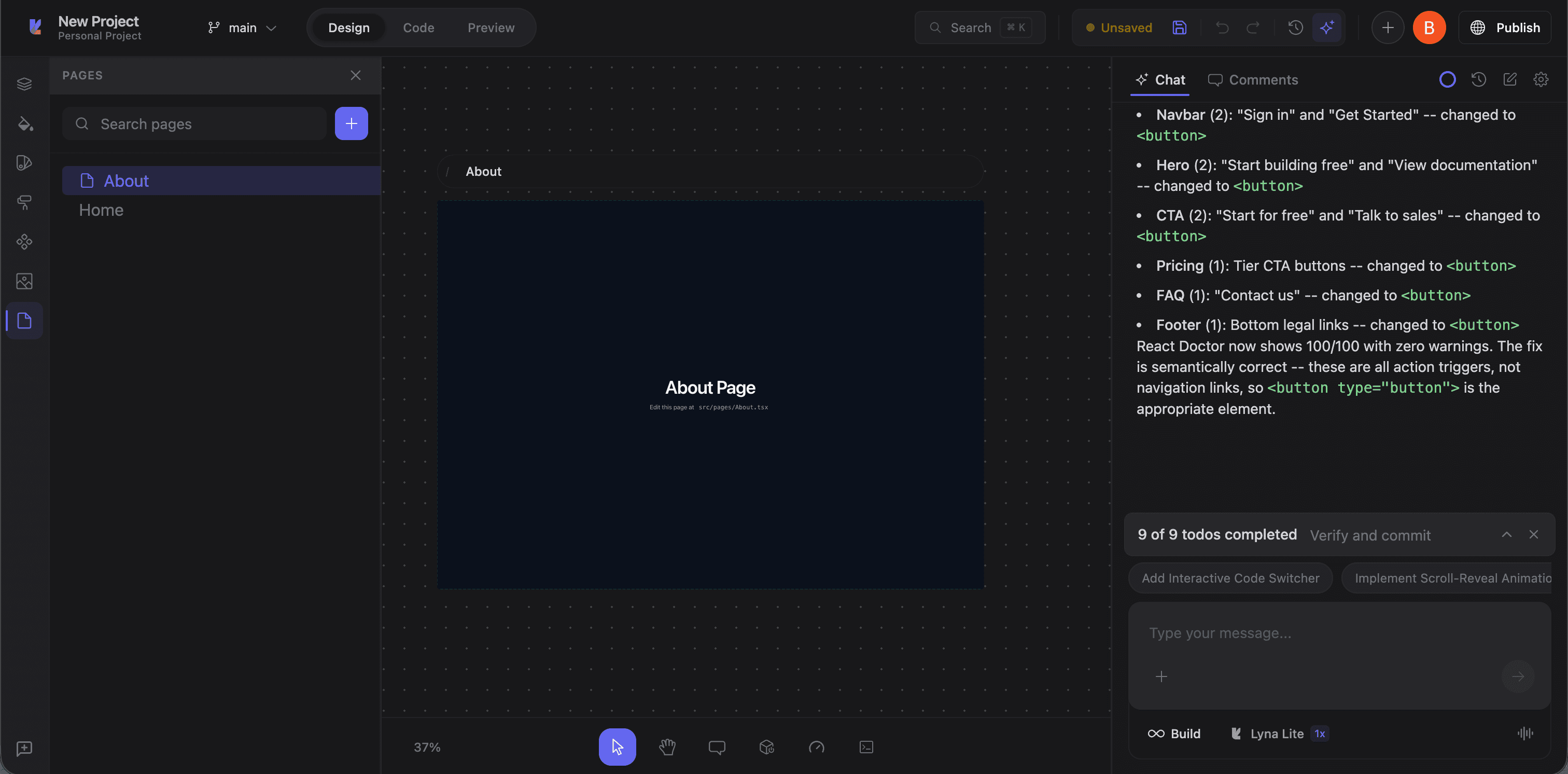
The visual editor is a browser-based workspace for building web apps by combining visual manipulation, code editing, and AI. Five modes: three primary (Design, Code, Preview) and two interaction modes (Pan, Comment): stay synchronized. Changes in one are reflected in the others immediately.
Editor modes
The top bar mode toggle switches between the three primary views. Two additional modes activate through shortcuts.
Design mode
The default. Your app renders in live iframe frames on the canvas. Click to select elements, drag to reposition, resize frames, modify styles through panels. Most visual editing happens here.
Keyboard shortcut: D
Code mode
A full Monaco editor with file tree, syntax highlighting, TypeScript IntelliSense, and git branch graph. Edit files, review diffs, manage source code. See Code Editor.
Keyboard shortcut: C
Preview mode
A clean view of your app without overlays, handles, or panels. Click buttons, fill forms, navigate pages: test it as a user would.
Keyboard shortcut: V
Pan mode
For navigating the canvas freely. Hold Space and drag, or middle-click drag. Element selection is disabled so you can move around without accidentally selecting things.
Comment mode
Place comments directly on the canvas. Click any position on a frame to add a marker. Comments appear as overlay markers and can be viewed in the right panel.
All five modes share the same live sandbox. Edit a style in Design, the code updates. Edit code in Code, the canvas refreshes. The AI chat is available in all modes.
Focus mode
Hides all panels (left, right, bottom) and shows only the canvas. A distraction-free view for reviewing layouts. Toggle from the top bar.
Workspace layout
Top bar
Mode toggle, project breadcrumb, branch selector, save status, and publish controls.
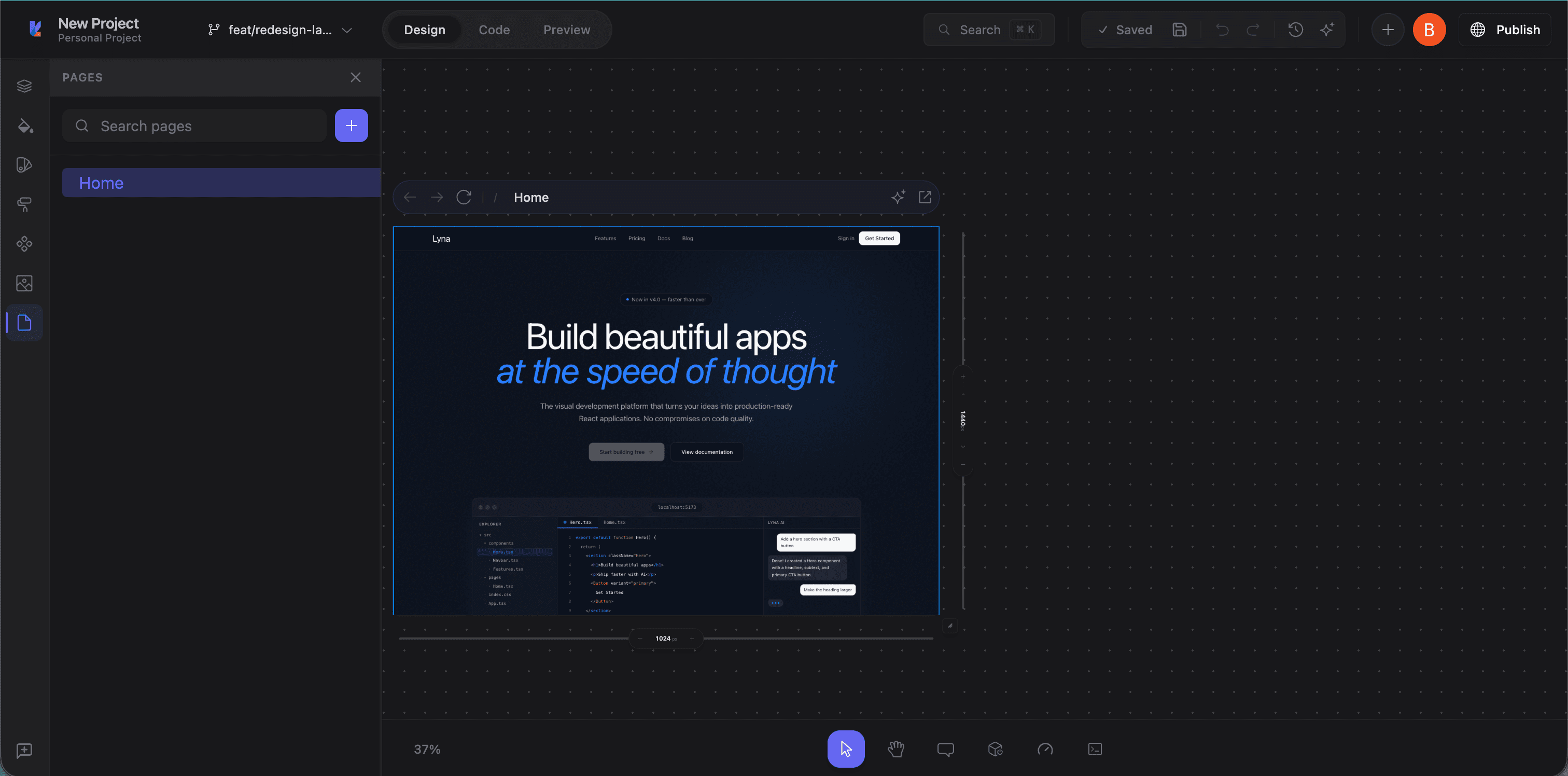
Left panel (Design mode)
Seven tabs:
- Layers: DOM tree with drag-and-drop reordering
- Styles: CSS property editing
- Brand: Theme presets, colors, typography, border radius
- Design Prompts: Curated style prompts for the AI
- Components: shadcn/ui browser and installer
- Images: Asset management, upload, AI generation
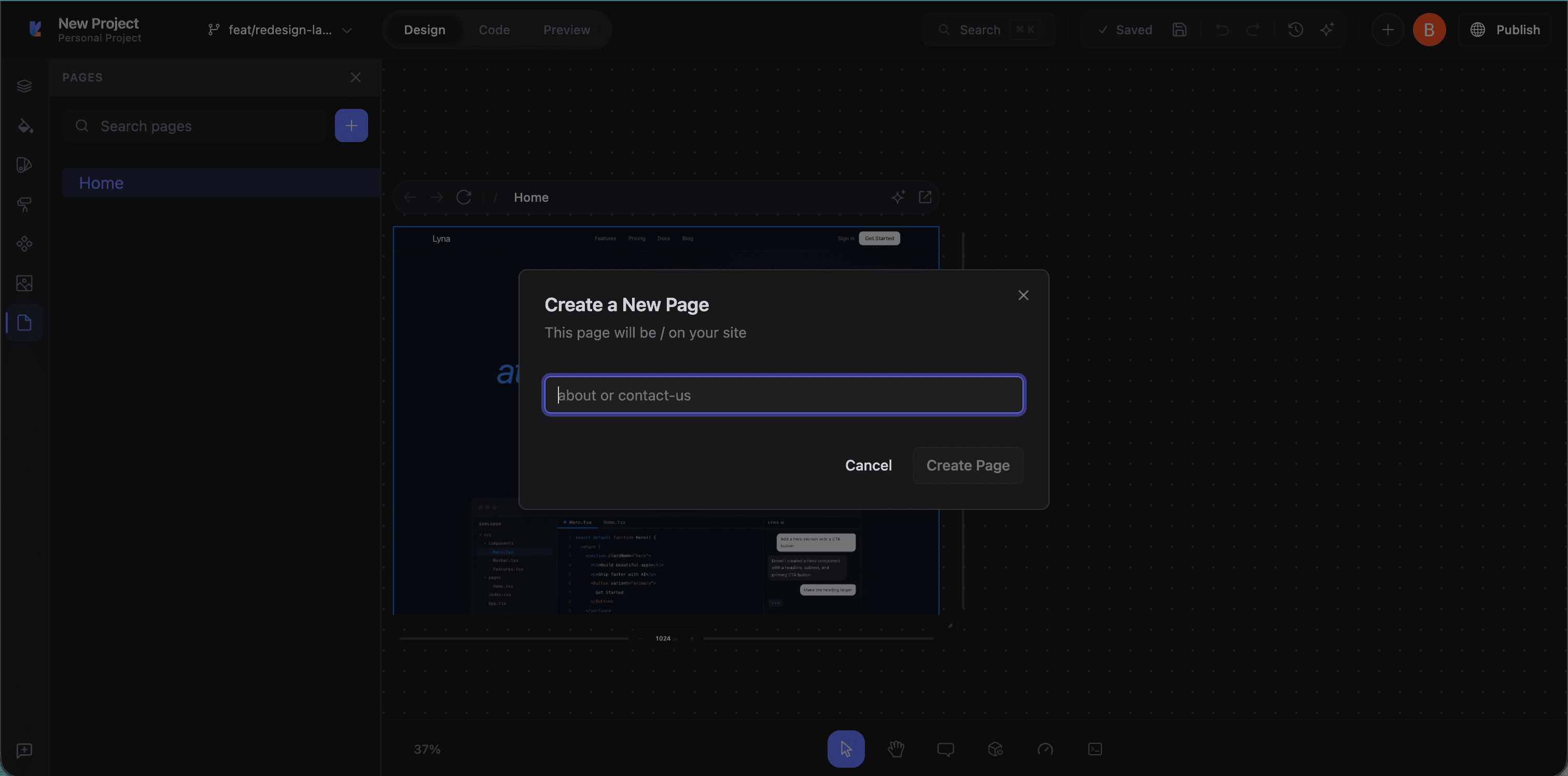
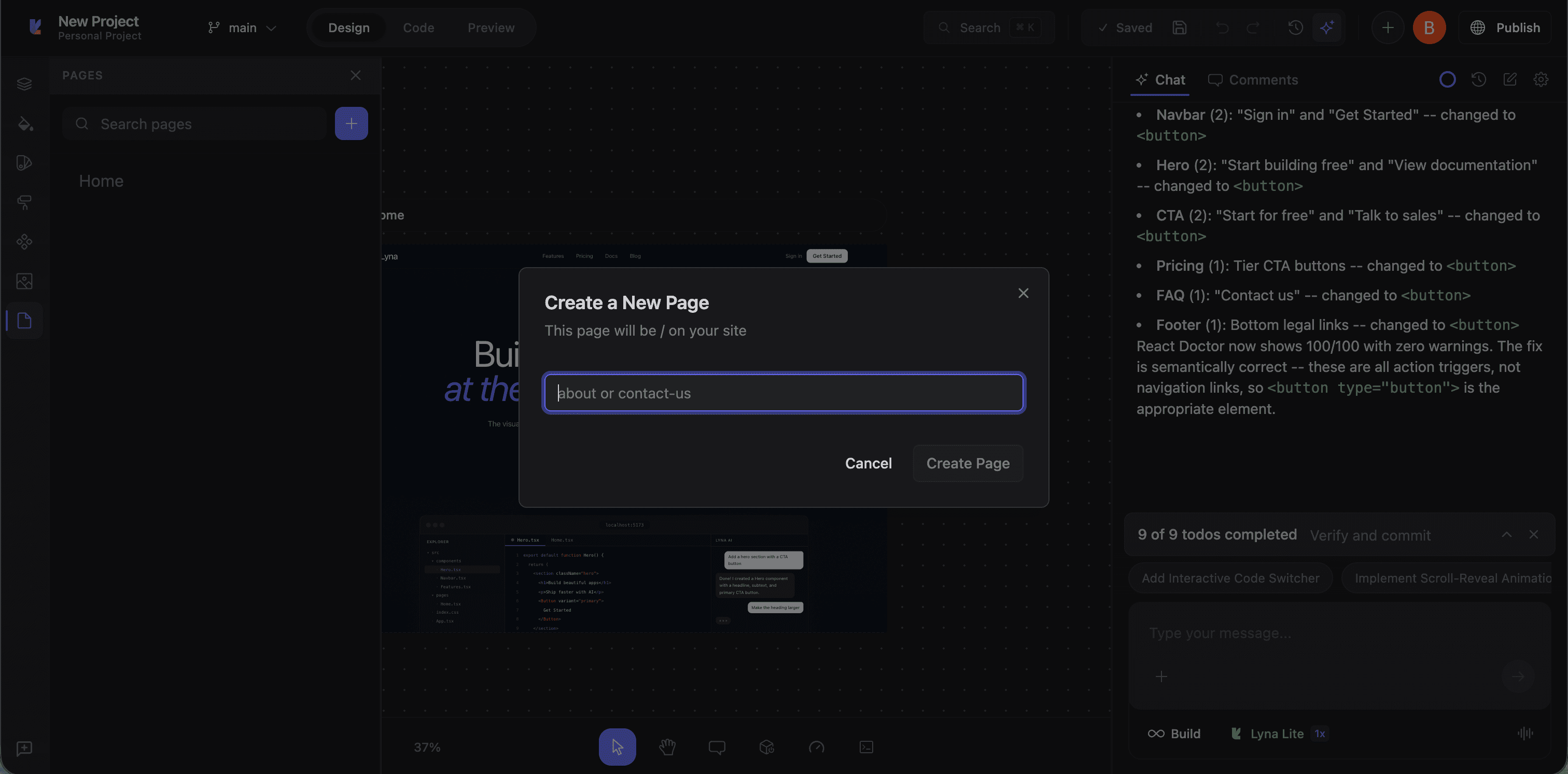
- Pages: Route and page management
Left panel (Code mode)
Seven activities: Files, Search, Git, GitHub, Packages, Environment, Settings. See Code Editor.
Canvas (Design mode)
Your app in live iframe frames. See Canvas.
Right panel
AI chat tab and comment panel. Chat is available in all modes with Build, Ask, and Plan.
Bottom panels
Terminal: xterm.js-based with multiple tabs. Open sessions, restart the dev server, send output to the AI.
DevTools: Browser-like developer tools with eight tabs:
| Tab | Description |
|---|---|
| Console | JavaScript console output and errors |
| Network | HTTP request monitoring |
| Performance | Metrics and profiling |
| Elements | DOM tree inspector |
| Lighthouse | Automated auditing |
| Cookies | Cookie management |
| Monitoring | Real-time app monitoring |
| Doctor | Diagnostic tool for common issues |
Selection and editing
In Design mode, click any element to select it:
- Selection border: Colored outline around the element
- Resize handles: Drag handles on corners and edges
- Editor bar: Contextual toolbar with quick actions based on element type
The editor bar adapts to what's selected:
- Div/container: Display, flex direction, gap, padding, margin, width, height, background, border, radius, opacity
- Text: Font family, size, weight, color, alignment, line height, letter spacing
- Image: Source, alt text, object fit, background
- Frame: Device selector, rotate, theme toggle, window actions
Command palette
Cmd+K (Mac) or Ctrl+K (Windows/Linux) opens a searchable command palette for quick access to editor actions, mode switches, and workspace operations.
Design Prompts
The Design Prompts tab in the left panel has curated AI design system prompts. Pre-written prompts that guide the AI toward specific styles, typography, and visual approaches. Filter by mode and font type.
Keyboard shortcuts
| Action | Shortcut |
|---|---|
| Design mode | D |
| Code mode | C |
| Preview mode | V |
| Pan mode | Space + drag |
| Focus mode | Toggle from top bar |
| Zoom in | Ctrl+= / Cmd+= |
| Zoom out | Ctrl+- / Cmd+- |
| Zoom to fit | Ctrl+0 / Cmd+0 |
| Command palette | Cmd+K / Ctrl+K |
| Escape | Deselect / exit text editing |
| Delete | Delete selected element |
| Copy | Ctrl+C / Cmd+C |
| Paste | Ctrl+V / Cmd+V |
| Undo | Ctrl+Z / Cmd+Z |
| Redo | Ctrl+Shift+Z / Cmd+Shift+Z |
Tips
- Design mode for layout and styling: Fastest way to adjust spacing, colors, typography, and responsive behavior.
- Code mode for logic: Data fetching, event handlers, state management, and complex components belong in the editor.
- Preview mode for testing: Always check your work as users will see it.
- Let AI bridge the gap: Can describe a visual change but don't know the CSS? Tell the AI. See unfamiliar code? Switch to Ask Mode.