Code Editor
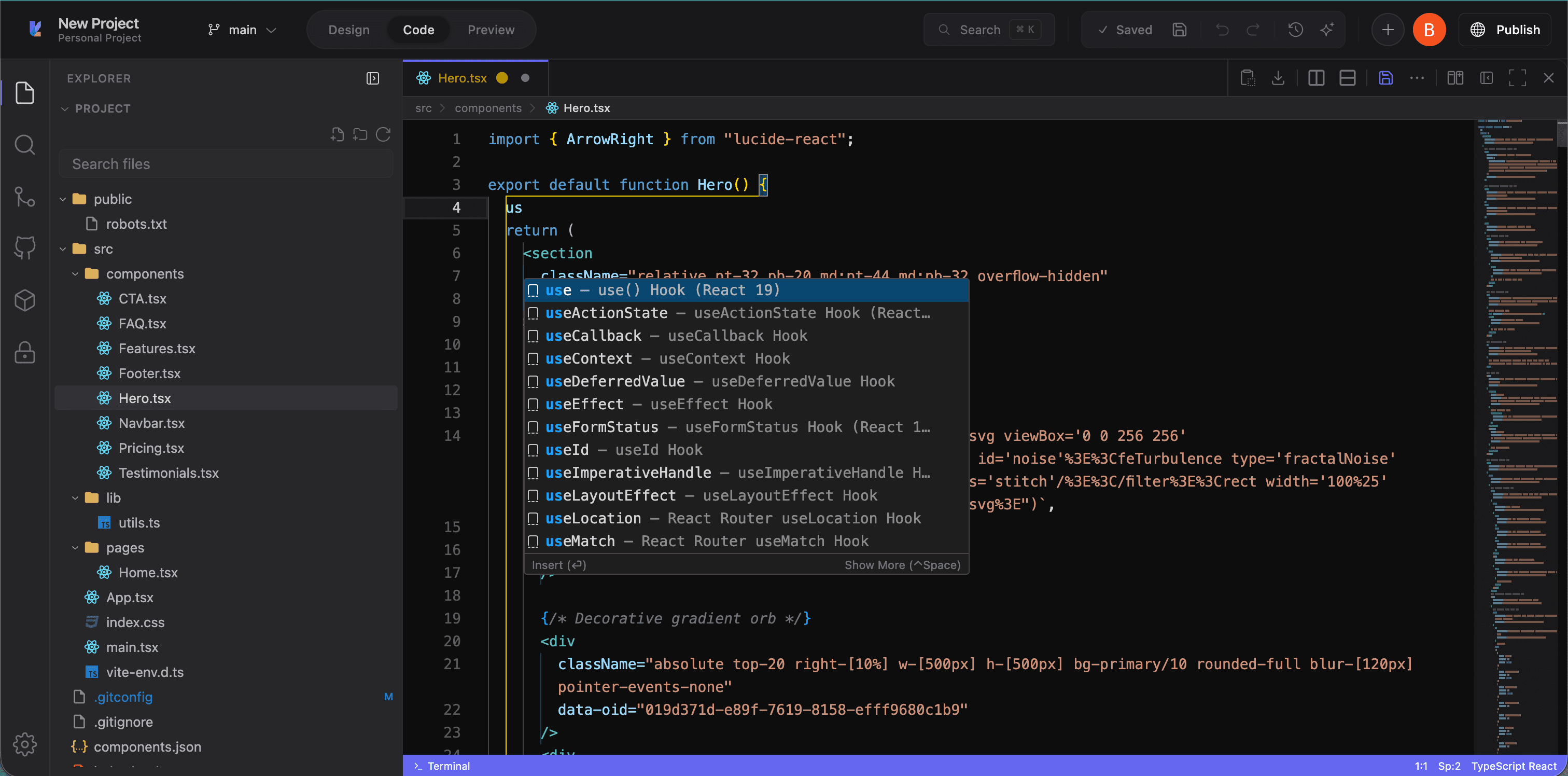
Lyna includes a Monaco-based code editor (the same engine behind VS Code). Browse files, make edits, review diffs, and manage git branches without leaving the platform.
Accessing the code editor
Click the Code tab in the top bar, or use the keyboard shortcut. The canvas is replaced with a traditional IDE layout.
Layout
Activity bar
A vertical icon strip on the far left with seven views:
- Files: Full file tree with folders, icons, and context menus
- Search: Search across all project files
- Git: Source control with staged/unstaged changes, commits, and a visual branch graph
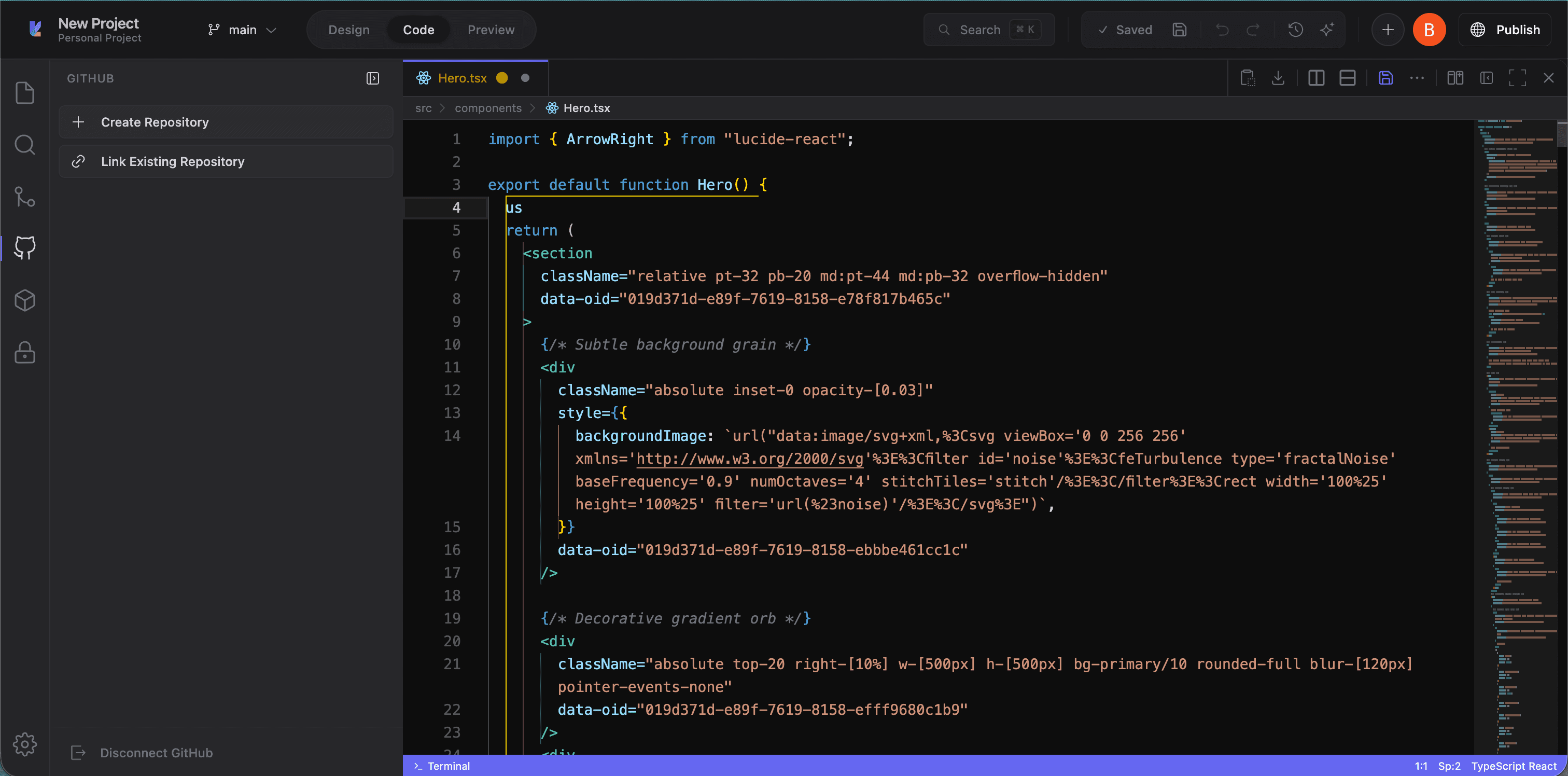
- GitHub: Syncing, pull requests, and issues
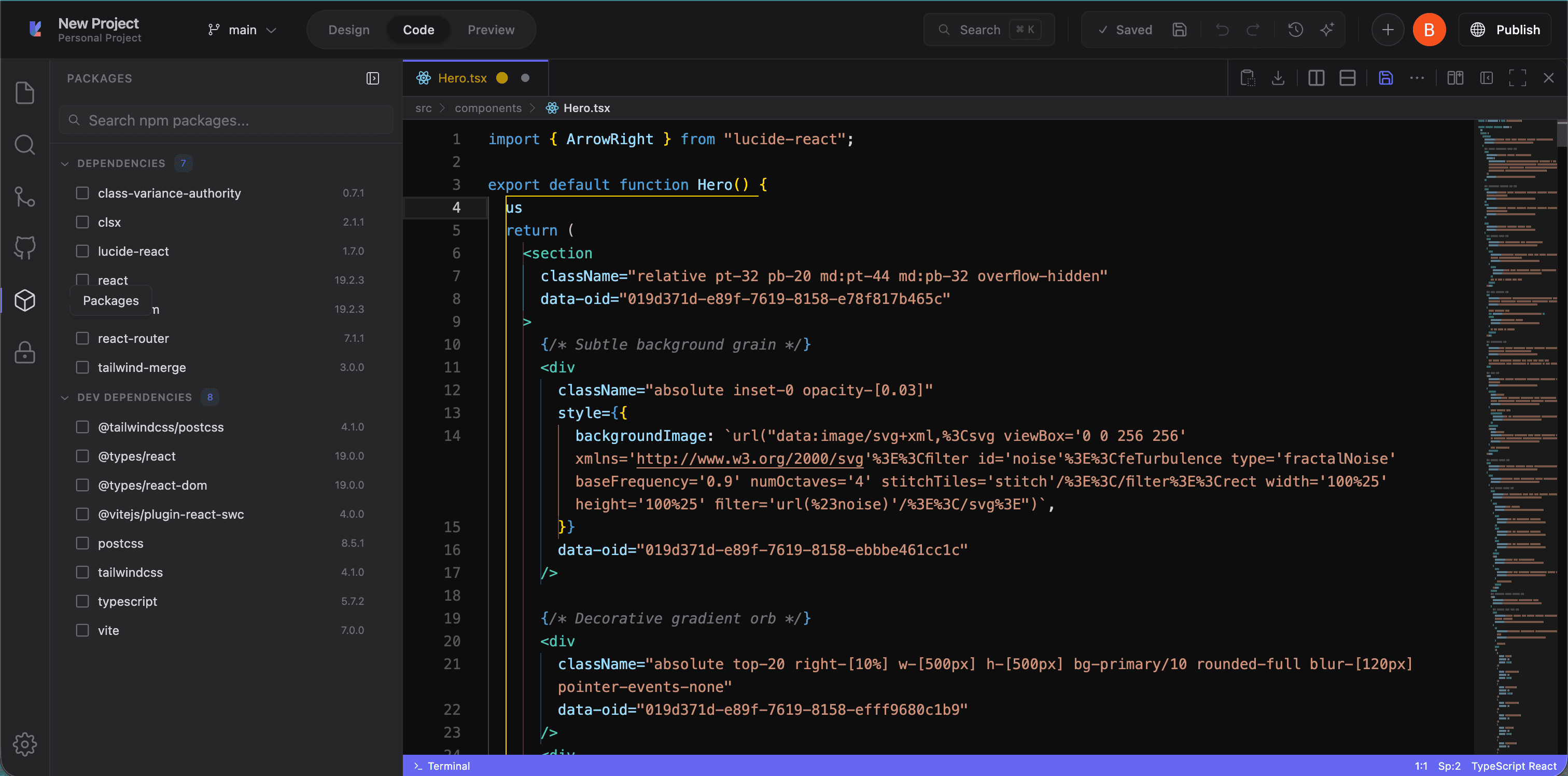
- Packages: View and manage installed npm packages
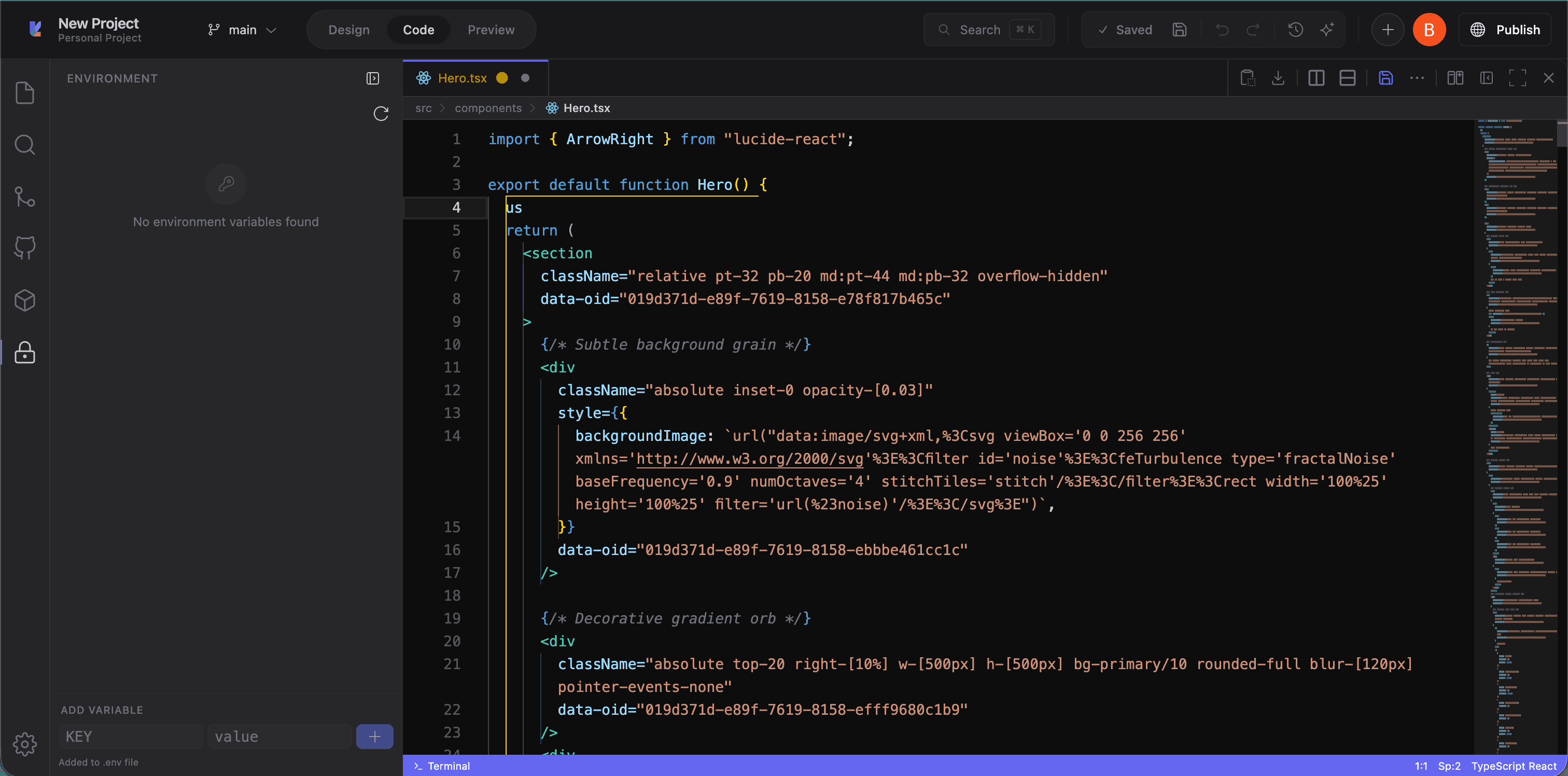
- Environment: Configure sandbox environment variables
- Settings: Editor preferences (font size, tab size, word wrap, minimap, line numbers)
Sidebar
Shows content for the selected activity. In Explorer mode, this is the file tree with folder expansion and context menus.
GitHub
Packages
Environment
Editor area
Supports multiple open files as tabs:
- Syntax highlighting for TypeScript, JavaScript, CSS, HTML, JSON, and Markdown
- TypeScript IntelliSense with auto-completions, hover info, and error diagnostics
- Multi-tab editing with a soft limit that auto-closes older tabs
- Format on open: Files are formatted when opened
- Binary file preview: Images and other binary assets show a preview instead of raw data
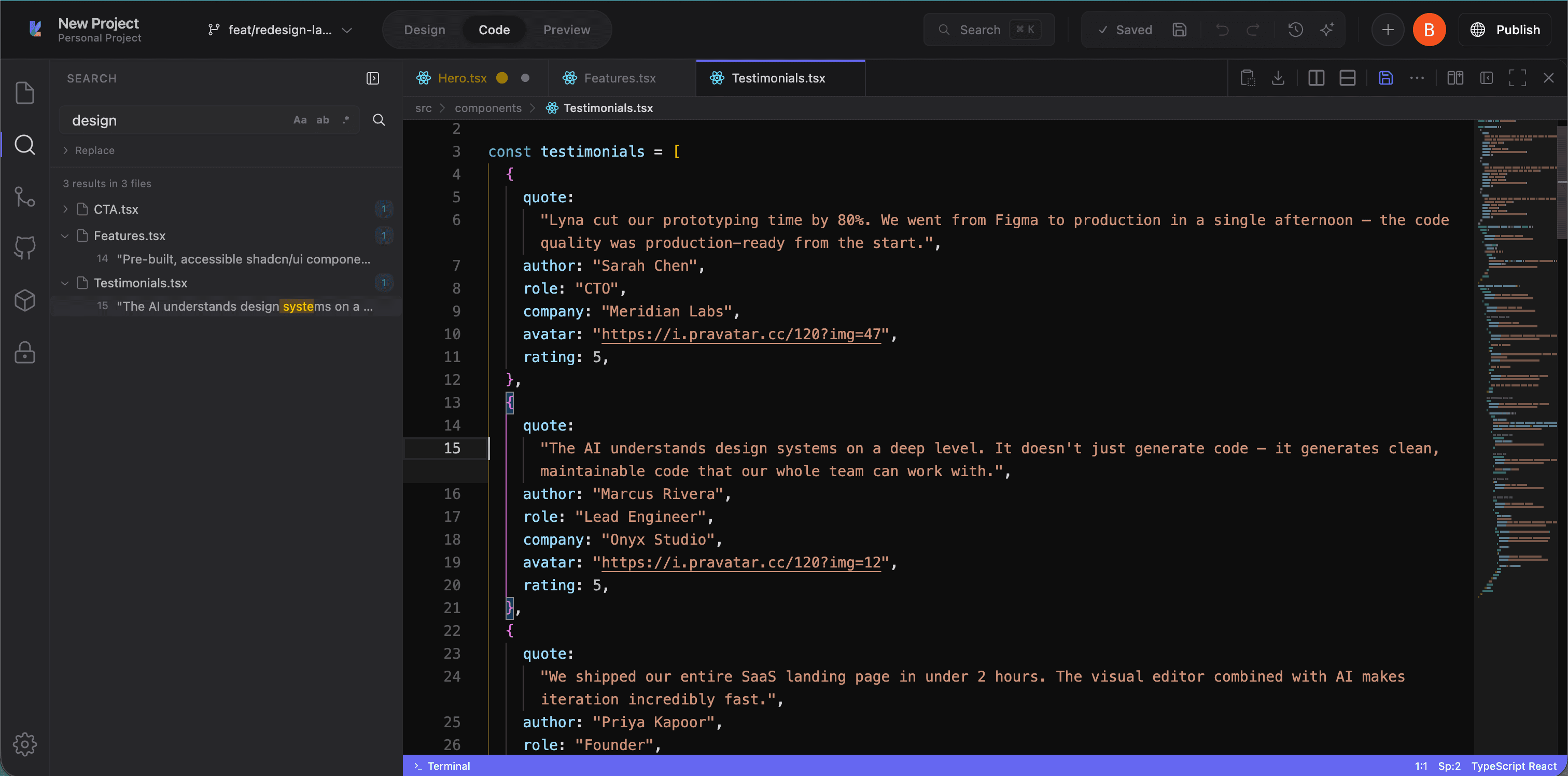
Search
Find and replace across all project files. Results are grouped by file with match previews.
Git branch graph
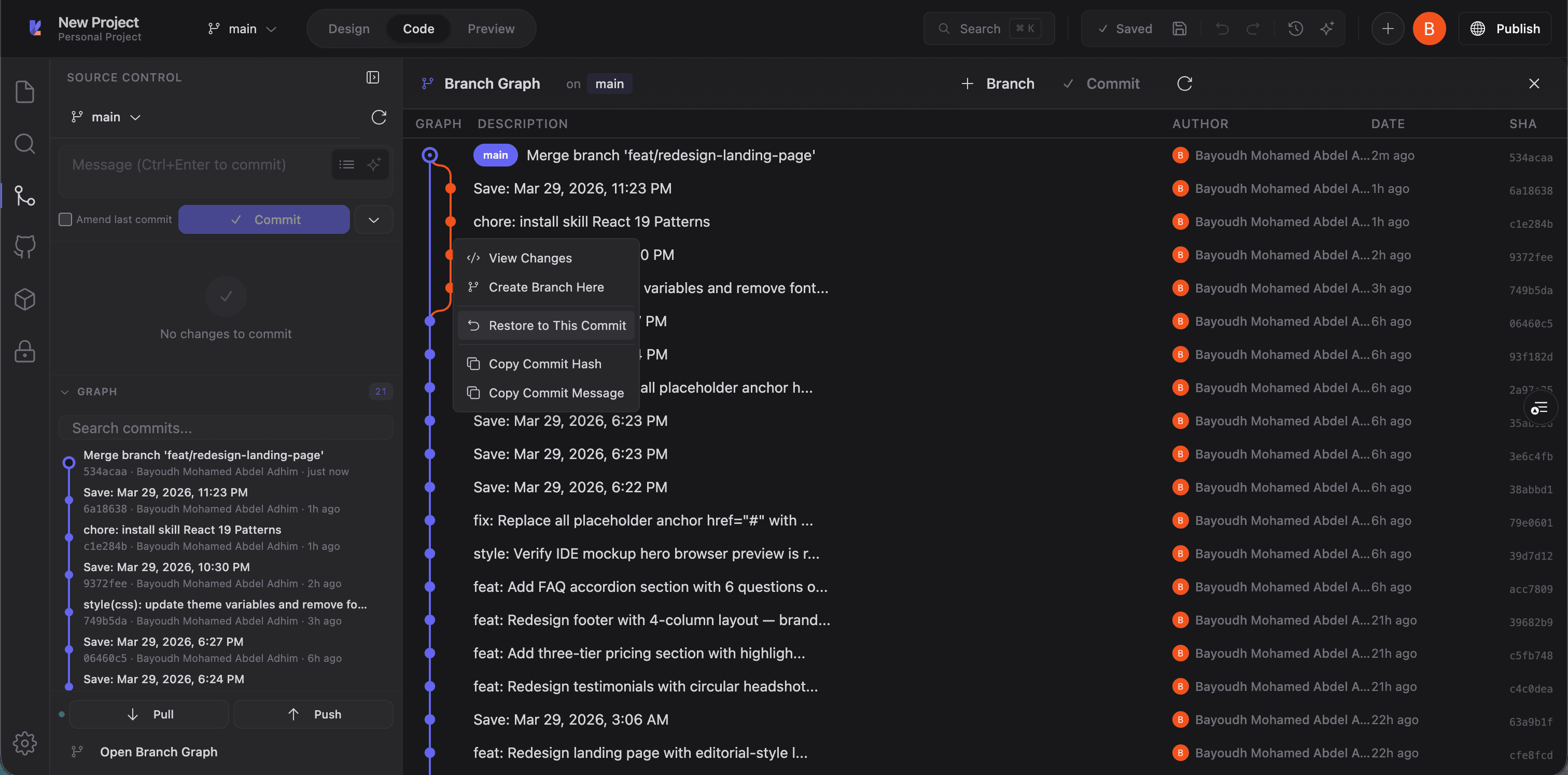
A visual commit history for the current branch showing messages, authors, timestamps, and branch relationships. Accessible from the Git activity in the sidebar.
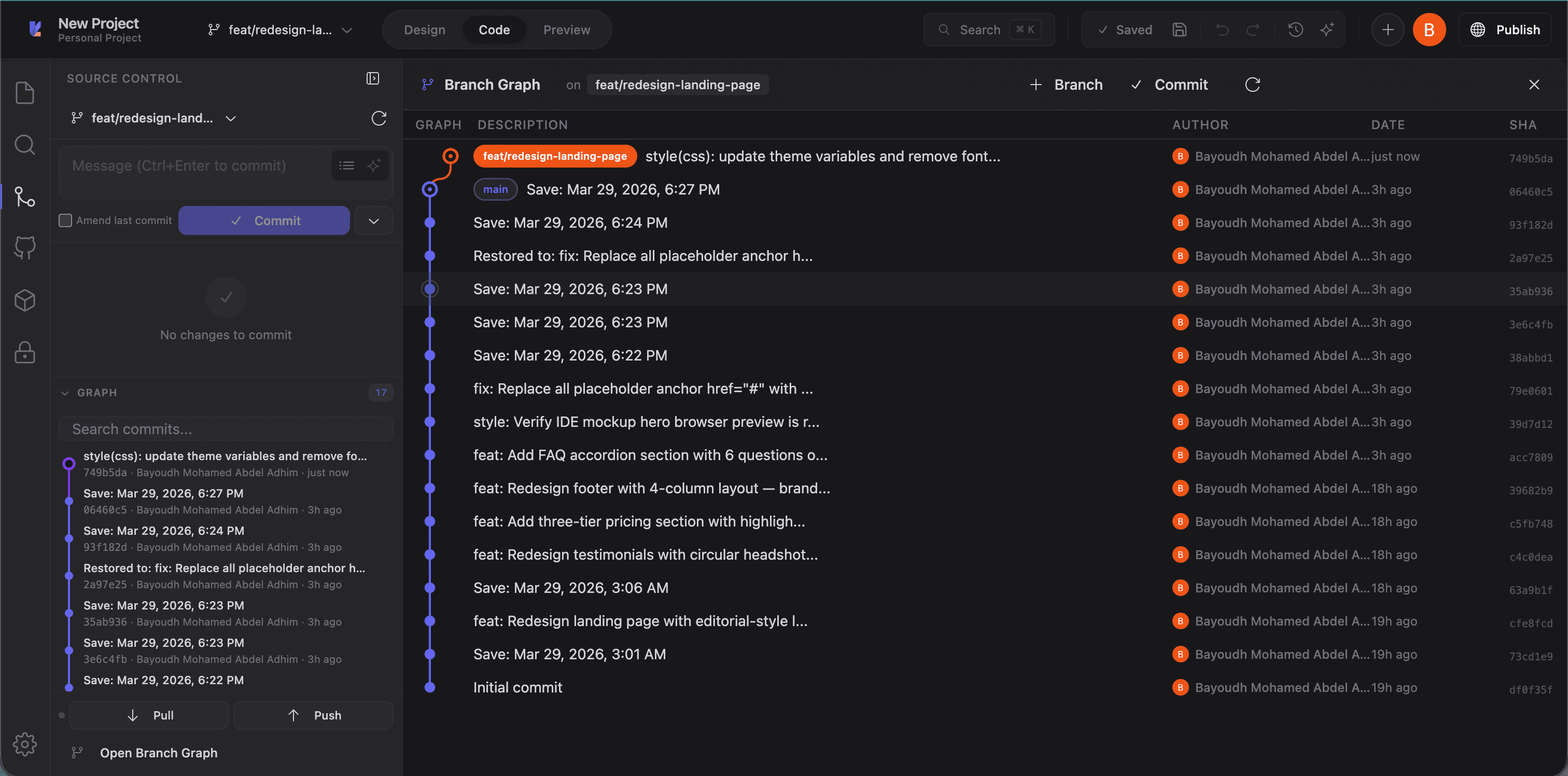
The branch graph displays commit history with graph lines, commit descriptions, authors, dates, and SHA hashes:
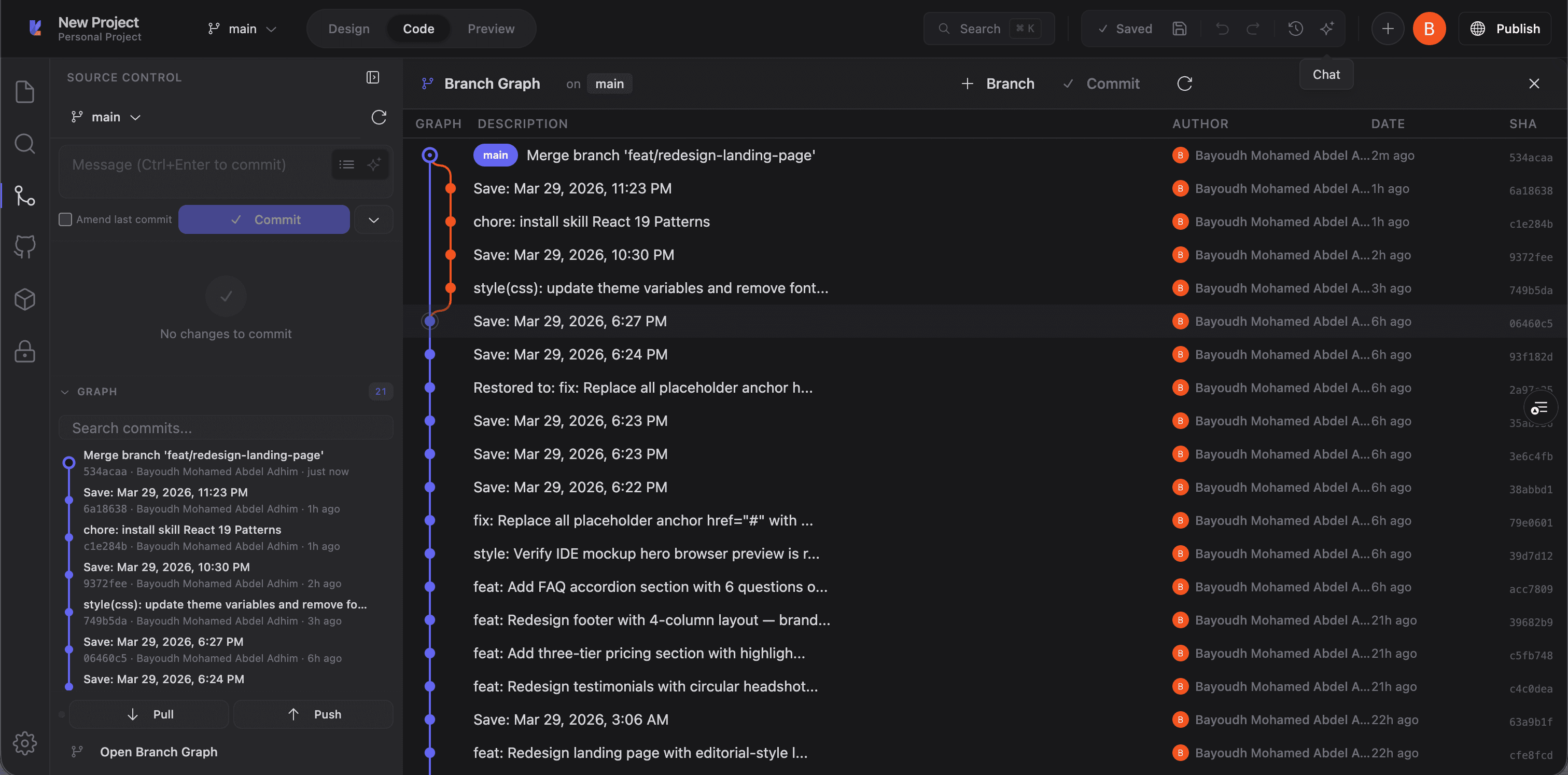
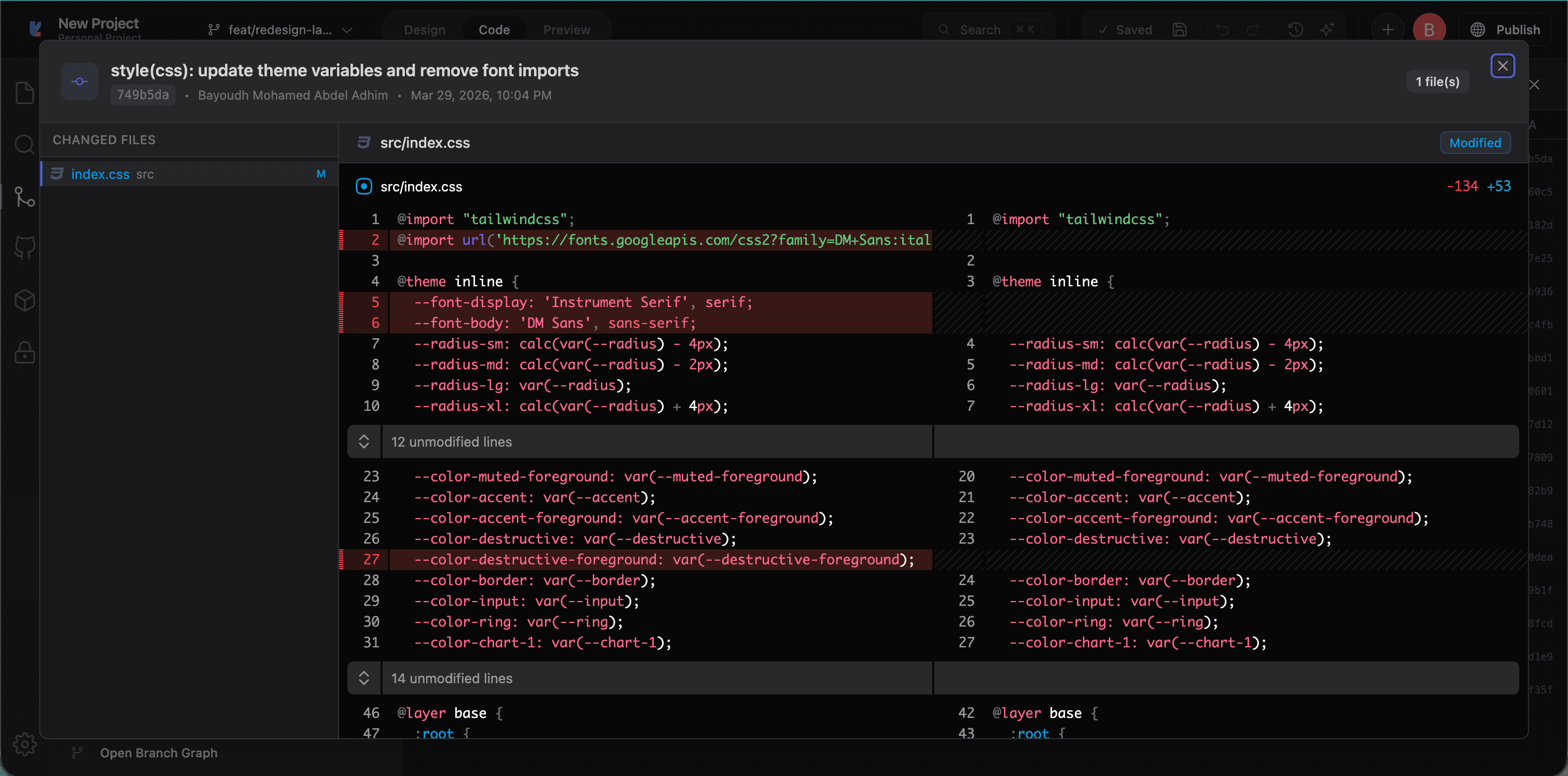
Click any commit to view its details, including author name, date, merge description, and files changed:
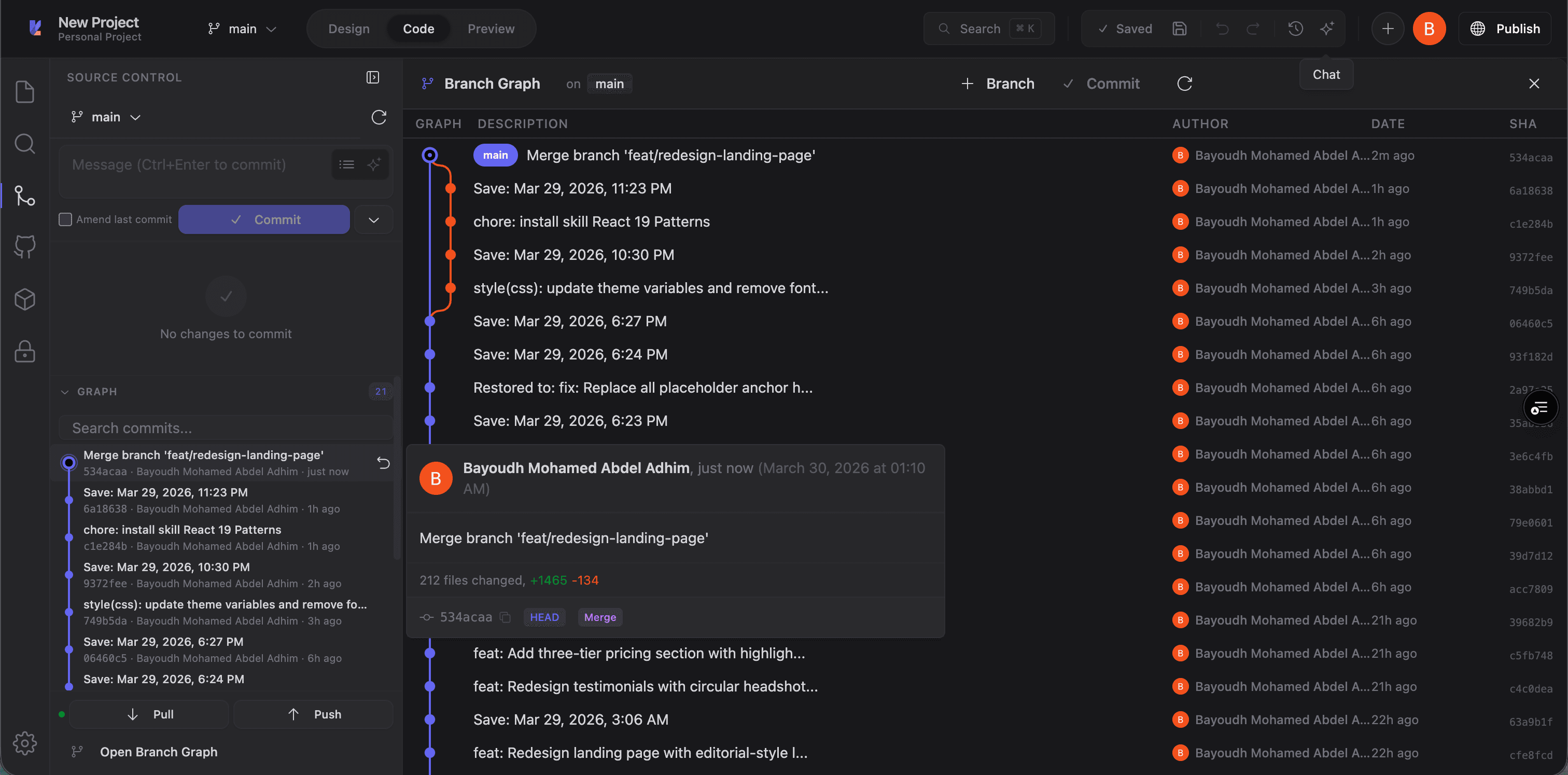
Right-click a commit to access quick actions like viewing changes, creating a branch, restoring, or copying commit info:
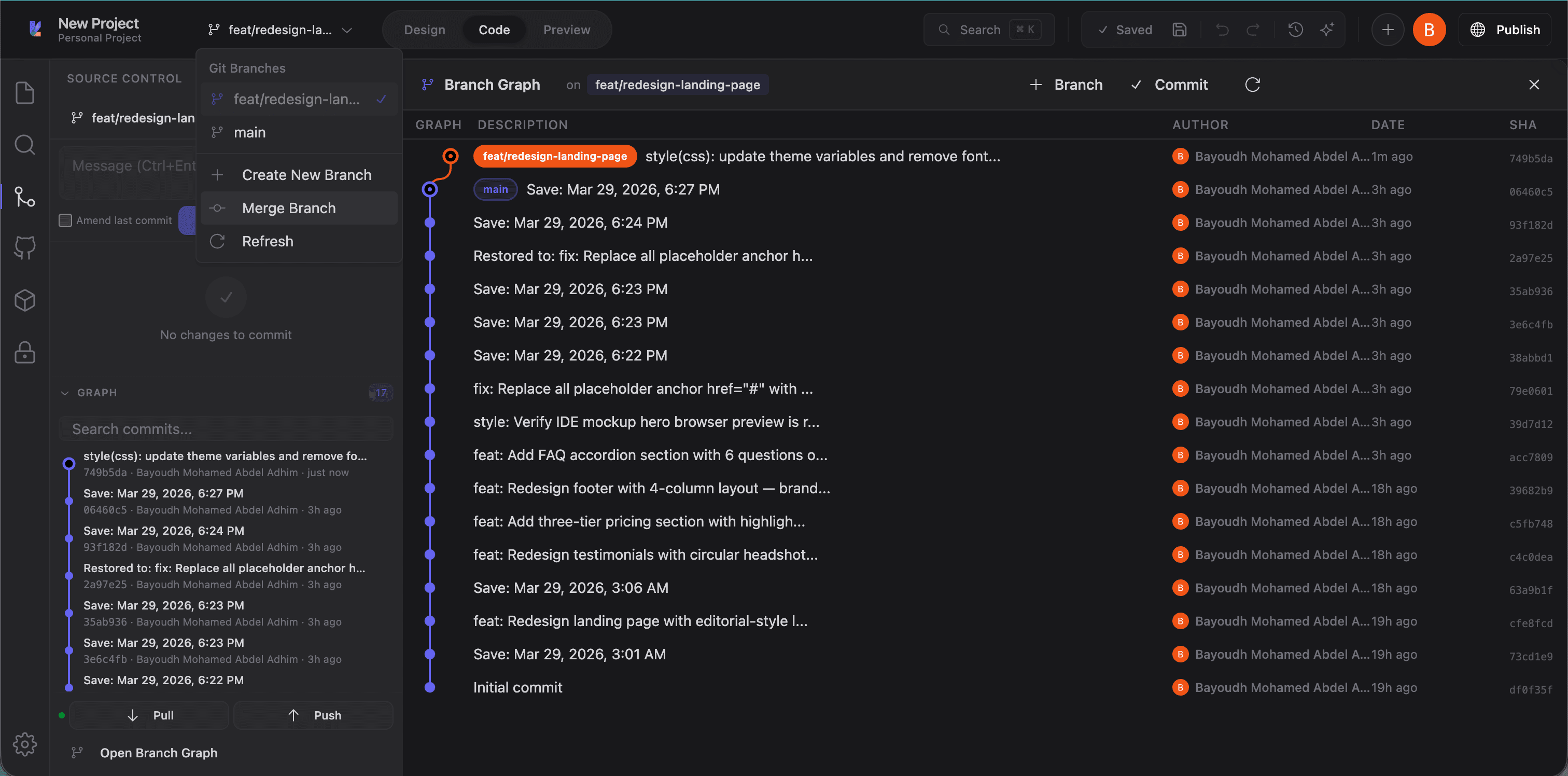
Branch management with create, merge, and switch operations:
Inline diffs
When the AI changes a file, the inline diff viewer shows exactly what was modified. Additions are highlighted in green, deletions in red. Powered by Pierre Diff, it supports side-by-side and unified views.
Add to Chat
See code you want to discuss or change? Use Add to Chat to attach a file or selection to your next AI message. This gives the AI precise context about what you're referring to.
File operations
From the file tree:
- Create files and folders via right-click
- Rename and delete from the context menu
- Navigate by path using the search activity
Editor settings
Configure your editing experience in the Settings panel:
- Font size: Adjust code font size
- Tab size: 2 or 4 spaces
- Word wrap: Toggle line wrapping
- Minimap: Show or hide the code minimap
- Line numbers: Toggle line number display
Keyboard shortcuts
Standard Monaco shortcuts:
| Action | Shortcut |
|---|---|
| Save file | Ctrl+S / Cmd+S |
| Find in file | Ctrl+F / Cmd+F |
| Find and replace | Ctrl+H / Cmd+H |
| Go to line | Ctrl+G / Cmd+G |
| Command palette | Ctrl+Shift+P / Cmd+Shift+P |
| Toggle comment | Ctrl+/ / Cmd+/ |
Code and canvas sync
Changes in the code editor sync to the sandbox in real time. The dev server picks up modifications via HMR, so when you switch back to Design mode, the canvas already reflects your edits.
When the AI makes changes through Build Mode, the code editor updates automatically if you have the file open. You'll see an indicator when a file has been modified externally.
Tips
- Use Code mode for precision: Layout and styling work well in the visual editor, but logic, data fetching, and complex components are best handled here.
- Review AI diffs: After each build, switch to Code mode to see exactly what changed.
- Keep files organized: Group related components in folders and follow Next.js App Router conventions for pages and layouts.