Build
Slash Commands
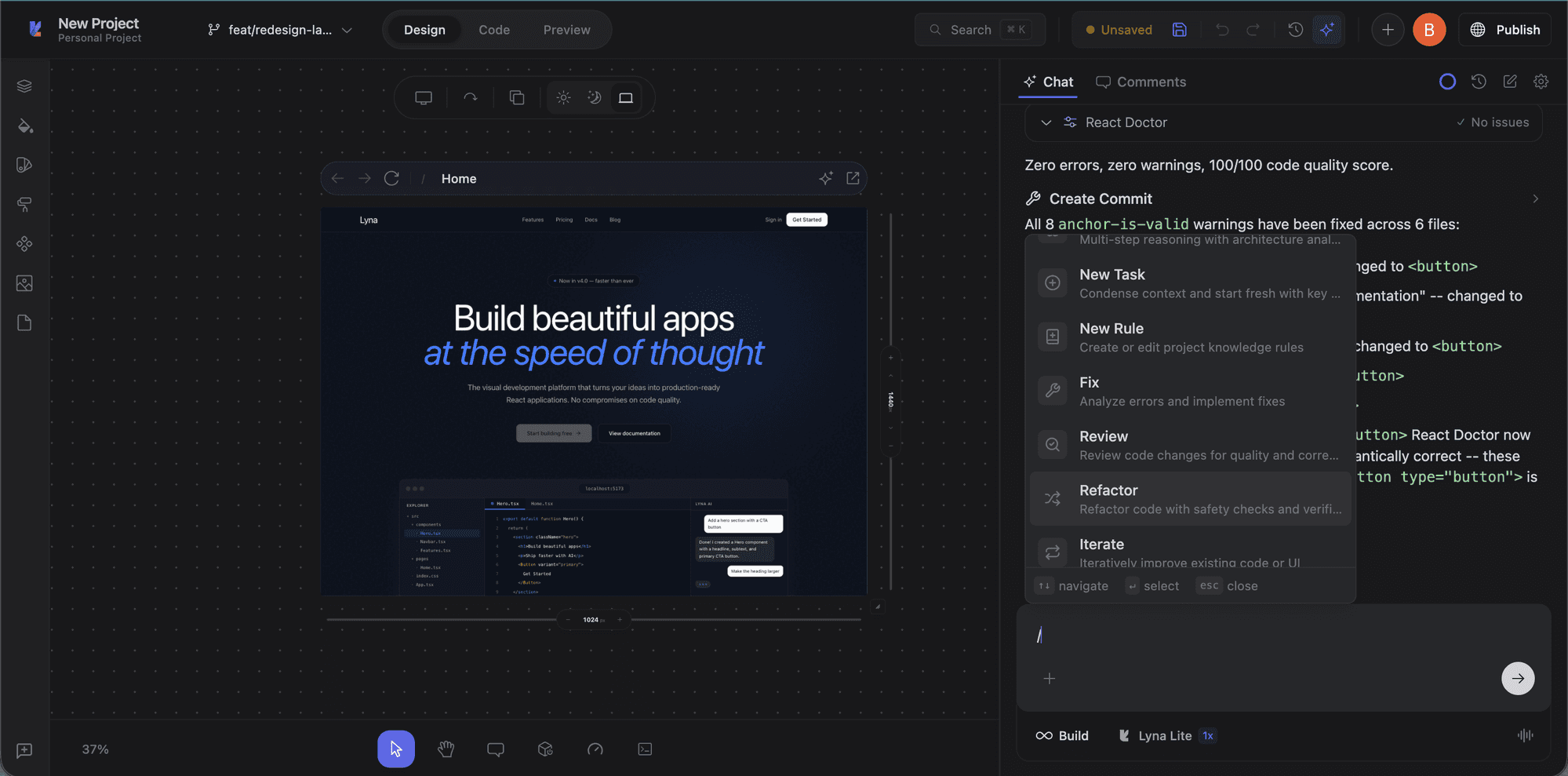
Type / in the chat input to open the command menu. Slash commands give you quick access to AI actions, mode switches, and specialized workflows.
How to use slash commands
- Type
/at the beginning of your message - A dropdown appears with all available commands
- Arrow keys or continue typing to filter
- Press Enter to select
- Some commands accept additional input after selection
AI slash commands (11 total)
These are the core commands from the @lyna/ai package. They inject specialized instructions into the AI's context.
Mode commands
| Command | Shortcut | Description |
|---|---|---|
/ask | Ctrl+Shift+A | Switch to Ask Mode: answers without code changes |
/build | Ctrl+Shift+B | Switch to Build Mode: implement code changes |
/plan | Ctrl+Shift+P | Switch to Plan Mode: outline approach before implementing |
See Plan Mode, Build Mode, and Ask Mode for details.
Workflow commands
| Command | Description |
|---|---|
/deep-planning | Multi-step reasoning with architecture analysis for complex, multi-domain tasks. |
/newtask | Condense context and start fresh with a summary of the current conversation. |
/newrule | Create or edit project rules in .lyna_ai/rules.md. |
/fix | Analyze errors and implement the minimal fix. |
/review | Code review mode. Analyzes uncommitted changes, a commit, branch, or PR for bugs, security, and behavior changes. |
/refactor | Structured refactoring with safety checks. Preserves behavior while restructuring. |
/iterate | Iteratively improve existing code or UI with focused enhancements. |
Context commands
| Command | Description |
|---|---|
/explain-changes | Analyze the current git diff and summarize intent, impact, affected areas, and potential issues. |
Built-in action commands
These trigger immediate UI actions and aren't part of the AI slash command system:
| Command | Description |
|---|---|
/clear | Start a new conversation, clearing all context. |
/compact | Summarize the conversation to save tokens. Useful for long sessions. |
/screenshot | Capture the current preview and add it to chat as visual context. |
/knowledge | Open the Knowledge modal. See Knowledge. |
/rules | Open the project AI rules file for editing. |
/figma | Import designs from Figma. See Figma Import. |
Submenu commands
These open interactive submenus within the dropdown:
| Command | Description |
|---|---|
/skills | Browse and toggle installed AI skills. |
/mcp | View and toggle connected MCP servers. See MCP Servers. |
/hooks | View and toggle AI hooks. |
Each submenu lets you manage its feature without leaving the chat. Press Escape or the back button to return to the main list.
Tips
- Use mode shortcuts:
Ctrl+Shift+A/B/Pto switch modes without opening the menu. - Combine with context: Select an element on the canvas, then type
/fixto diagnose that specific component. - Use
/compactproactively: If responses are getting slower, compact the conversation to free context space. - Start complex tasks with
/deep-planning: More thorough than/planfor multi-domain work.