Build Mode
Build Mode is where the AI writes code. Describe what you want, and the AI reads relevant files, makes changes, runs commands, and verifies the result. Your app updates on the canvas in real time.
What Build Mode does
The AI operates as an autonomous coding agent. It can:
- Read files to understand existing code and patterns
- Write and edit files to implement changes
- Run terminal commands to install packages, run builds, check types
- Execute code in the sandbox to test behavior
- Take screenshots of the live preview to verify visual output
- Create and switch branches to isolate changes
Everything runs inside a cloud sandbox (powered by E2B), so your local machine is unaffected. The sandbox runs a full dev server with HMR.
How to access Build Mode
From the mode toggle
Click the mode selector in the bottom-left of the chat input and select Build. This is the default mode.
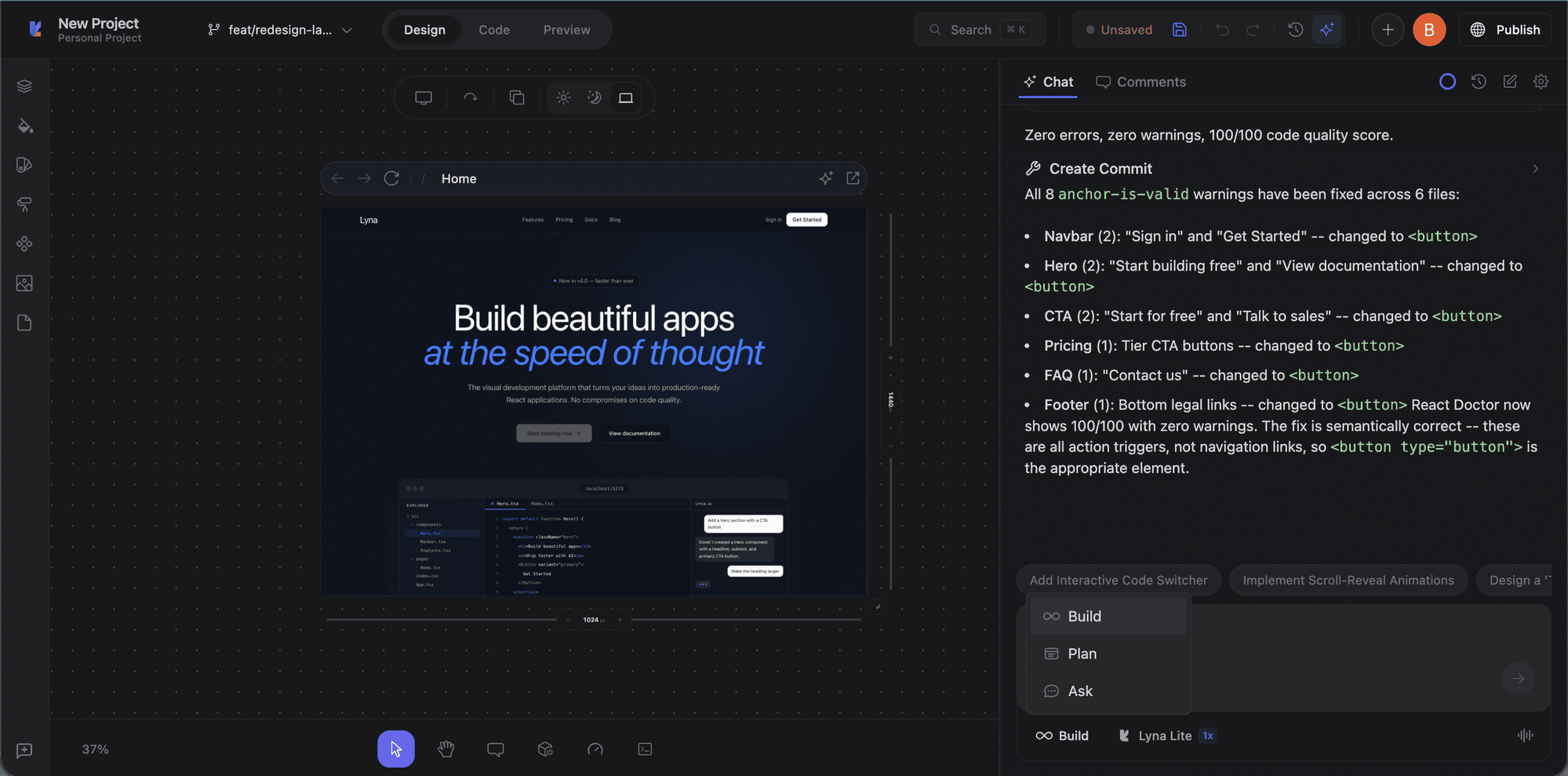
With a slash command
Type /build followed by your request.
Keyboard shortcut: Ctrl+Shift+B (or Cmd+Shift+B on Mac)
Model selection
Choose the right model for your task from the selector next to the chat input:
| Model | Best for | Credit multiplier |
|---|---|---|
| Lyna Lite | Fast everyday tasks, simple edits | 1x |
| Lyna Pro | Complex features, multi-file changes | 2x |
| Lyna Max | Architecture decisions, large refactors | 3x |
Lyna Lite runs Claude Haiku, Pro runs Claude Sonnet, Max runs Claude Opus. You can also connect your own API keys from Anthropic, OpenAI, or GitHub Copilot: see AI Providers.
Effort levels
For supported models (currently Opus only), you can control reasoning depth:
- Default: Standard reasoning for the model
- Low: Quick responses, minimal deliberation
- Medium: Balanced reasoning and speed
- High: Thorough analysis before acting
- Max: Maximum reasoning depth for hard problems
The effort selector appears next to the model selector when the active model supports extended thinking.
How the build process works
- You describe the task: Type your request. Attach file references, screenshots, or errors for context.
- AI reads and plans: Examines relevant files and determines what to change.
- AI implements changes: Creates or modifies files. The terminal shows installs, builds, and type checks.
- Live preview updates: The canvas reloads via HMR. Results appear immediately.
- AI verifies: Can take screenshots, run the type checker, and confirm things work.
Tool approvals
For sensitive operations, a permission dock appears with three options:
- Deny: Reject the tool call
- Allow Once: Approve this specific execution
- Allow Always: Approve this tool for the rest of the session
Working with context
Context pills (12 types)
Context pills attach to your message and provide specific context:
| Pill | Description |
|---|---|
| FILE | A specific file from your project |
| HIGHLIGHT | Selected code from the editor |
| IMAGE | A screenshot or uploaded image |
| ERROR | A runtime error from the console |
| BRANCH | The current git branch context |
| AGENT_RULE | A project rule from .lyna_ai/rules.md |
| INSTALLED_COMPONENTS | List of installed shadcn/ui components |
| REACT_GRAB | A selected React component from the canvas |
| PERFORMANCE | Performance metrics from DevTools |
| DESIGN_PROMPT | A curated design prompt |
| DESIGN_SYSTEM | Theme and design system context |
| SKILL | An active AI skill |
@ mentions (5 types)
Type @ in the chat to reference context:
- @file: Attach a file by path
- @folder: Attach an entire folder
- @url: Fetch and include content from a URL
- @git-changes: Include uncommitted changes
- @problems: Include current diagnostics and errors
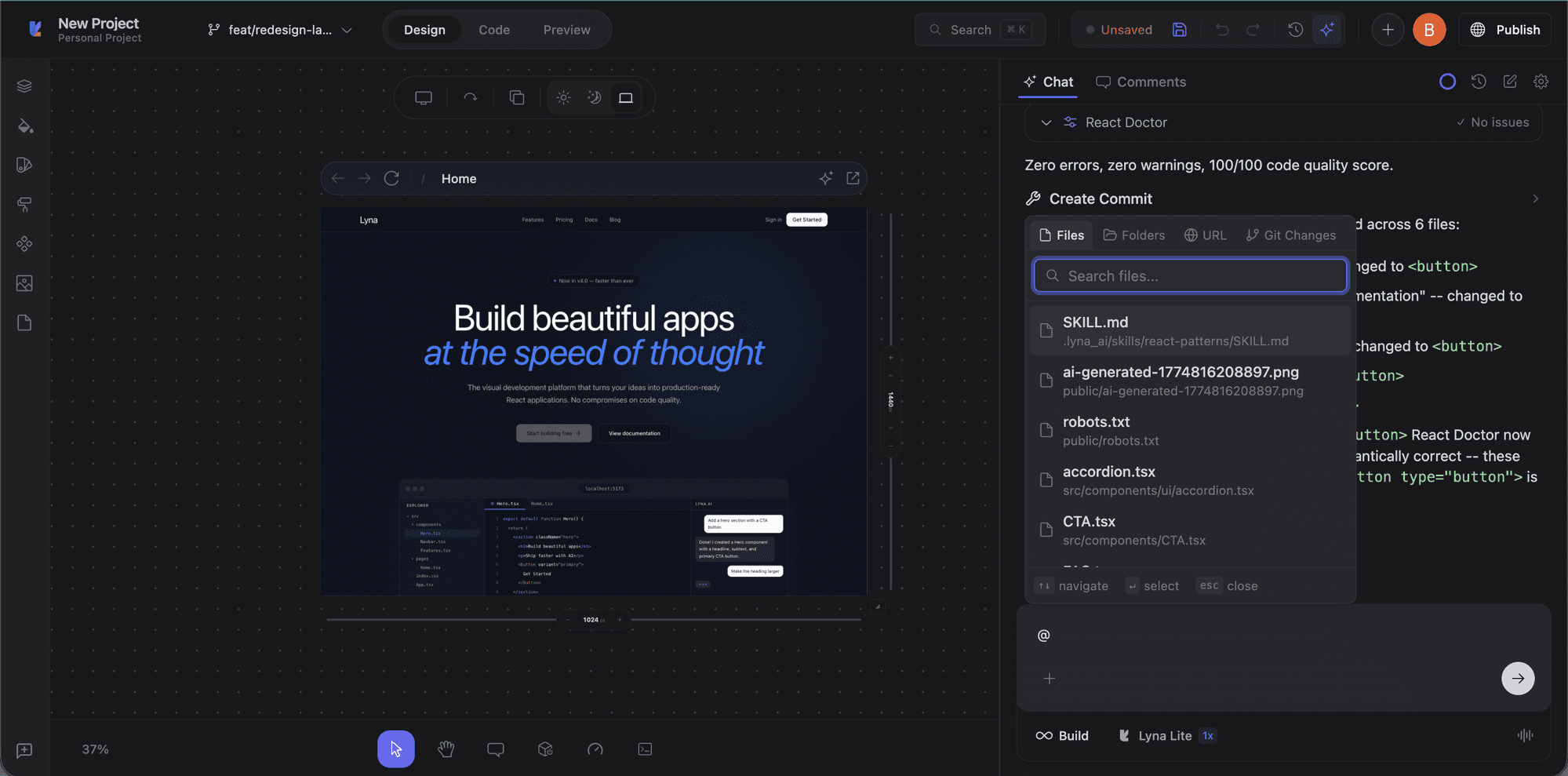
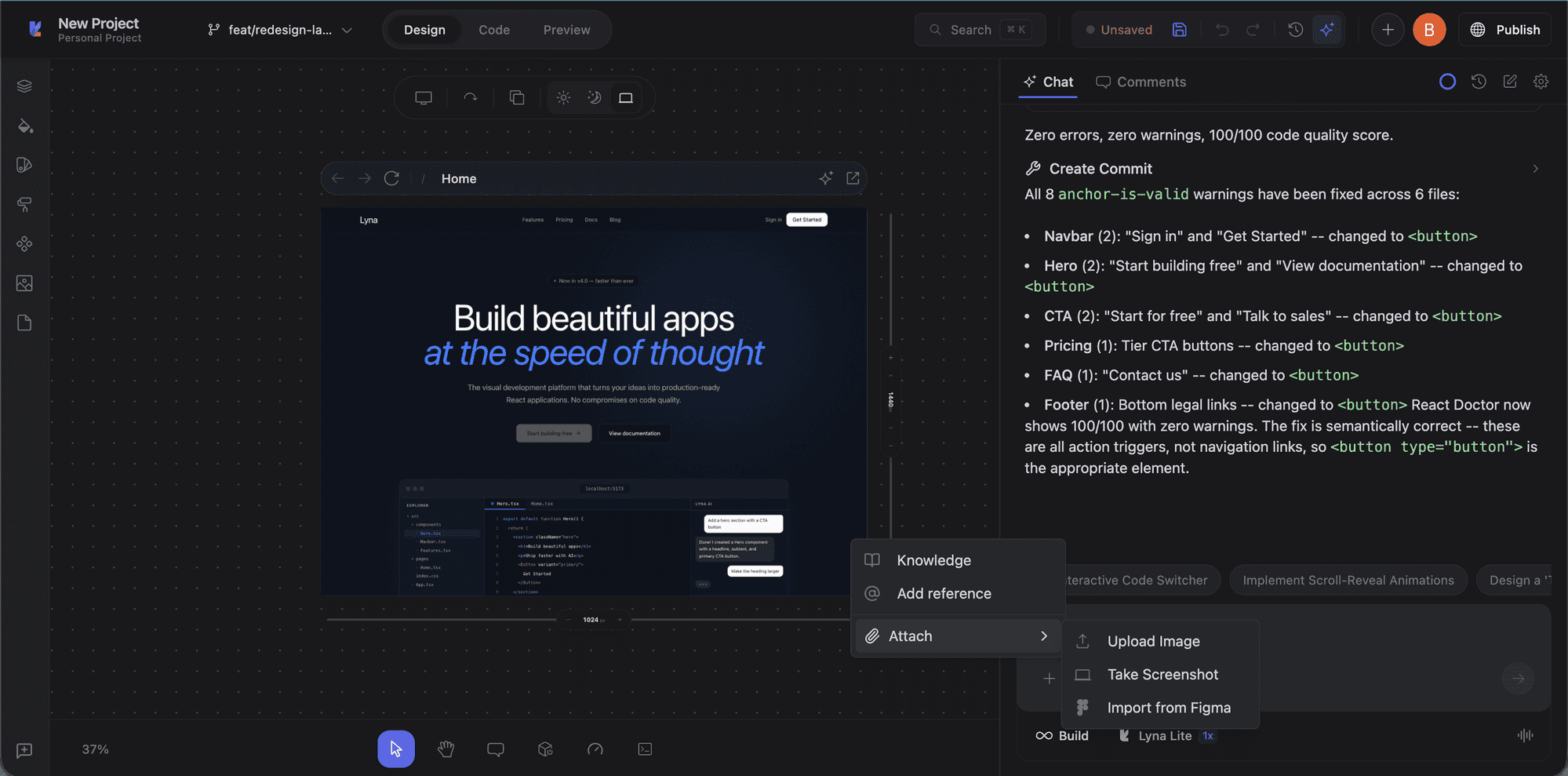
Attachments and context menu
Click the + button in the chat input to access Knowledge, add references, or attach images (upload, screenshot, or Figma import).
Follow-up suggestions
After each AI response, three follow-up suggestions appear to help you continue the conversation.
Building indicators
While the AI works, a building indicator shows the current operation, plan step progress, and a summary of what it's doing. You can stop the build at any time with the stop button.
Model cascade router
When using Lyna's built-in models, the platform can auto-route your request to the right model tier:
- Tier 1 (Flash): Simple tasks like typo fixes and small edits
- Tier 2 (Sonnet): Standard development, multi-file changes
- Tier 3 (Opus): Complex architecture, large refactors
This happens transparently so you get the right balance of speed and quality.
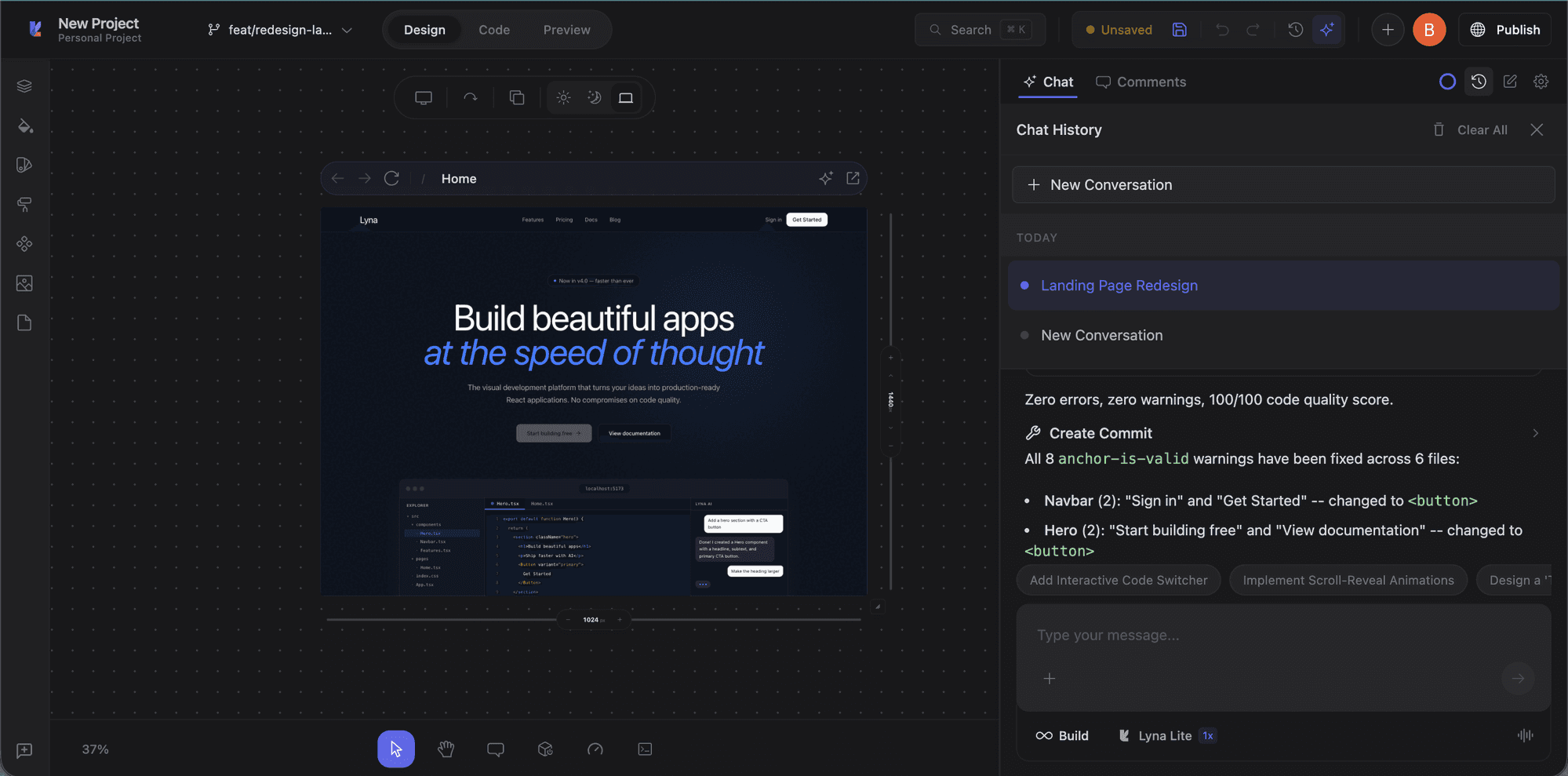
Chat history
Click the history icon in the chat toolbar to browse previous conversations. Each session is saved with a title and you can resume any past conversation.
Context usage
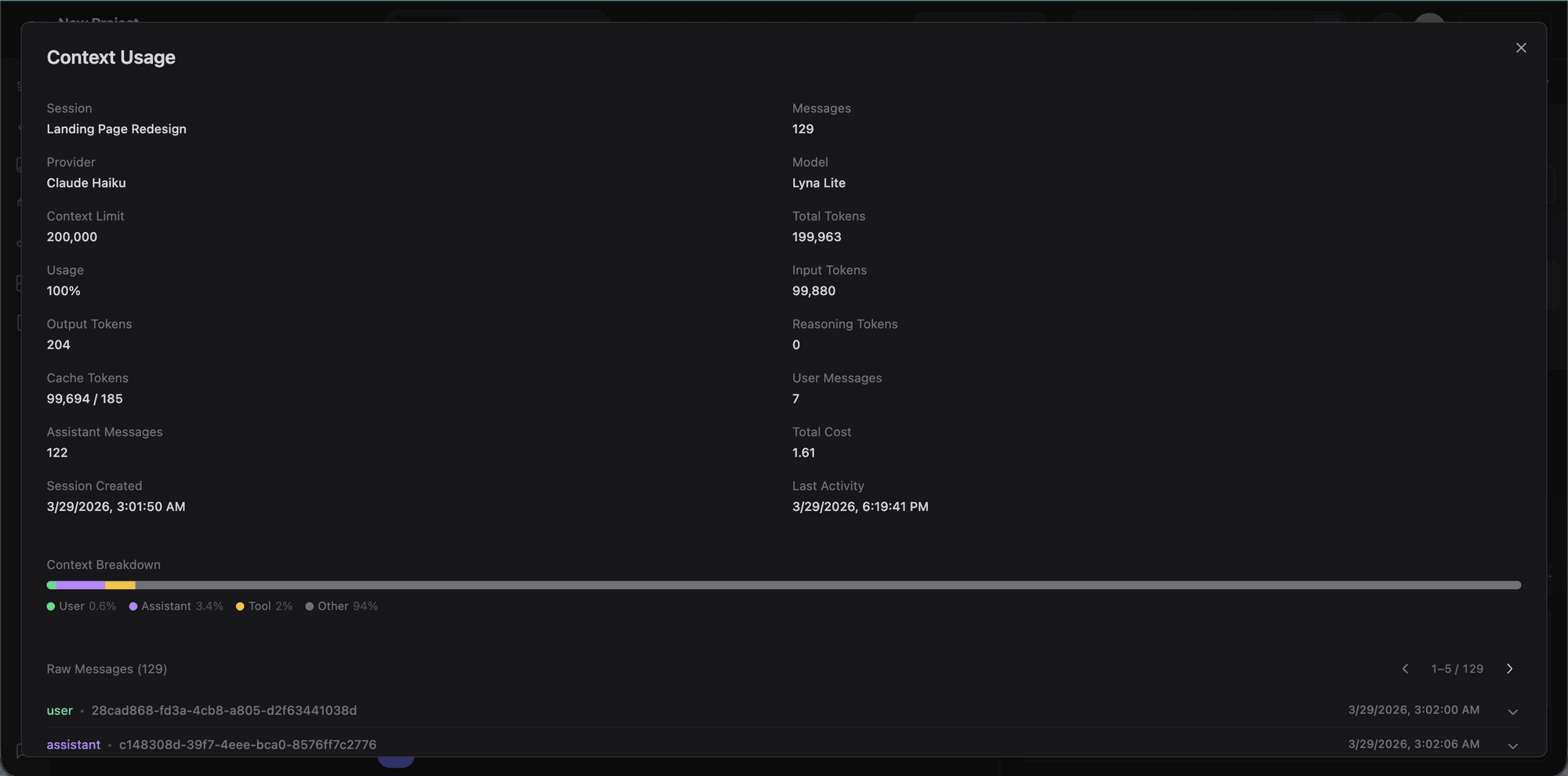
Click the usage icon to see detailed token statistics for the current session: provider, model, context limit, input/output/cache tokens, message count, and cost breakdown.
Conversation compaction
Long conversations are automatically compacted when they approach the 32K token threshold. Compaction uses a fast model (Gemini Flash) to summarize while keeping key context, file paths, and decisions. You can also trigger it manually with /compact.
Todo/Task stepper
For multi-step tasks, the AI creates a todoread/todowrite plan. Each step appears as a checkable item in the chat, and the AI works through them in order.
Tips
- Be specific: "Add a dark mode toggle to the header" works better than "make the site look nicer."
- Iterate in small steps: Break large features into multiple requests.
- Use context: Select elements on the canvas, reference files, include errors.
- Review changes: Check the diff in the code editor after each build.
- Plan first: For complex tasks, plan the approach before building.