Canvas
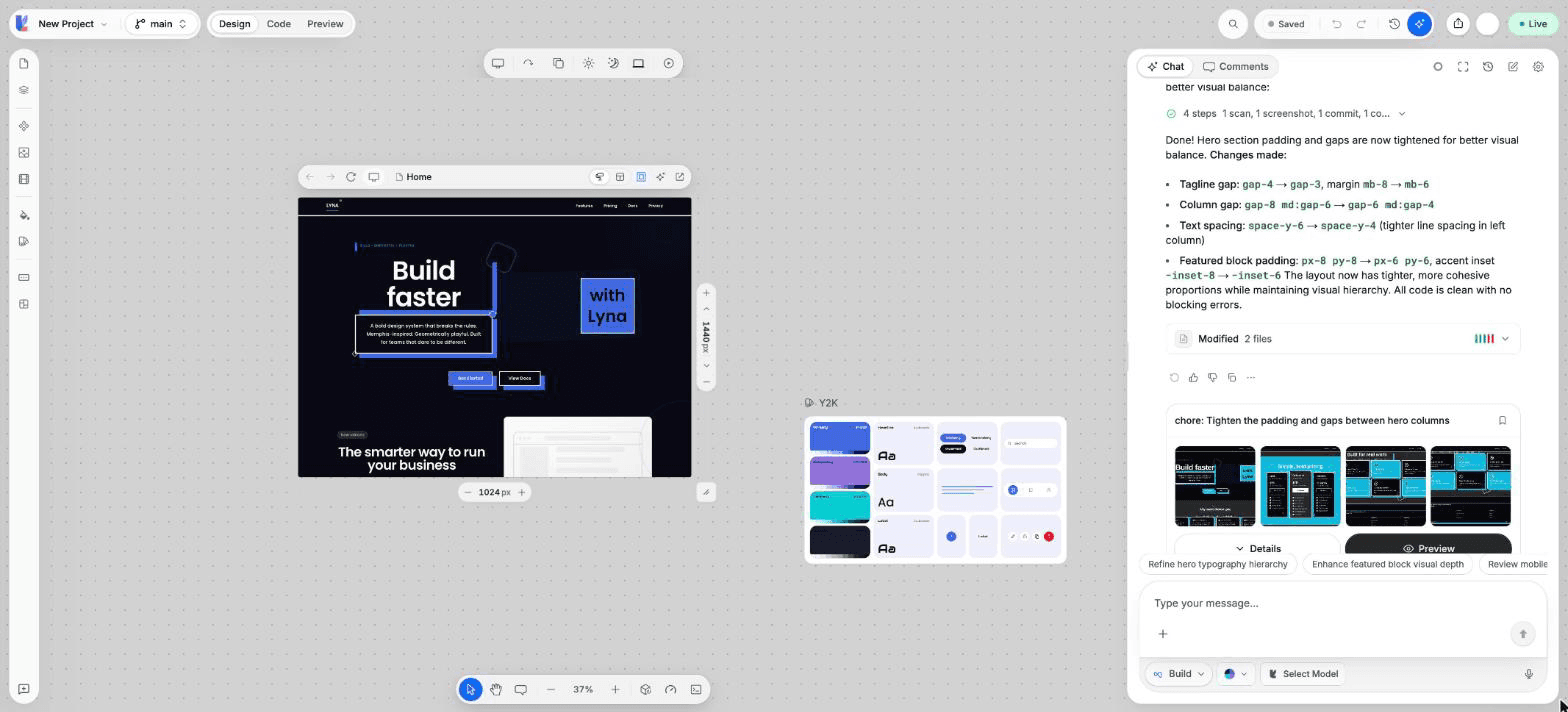
The canvas shows your running app in frames. Select an element, edit it in place, move it and zoom around, and every change is written to your code.
The canvas is the center of the editor in Design mode. Each frame on it is your real app, served live from your cloud sandbox. What you change on the canvas is saved to your code.
What you can do
- Select any element in a frame and edit it.
- Edit text in place.
- Move elements by dragging them.
- Copy, paste, duplicate, wrap and delete elements.
- Ask the AI about the selected element.
- Pan and zoom across several frames.
- Undo and redo your changes.
The canvas tools
The floating bar at the bottom of the canvas holds the tools. It is hidden in Code mode.
| Control | What it does |
|---|---|
Select (V) | Select and edit elements. |
Pan (H) | Drag to move around the canvas. |
Comment (M) | Leave a comment on an element. See Comments. |
| Zoom In / Zoom Out | Change the zoom. Open the zoom menu for Zoom Fit, Zoom 100%, Zoom 200% and Re-Center Canvas. |
| Restart sandbox | Restart the cloud sandbox when the preview stops responding. |
| DevTools | Open the DevTools. |
Panel (Cmd/Ctrl + J) | Open the bottom panel with Problems, Output, Browser console and Terminal. |
Select and edit an element
Select it
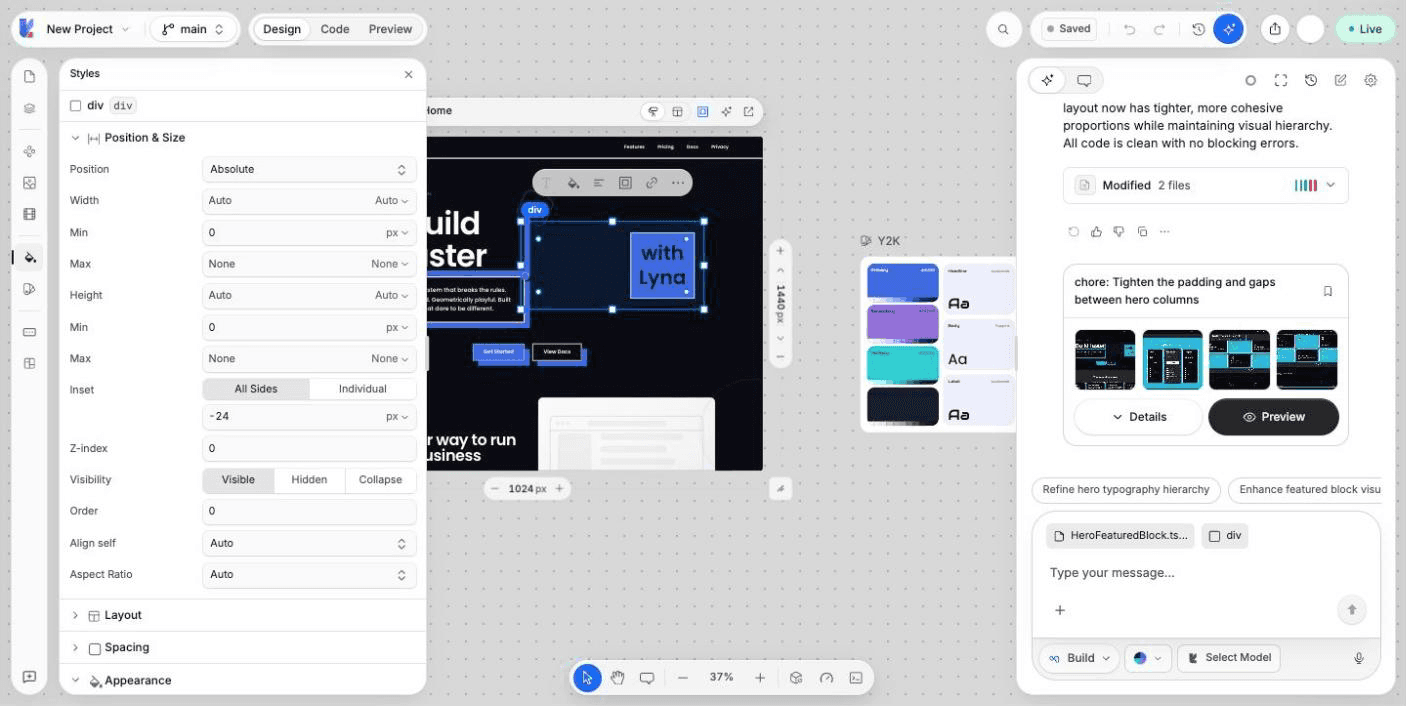
Click an element in a frame. A blue outline and a floating toolbar appear. Hold Shift and click to add more elements to the selection. You can also select an element from the Layers panel.
Change it
Use the floating toolbar for the most common changes:
- Text style: preset text styles, size and weight.
- Color: Text, Fill and Border colors.
- Alignment: text alignment, and the direction, alignment and gap of the children.
- Spacing: padding and margin.
- Link: the link of a link element.
- More: Ask AI about this element, Open in code, All styles, Duplicate, Wrap in a container, Unwrap and Delete.
For every other property, open All styles or the Styles panel.
Edit text
Double click a text element, or select it and press Enter. Type, then click outside to finish. Text that comes from an expression in your code cannot be edited this way. Lyna tells you so, and you can edit it in the code panel.
Move elements
Drag a selected element to a new place. A drop line shows where it will land. If the drop is not allowed, the line turns red and tells you why, for example Can't drop into own descendant.
You can also move the selected element up or down among its siblings with Shift + Arrow Up and Shift + Arrow Down.
Hold Alt to see the distances between the selected element and the element under the pointer.
The right-click menu
Right-click an element to open its menu:
| Group | Actions |
|---|---|
| View | View instance code, View in Code Panel, Open Styles |
| AI | Add to AI Chat, New AI Chat |
| Layout | Wrap, Unwrap |
| Style | Make Invisible or Make Visible, Hide Element or Show Element, Disable Text Selection or Enable Text Selection |
| Edit | Edit text, Copy, Paste, Cut, Duplicate, Delete, Save as block |
Right-click a frame to Duplicate or Delete it. Save as block adds the element to My Blocks so you can reuse it. See Blocks.
Move around
- Scroll to pan. Hold
Shiftwhile you scroll to pan sideways. - Hold
Spaceand drag, or drag with the middle mouse button, to pan. - Hold
Cmd(Mac) orCtrl(Windows) and scroll to zoom around the pointer. - Drag on an empty part of the canvas to select several frames.
If you lose your frames, choose Re-Center Canvas in the zoom menu, or the button that appears when the canvas is out of view.
Every change is code
Style changes are saved as Tailwind CSS classes on the element in your source file. Moves, wraps and deletes change your JSX. Open the element in the code panel at any time to see the result.
Shortcuts
| Action | Shortcut |
|---|---|
| Select tool | V |
| Pan tool | H |
| Comment tool | M |
| Hold to pan | Space |
| Show distances | Hold Alt |
| Edit text | Enter |
| Leave the current action | Esc |
| Undo / Redo | Cmd/Ctrl + Z / Cmd/Ctrl + Shift + Z |
| Copy / Paste / Cut | Cmd/Ctrl + C / V / X |
| Duplicate | Cmd/Ctrl + D |
| Delete | Delete or Backspace |
| Wrap / Unwrap | Cmd/Ctrl + G / Cmd/Ctrl + Shift + G |
| Move up / down among siblings | Shift + Arrow Up / Shift + Arrow Down |
| Insert a container / text | R / T |
| Zoom in / out / fit | Cmd/Ctrl + = / Cmd/Ctrl + - / Cmd/Ctrl + 0 |
| Add the selection to the chat | Cmd/Ctrl + Shift + L |
| Command palette | Cmd/Ctrl + K |
| Show all shortcuts | ? (Shift + /) |