Brand and design system
Set the colors, fonts and corner radius of your whole project from one seed color, save brands you like, and import a design system from screenshots, a website, your code or Figma.
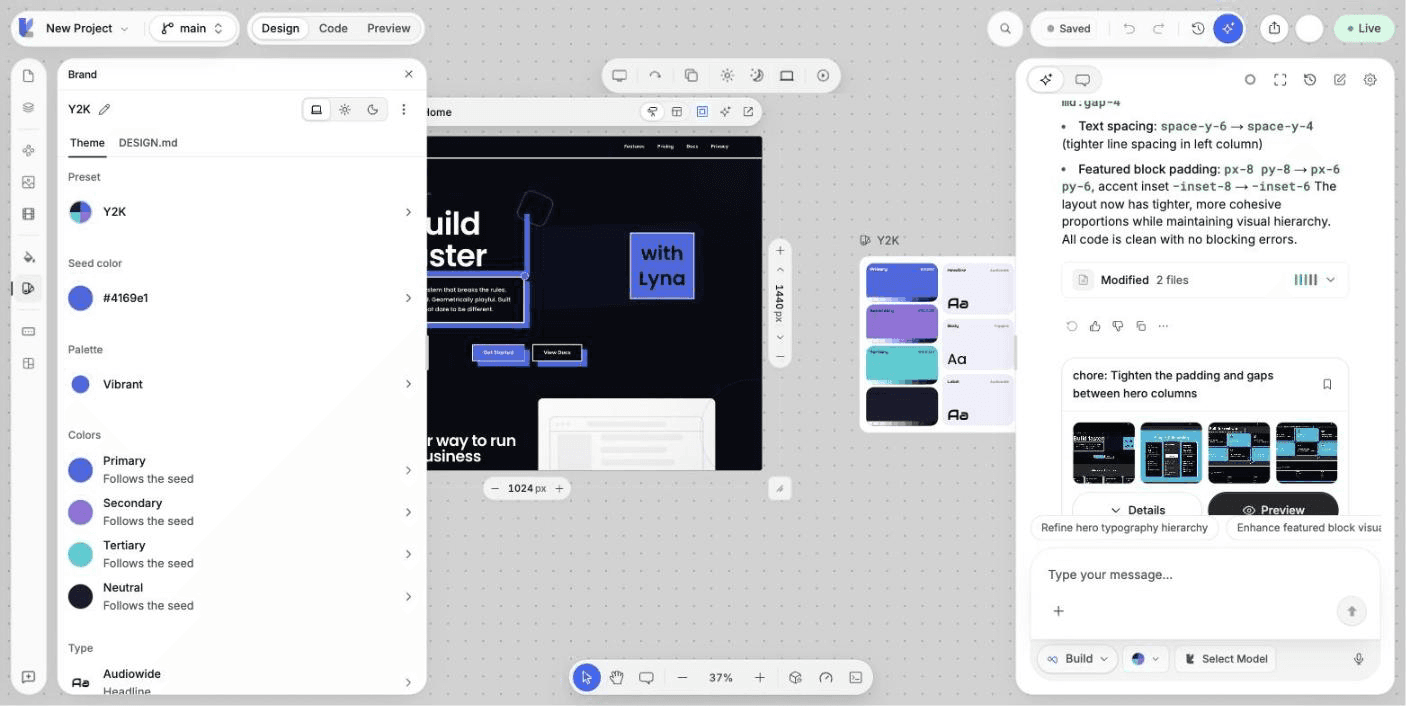
The Brand panel holds your project's design system: the colors, fonts and shape that every page uses. Change it once and the whole app follows. The AI reads it too, so new pages match your brand.
What you can do
- Build a full palette from one seed color.
- Pick the fonts for headlines, body text, labels and code.
- Set the corner radius of the whole project.
- Start from a preset or from one of your saved brands.
- Import a design system from screenshots, a website, this project or a Figma file.
- Edit the written rules in
DESIGN.md. - Export your design system as
DESIGN.md.
Open the panel
Choose Brand in the rail on the left of the editor. The panel has two views: Theme and DESIGN.md. Both show the same system. Editing one updates the other.
Theme
| Section | What it does |
|---|---|
| Seed color | The color the palette grows from. Enter a hex color, for example #8d2036. |
| Palette | How the seed spreads across the roles: Fidelity, Tonal, Vibrant, Expressive, Content, Monochrome, Neutral or Spectrum. |
| Colors | The Primary, Secondary, Tertiary and Neutral colors. Pin a color so the seed stops changing it. |
| Type | The Headline, Body, Label and Mono fonts. Choose Manage fonts to add fonts. |
| Shape | The corner radius used across the project, as a preset or a custom CSS length such as 0.625rem. |
| Advanced | Every token, in light and dark mode. |
| Preset | Start from a ready-made system. |
Switch Preview between Light, Dark and System to check both themes.
Choose or save a system
Open the design system picker at the top of the panel. It lists Presets, My brands and This project. Search by name, then pick one to apply it.
The actions menu of the panel holds:
- Rename
- Save to my brands: keep this system to reuse in other projects.
- Export DESIGN.md
- Reset colors to the seed
- Reset design system: go back to the template default.
- New design system: start over from the default preset.
- Import a design
Import a design
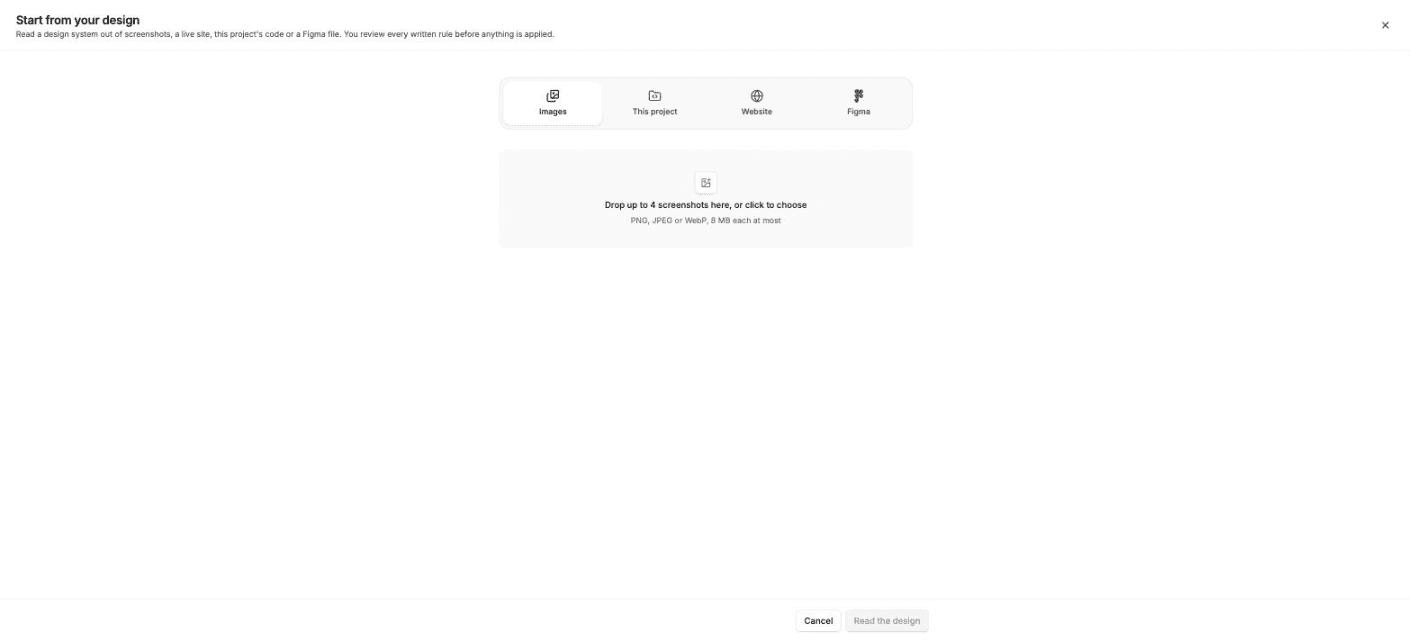
Choose Start from your design
In the picker, choose Start from your design, or Import a design in the actions menu.
Pick a source
- Images: drop screenshots in PNG, JPEG or WebP.
- Website: enter a web address. The page and its stylesheets are read once. Nothing is stored.
- This project: read the stylesheet and components already in your code.
- Figma: connect Figma and paste a link to a file. A link to one frame also samples that frame.
Read the design
Choose Read the design. Lyna shows what it found (colors, fonts, corner radii) and the system it drafted.
Review and apply
Read the written rules under Written rules to review. Text that reads like an instruction to the AI, or that names a host, a package or a script, is highlighted. When you are ready, choose I have read this, apply it. Applying replaces the current system.
Why you review imported text
The written rules of your design system go into DESIGN.md, and the AI reads that file on every request. Lyna asks you to read imported text before it reaches the AI.
DESIGN.md
The DESIGN.md view shows the source of your design system: settings at the top and written rules below. Edit it, then choose Save, or Revert to drop your edits. The view lists problems with their line number.
The design system card on the canvas
The design system also shows as a card on the canvas. Its menu offers Focus, Edit, View details and Export DESIGN.md. To ask the AI for a new design system, write your request in the chat.
Next steps
Styles
Edit every visual property of the selected element, from size and layout to typography, effects and animations. Changes are saved as Tailwind CSS classes.
Pages and routes
Create, duplicate, rename and delete the pages of your app, start from a full site template, and open any page on the canvas.