Videos
Upload videos to your project or generate them with AI from a prompt or a starting image, then use them in your pages.
The Videos panel holds the videos of your project. Upload your own, or generate one with AI from a description, then place it in a page.
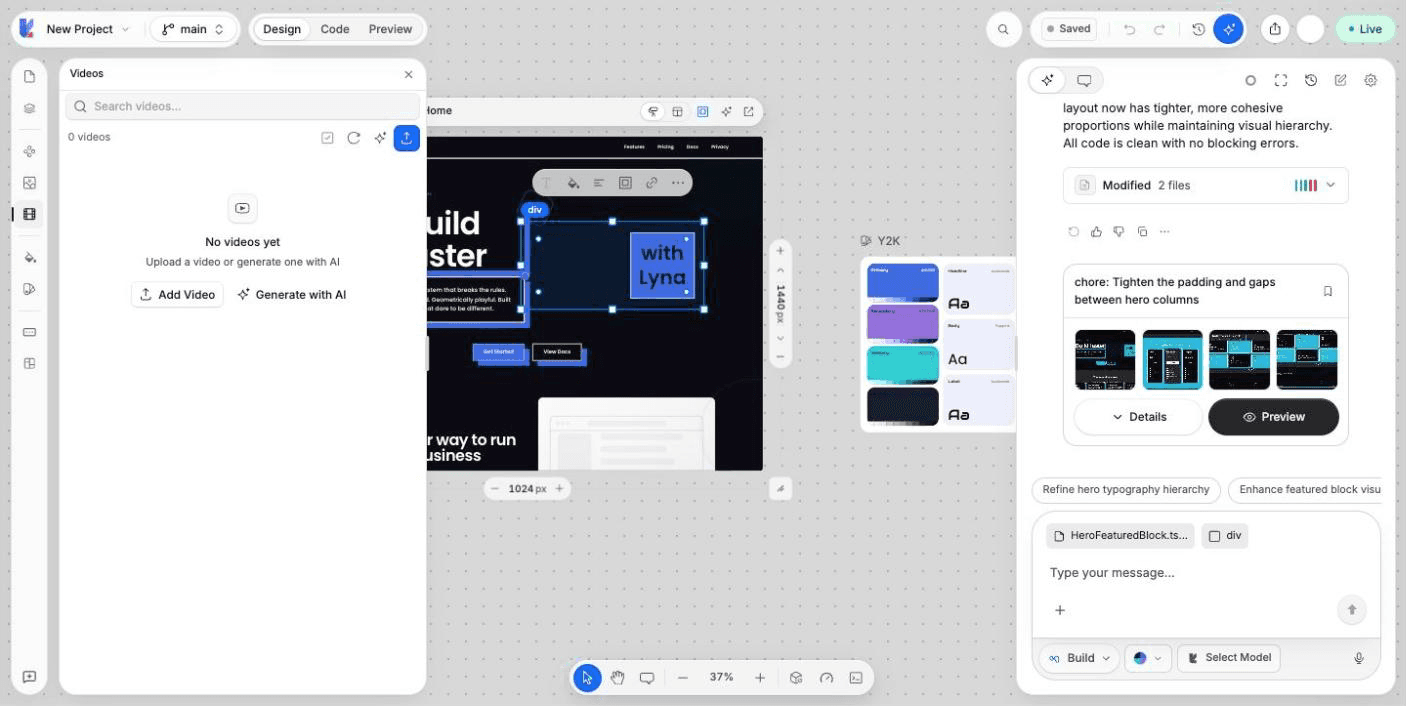
What you can do
- Upload MP4, WebM and MOV videos.
- Generate a video from a prompt, or animate one of your images.
- Search, play and download your videos.
- Copy a video's URL to use it in your code.
- Delete one or several videos.
Upload a video
Open Videos
Choose Videos in the rail on the left of the editor, then Add Video.
Add your files
Drop videos in the Add Videos dialog, or click to browse. MP4, WebM and MOV files up to 100 MB are accepted.
Upload
Choose Upload. The videos appear in the panel when they are ready.
Generate a video with AI
Open Generate with AI
In the Videos panel header, choose Generate with AI. The generator opens.
Describe it
Write a Prompt. Optionally add a Starting image to animate it: upload one, or pick one of your project images.
Set the options
Choose the Aspect Ratio (Landscape, Portrait or Square), the Duration and the Model: Lyna Pro (top quality), Lyna Max (fast) or Lyna Lite (versatile). Some models support audio: turn on Generate audio for a soundtrack. The dialog shows the estimated credits before you start.
Generate
Choose Generate. Rendering usually takes a few minutes. You can close the dialog: the video keeps rendering and appears in the Videos panel when it is ready.
You can also ask for a video in the chat, one video per message.
Failed generations are refunded
If a generation fails, times out or is blocked by content moderation, your credits are refunded.
Use a video in a page
Open the menu of a video and choose Copy URL. Paste it into your code, or ask the AI to add the video to a section.
Other actions: Show Video, Download Video and Delete. Choose Select to delete several videos at once. Deleting a video cannot be undone.
Plan availability
| Free | Pro | |
|---|---|---|
| Upload videos | Yes | Yes |
| Generate videos with AI | No | Yes, uses credits |
Uploads count toward your project storage. See Plans and credits.
Next steps
Images and image studio
Manage the images of your project, and create or edit an image in the studio with photos, uploads, AI generation, text, shapes, drawing and effects.
Figma import
Connect Figma, pick frames from a file and bring them into your project as screenshots and design data the AI can build from.