Pages and routes
Create, duplicate, rename and delete the pages of your app, start from a full site template, and open any page on the canvas.
Each page of your app has its own address, such as /about. The Pages panel lists them as a tree, and each frame on the canvas shows one of them.
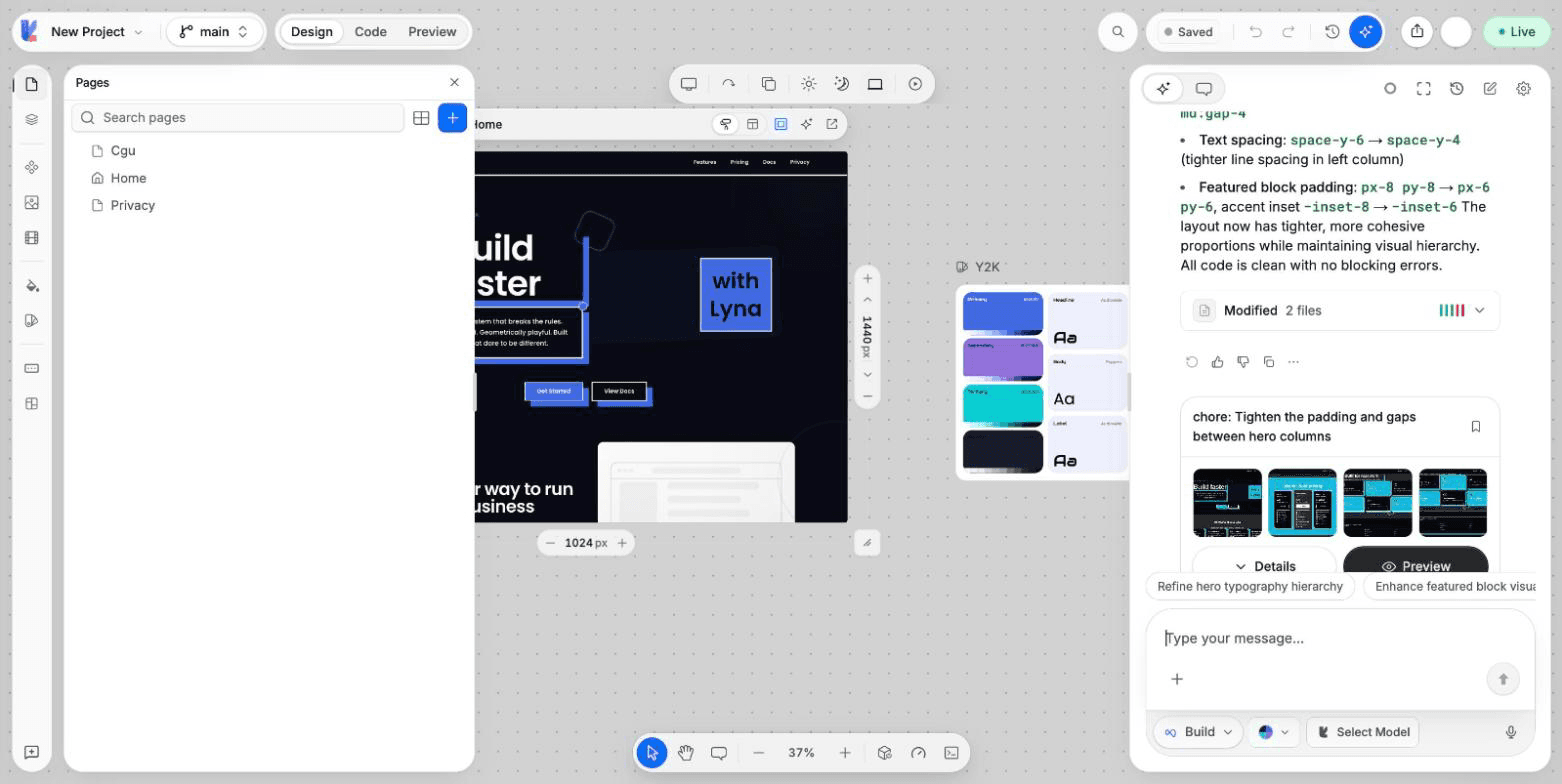
What you can do
- See every page of your app as a tree.
- Search pages by name or address.
- Create a page, or a page under another page.
- Duplicate, rename or delete a page.
- Start from a full multi-page site template.
- Switch the page shown in a frame.
How pages work in your project
Your app has a router. Each page is a component file in src/pages, and its route is declared in src/App.tsx. When you create, rename or delete a page in the panel, Lyna updates both for you.
Create a page
Open Pages
Choose Pages in the rail on the left of the editor.
Choose Create a new page
Or open the menu of a page and choose Create New Page to add a page under it.
Name it
Enter a Page name, for example about or contact-us. The dialog shows the address it will have, such as This page will be /about on your site. Choose Create Page.
Manage a page
Open the menu of a page (Page options):
- Create New Page: add a page under this one.
- Duplicate Page
- Rename: changes the last part of its address.
- Delete: removes its file. Pages under it are removed too, and Lyna tells you how many before you confirm.
The home page cannot be duplicated, renamed or deleted.
Deleting a page removes its file
Deleting a page removes its component file from your project. You can get it back from Version history.
Start from a site template
Choose Start from template in the Pages panel to browse full multi-page projects, ready to edit. Categories include Ecommerce, Dashboard, Restaurant, Food delivery, Car rental, Corporate, Health, Plants, SaaS, Real estate, Fitness and Portfolio.
Before a template is applied, Lyna shows the files it creates and the files it replaces, and saves a restore point. After it is applied, choose Undo in the notification to go back.
Switch the page of a frame
Open the page picker in the frame bar above a frame and choose a page. You can also choose New Page or Manage Pages from there. See Frames and devices.
Next steps
Brand and design system
Set the colors, fonts and corner radius of your whole project from one seed color, save brands you like, and import a design system from screenshots, a website, your code or Figma.
Blocks
Add ready-made sections and elements from the block picker, drag them onto the canvas, keep favorites, insert page templates and save your own blocks.