Version history
Save versions of your project, see what each one changed, and go back to any of them.
Lyna keeps the history of your project in Git. Every AI turn leaves a version card in the chat, and you can save named versions yourself.
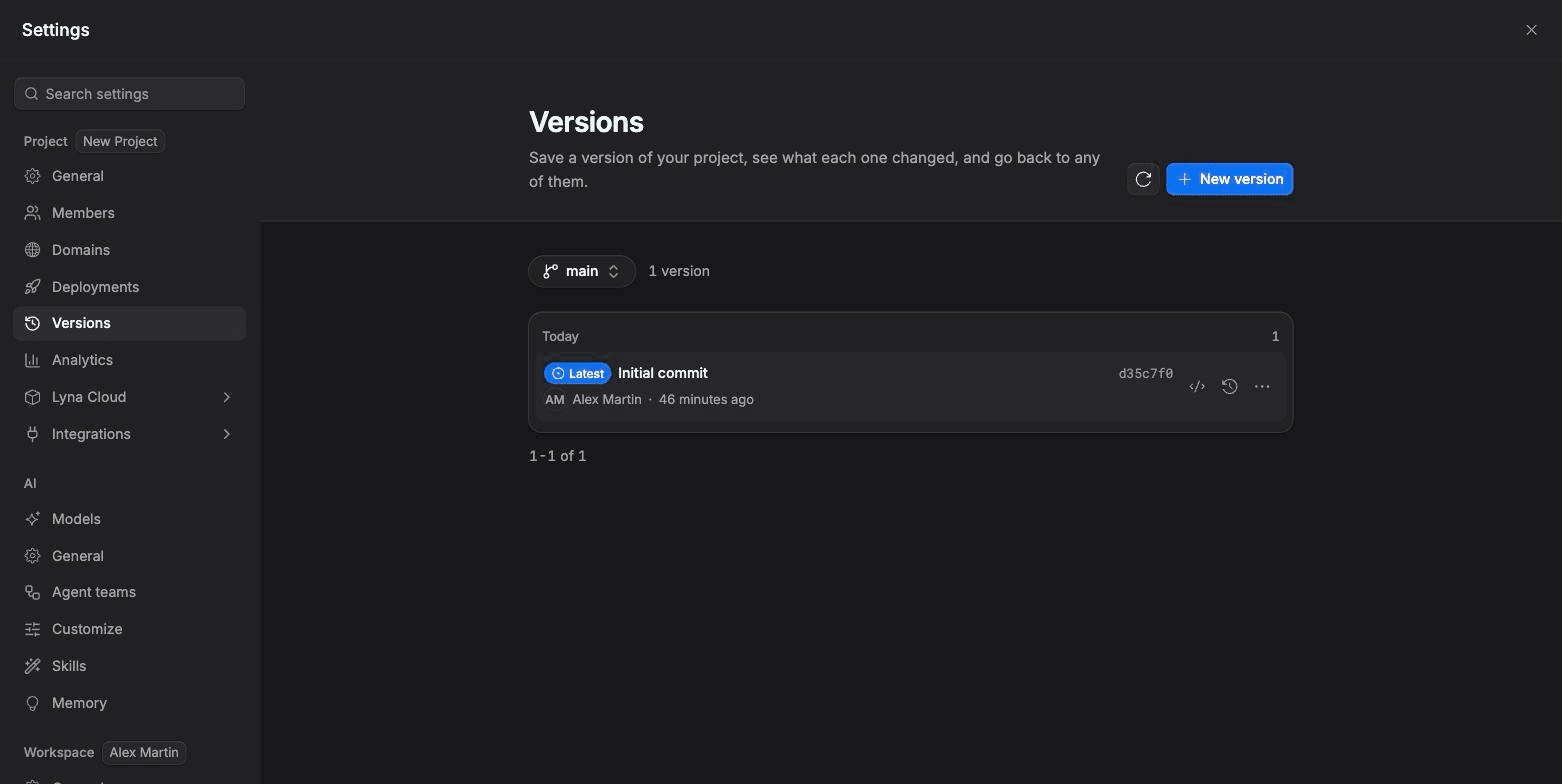
What you can do
- Save a named version at any time.
- See which files a version changed, with a diff for each file.
- Preview an earlier version from the chat, then go back to the latest.
- Restore any version. Your current work is saved as a version first.
- Rename or delete a version.
- Bookmark a version from the chat.
Open the history
- In the top bar, open the Save state and choose Open version history.
- Or choose Version History in the canvas toolbar.
- Or open Settings > Project > Versions.
Save a version
Choose New version
On the Versions page, choose New version. The first one is called First version.
Name it
Open the version's menu and choose Rename. A clear name, such as "Before the new pricing page", makes it easy to find later.
Restore a version
Pick the version
On the Versions page, select a version to see its changed files and diffs.
Restore
Choose Restore, then confirm. Your current work is saved as a version first, so nothing is lost. The preview reloads.
Versions in the chat
After each AI turn, the chat shows a version card. From it you can:
- Preview: open that version on the canvas. The composer is paused while you look. Choose Back to latest to return.
- Revert to this version: bring the project back to that state.
- Bookmark this version: mark it so you find it again.
You can also edit an earlier message and choose Revert and resend. Your files go back to the version before that message, then the edited message is sent again. Later messages in that chat are removed.
History needs a running sandbox
Versions are read from your project's sandbox. If the history is empty when you open a project, wait until the sandbox is running.
Auto save
Turn on Auto Save in Settings > Project > General to save your changes after each edit. The save state in the top bar shows Saved, Unsaved, Saving or Backing up.