Git
Review changes, commit, and work with branches, stashes, and tags.
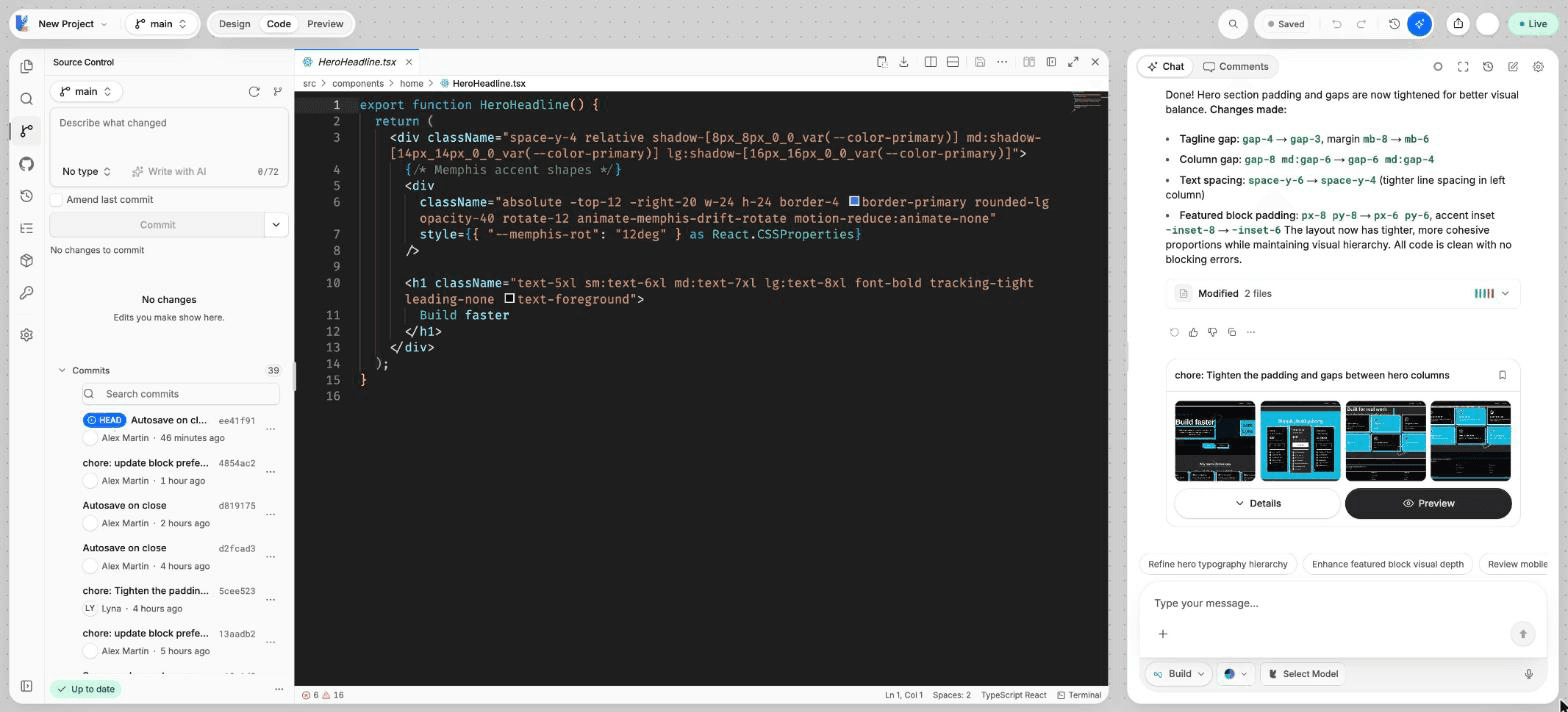
Every Lyna project is a Git repository. The Source Control view lets you review what changed, commit it, work on branches, and set work aside with stashes. You do not need a GitHub account for any of this.
What you can do
- See every changed file and open its diff.
- Stage, unstage and discard changes, one file or all at once.
- Write a commit message yourself or with AI, and amend the last commit.
- Create, switch, merge and delete branches.
- Stash work in progress and bring it back later.
- Tag a commit to mark a release.
- Keep your commits saved in the cloud with your project.
Open Source Control
In Code mode, choose Source Control in the views rail, or press Cmd/Ctrl + Shift + H.
The view has the branch picker at the top, then your changes grouped as Merge conflicts, Staged and Changes, then the commit box, Stashes and Tags. The footer shows the cloud sync state.
Review your changes
- Click a file to open its diff (Open changes).
- Hover a file for Stage, Unstage or Discard. Use Stage all, Unstage all or Discard all on a group.
- Right-click a file for Open file, Copy path and Reveal in explorer.
From the keyboard: arrows move, Space selects, Shift + arrows extend the selection, Enter opens the diff, and Delete discards.
Commit
Stage what goes in
Stage the files for this commit. If you stage nothing, you can commit every change at once.
Write the message
Type in Describe what changed. Pick a Commit type (feat, fix, docs, style, refactor, perf, test, build, ci, chore or revert) to add it as a prefix, or keep No type. A counter shows the length of the first line: keep it short, and under 72 characters.
Choose Write with AI to get a message written from your changes.
Commit
Choose Commit N staged files, or Commit all from the button menu. You can also press Cmd/Ctrl + Enter in the message box.
To change the last commit, turn on Amend last commit. Leave the message empty to keep the last message.
Write with AI uses credits
When your AI credits run out, connect your own API key or upgrade to Pro to keep writing messages with AI. See Plans and credits.
Branches
Open the branch picker at the top of the view. Type in Find a branch to filter, then:
- Switch to a branch.
- New branch, or New branch from another branch or commit.
- Merge a branch into this one.
- Delete a branch.
- Assign to me or Unassign, to show your team who works on a branch.
- Refresh branches.
If you have uncommitted changes when you switch, choose Commit, then switch, Stash, then switch or Discard and switch.
Merge and resolve conflicts
Choose a branch
Choose Merge a branch into this one and pick the source branch. Turn on Delete branch after merge if you are done with it.
Resolve conflicts
If both branches changed the same lines, the merge stops at Resolve conflicts. For each conflicted file, pick the Current or Incoming version, or edit the file, then choose Mark as Resolved.
Finish
Choose Complete Merge. To cancel instead, choose Abort Merge.
Stashes and tags
- Stashes: choose Stash to set your changes aside, with an optional message. Later, Pop applies a stash and removes it, Apply keeps it, and Drop deletes it.
- Tags: choose New tag and enter a name such as
v1.0.0. Add a message to make an annotated tag. Deleting a tag keeps the commit.
Cloud sync
Your commits are saved in the cloud with your project, so they are there when you open the project again or from another computer. This is Lyna storage, not GitHub. To use GitHub, see GitHub and pull requests.
The footer shows how many commits are waiting to be pushed or pulled, with Push, Pull and Sync.
- Local commits are not saved to the cloud yet: choose Save now.
- Branches have diverged: your local history and the cloud version have different commits. Choose Keep mine to overwrite the cloud version, or Take theirs to restore the cloud version. Taking theirs drops your uncommitted changes.
History size
The Git history of a project can be up to 1 GB. If it grows past that, remove large files such as images and videos from the history.
Who can do what
People with view access can see changes and history. Depending on the project, they may pull the latest cloud version, but they cannot push or commit. Only editors can commit, create, merge or delete branches, and resolve a divergence.
Shortcuts
| Action | Shortcut |
|---|---|
| Open Source Control | Cmd/Ctrl + Shift + H |
| Commit | Cmd/Ctrl + Enter in the message box |
| Open the diff of a file | Enter |
| Discard the selected files | Delete |