Explorer and search
Browse and manage your project files, jump to any file by name, and search or replace text across the whole project.
The Explorer shows the files of your project as a tree. Search finds text in every file, and Go to file opens any file by typing part of its name.
What you can do
- Create, rename, duplicate and delete files and folders.
- Upload files into the project.
- Add files to the chat and copy their paths.
- Select several files and act on them at once.
- Jump to a file by name, and to a line in it.
- Search the whole project with case, whole word and regular expression options.
- Limit a search to some files, and replace across files.
The Explorer
Open Code mode and choose Explorer in the views rail. The header holds New File, New Folder, Upload files, Refresh and Collapse folders. Type in Search files to filter the tree.
Open the menu of a file or folder (File actions) for:
- New file here and New folder here (folders)
- Add to Chat
- Copy Path and Copy Relative Path
- Duplicate
- Rename
- Delete File or Delete Folder
Select several files to get a bar with Add to chat, Copy paths, Delete and Deselect. Press Delete to delete them, Esc to clear the selection.
Save before renaming
A file with unsaved changes cannot be renamed. Save it first with Cmd/Ctrl + S.
Go to a file
Press Cmd/Ctrl + P to open Quick Open. Type part of a file name and press Enter. Add : and a line number, for example App.tsx:42, to jump to that line.
The command palette (Cmd/Ctrl + K) also lists your recent files.
Search across the project
Open Search
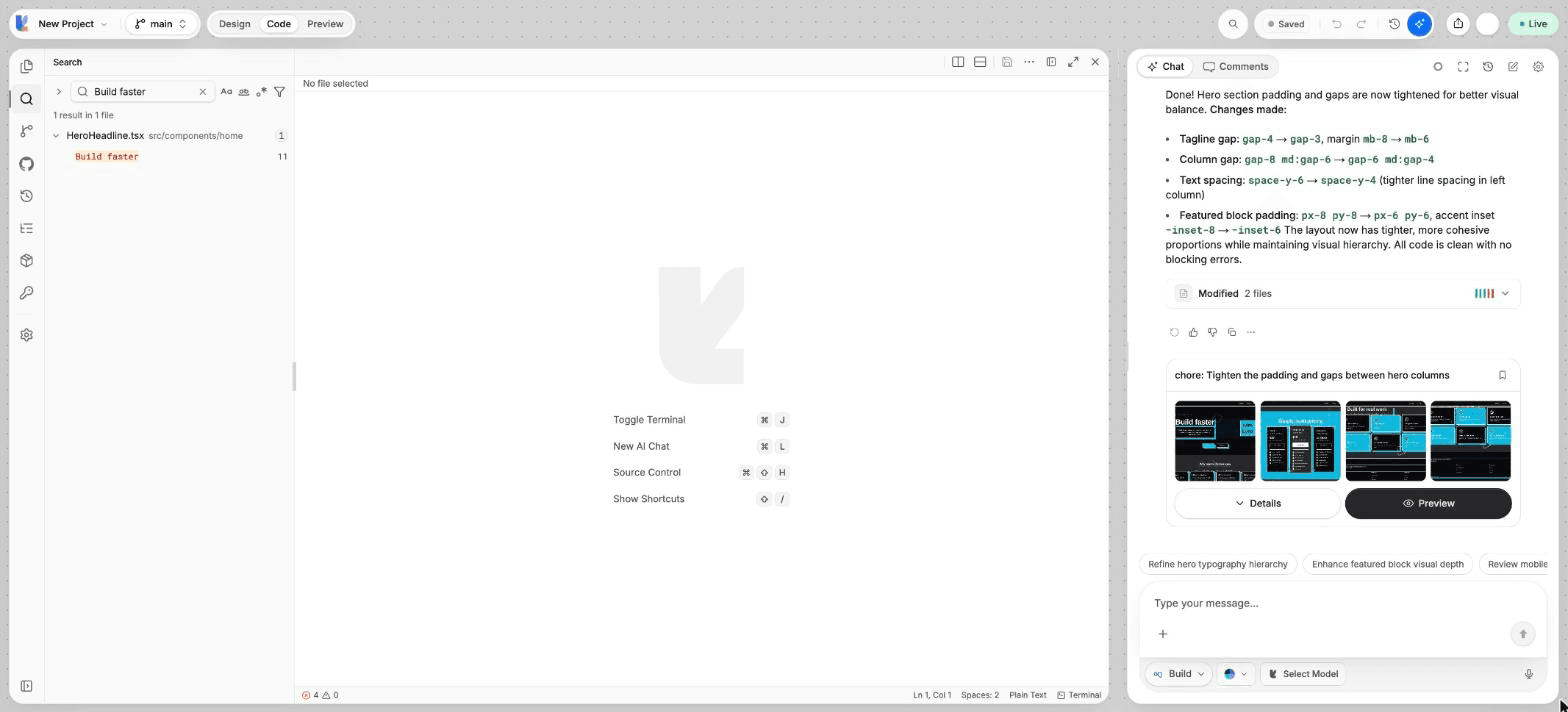
Choose Search in the views rail.
Type your query
Results show as you type, grouped by file with the line of each match. Turn on Match Case, Match Whole Word or Use Regular Expression when you need them.
Narrow it
Open Files to include / exclude and enter patterns, for example src/** to include and *.test.ts to exclude.
Open a result
Click a match to open the file at that line.
Replace across files
Choose Show or hide replace to show the replace field. Enter the new text, then:
- Replace (
Enter) in the current match, or Replace in a single file. - Replace All (
Shift + Enter) in every match. Lyna asks you to confirm and tells you how many matches and files change.
Replaced files are saved right away. You can go back with Local history or Version history.
Shortcuts
| Action | Shortcut |
|---|---|
| Go to file | Cmd/Ctrl + P |
| Command palette | Cmd/Ctrl + K |
| Find in the open file | Cmd/Ctrl + F |
| Replace | Enter in the replace field |
| Replace all | Shift + Enter in the replace field |