Branch graph
See your commit history and branches as a graph.
The branch graph draws the history of your project: every commit, and where branches split and merge. From any commit you can view its changes, compare it with another one, branch from it or restore your files to it.
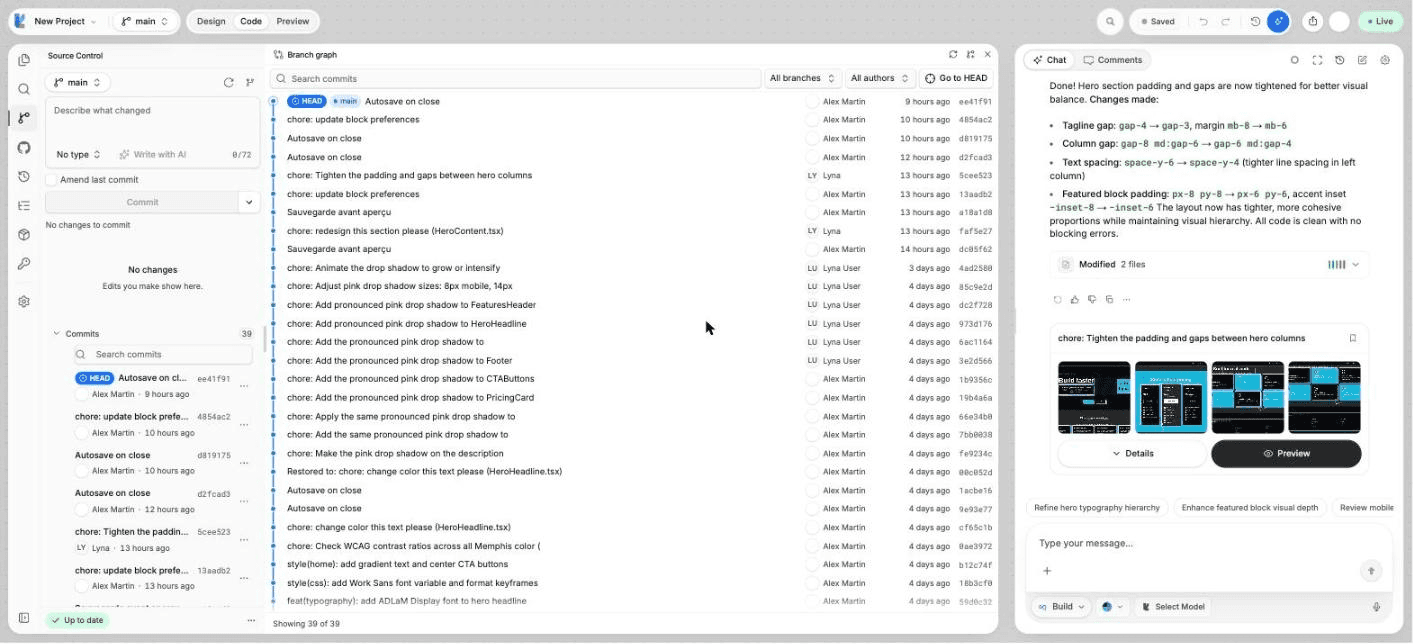
What you can do
- Scroll the history of every branch, or of one branch.
- Search commits and filter them by author.
- See the files a commit changed and open their diffs.
- Compare two commits.
- Create a branch or a tag on any commit.
- Cherry-pick a commit onto your current branch.
- Restore your files to a commit, or undo the last commit.
Open the graph
In Code mode, open Source Control and choose Open branch graph. The graph opens in the editor area.
The toolbar holds Search commits, the Branch filter (All branches or one branch), the Author filter, Go to HEAD, Refresh and New branch. Choose More commits at the bottom to load older history.
Act on a commit
Open the actions menu of a commit, or select it and press Shift + F10:
| Action | What it does |
|---|---|
| View changes | Lists the files the commit changed, with lines added and removed. Click a file to open its diff. |
| Select for compare | Marks the commit so you can compare it with another one. |
| Create branch here | Starts a new branch from this commit. |
| Create tag here | Adds a tag on this commit. |
| Cherry-pick | Copies the changes of this commit onto your current branch. Not offered on the current commit (HEAD). |
| Restore to this commit | Puts your files back as they were at this commit. Not offered on the current commit (HEAD). |
| Undo commit | Only on the current commit (HEAD), and never on a merge. Removes the commit and moves its changes back to staging. |
| Copy hash / Copy message | Copies the commit id or its message. |
The branch chips on a row add Switch to that branch and Delete branch to the menu. The main branch cannot be deleted.
Restoring never deletes history
Restore to this commit makes a new commit that records the restore. The later commits stay in the history, so you can go forward again.
If a cherry-pick conflicts with your current code, Lyna cancels it and your files stay as they were.
Compare two commits
Mark the first commit
Select a commit and press Space, or choose Select for compare.
Mark the second commit
Do the same on another commit.
Compare
Choose Compare. The files that differ between the two commits open as diffs. Choose Clear the selection to start again.
Who can do what
People with view access can open commits, compare them and copy hashes and messages. Creating branches and tags, cherry-picking, restoring and undoing are for editors.
Shortcuts
| Action | Shortcut |
|---|---|
| Move between commits | Arrow keys |
| Open the commit | Enter |
| Mark for compare | Space |
| Open the commit's actions | Shift + F10 |
| Search commits | / |