Code editor
Read and edit your project's code in a full editor with tabs, split views, breadcrumbs, language tools, blame and AI actions on any selection.
Code mode opens a full code editor on your project. It has the tools you expect from a desktop editor: completions, go to definition, rename, formatting, search and split views. Your edits run in the preview as soon as you save.
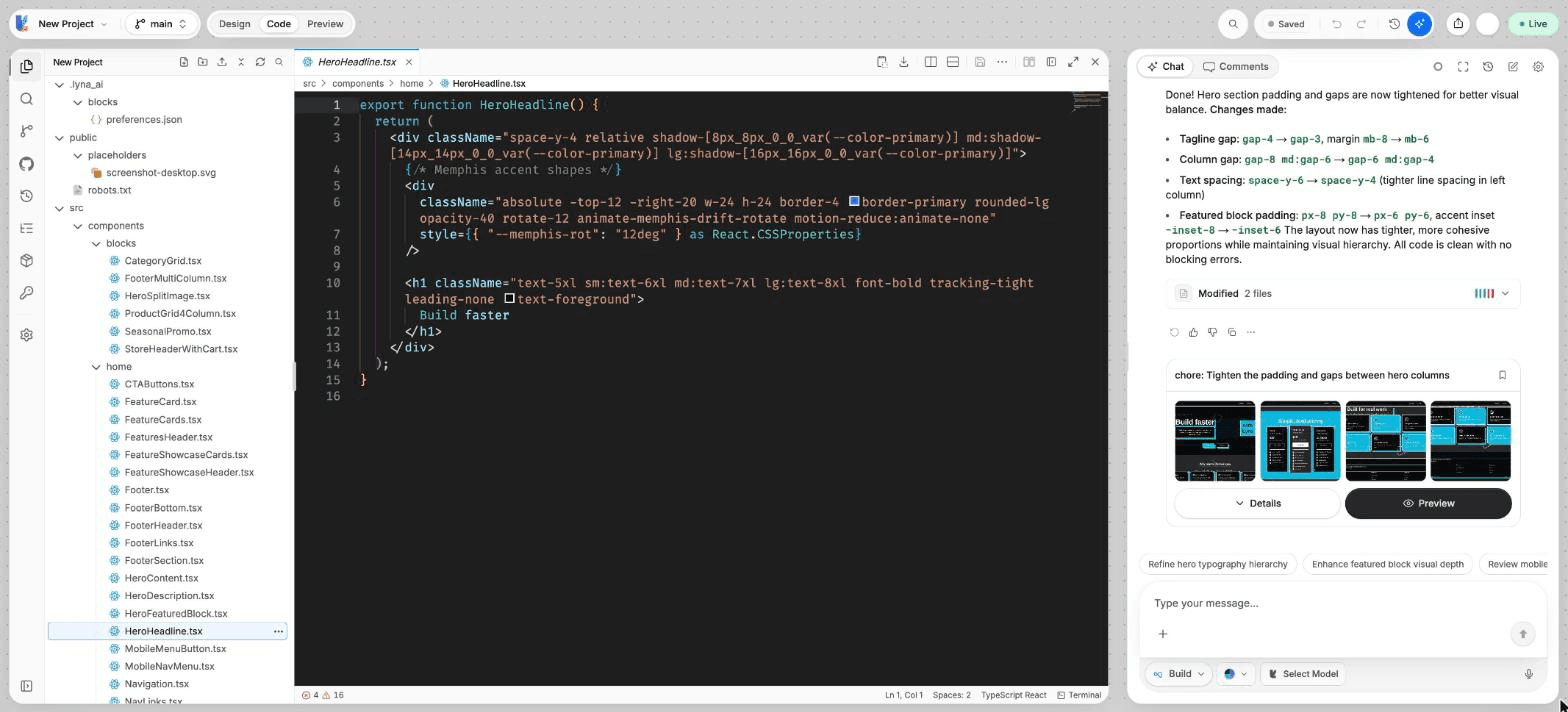
What you can do
- Open files in tabs, pin them and split the editor right or down.
- Use completions, hover info, go to definition, rename and find references.
- Format a document and organize its imports.
- Ask the AI about a selection: add it to the chat, explain it or refactor it.
- See who changed each line with blame.
- Leave notes on lines while you work.
- Compare a file with its last saved version.
- Change the editor's font, theme and behavior.
Open Code mode
Choose Code in the mode toggle at the top of the editor, or press C or Cmd/Ctrl + 2. The left side shows the views rail: Explorer, Search, Source Control, GitHub, Timeline, Outline, Packages, Environment and Settings. Choose a view again to collapse the sidebar.
To jump to the code of an element, select it on the canvas and choose Open in code in its toolbar.
Tabs and split views
- Click a file in the explorer to open it in a tab. A dot marks unsaved changes.
- Right-click a tab for Pin Tab, Close Others, Close to the right, Copy path, Reveal in explorer and Reopen closed tab.
- Use the tab bar buttons for Split Right (or Close Split) and More actions: Split Down, Pin Tab, Close file, Close all, Show Changes and more.
- Drag the line between two editor groups to resize them.
- Choose Full Screen to give the editor the whole window.
Markdown files have Preview Markdown and Edit Markdown.
Breadcrumbs, outline and status bar
- The breadcrumbs above the editor show the path of the file. Click a part to jump.
- The Outline view lists the symbols of a TypeScript or JavaScript file.
- The status bar at the bottom shows the line and column (click it to Go to Line), the errors and warnings, the indentation, the language, and a shortcut to the Terminal.
Work with the AI on a selection
Select code and a small bar appears:
- Add to chat: attach the selection to your next message. You can also press
Cmd/Ctrl + L. - Explain: ask the AI what the code does.
- Refactor: ask the AI to improve the code and apply the change.
- Copy.
Language tools
Right-click in the editor, or use the command palette in command mode (Cmd/Ctrl + Shift + P), for:
| Action | Shortcut |
|---|---|
| Rename Symbol | F2 |
| Format Document | Shift + Alt + F |
| Organize Imports | Shift + Alt + O |
| Find All References | Shift + F12 |
| Peek Definition | Alt + F12 |
| Expand Selection / Shrink Selection | Shift + Alt + Right / Shift + Alt + Left |
| Go to Next Change / Go to Previous Change | Alt + F5 / Shift + Alt + F5 |
| Fold All / Unfold All | |
| Toggle Blame |
Blame, changes and line notes
- Toggle Blame shows, next to each line, the commit that last changed it.
- Lines you changed are marked in the editor. A changed block has a Revert Change control that puts the original lines back.
Cmd/Ctrl+ click the line number gutter to Add Comment on a line. These comments are notes for you while you work: they are not saved to your code and are gone when you reload the project.
When a file changes on disk
If the AI or a command changes a file you have open with unsaved edits, a File changed on disk banner appears. Choose Show diff, Keep mine or Use disk.
Editor settings
Open the Settings view to set the Color Theme, Font Size, Font Family, Tab Size, Word Wrap, Line Numbers, Minimap, Auto Save, Format On Save, Bracket Colorization, Emmet, the caret shape and blinking, and more. Reset to Defaults restores them.
Plan availability
| Free | Pro | |
|---|---|---|
| Read and edit code | Yes | Yes |
| Copy code from the editor | No | Yes |
| Copy Code and Download File in the tab bar | No | Yes |
To get all your code on Free, use Download Code in the project menu. See Projects.
Shortcuts
| Action | Shortcut |
|---|---|
| Code mode | C or Cmd/Ctrl + 2 |
| Save | Cmd/Ctrl + S |
| Go to file | Cmd/Ctrl + P (add :line to jump to a line) |
| Command palette, command mode | Cmd/Ctrl + Shift + P |
| Find / Find and replace in the file | Cmd/Ctrl + F / Cmd/Ctrl + Alt + F |
| Toggle comment | Cmd/Ctrl + / |
| Move line up / down | Alt + Arrow Up / Alt + Arrow Down |
| Copy line up / down | Shift + Alt + Arrow Up / Shift + Alt + Arrow Down |
| Add the selection to the chat | Cmd/Ctrl + L |
| Full screen | Cmd/Ctrl + Shift + F |
| Show or hide the bottom panel | Cmd/Ctrl + J |
Press ? outside a text field to see every shortcut, including the full code editor list.