Terminal
Run commands in your project environment from the editor.
Your project runs in a cloud sandbox with a dev server. The Terminal gives you a shell in that sandbox, so you can run commands, read the dev server output and restart it, right from the editor.
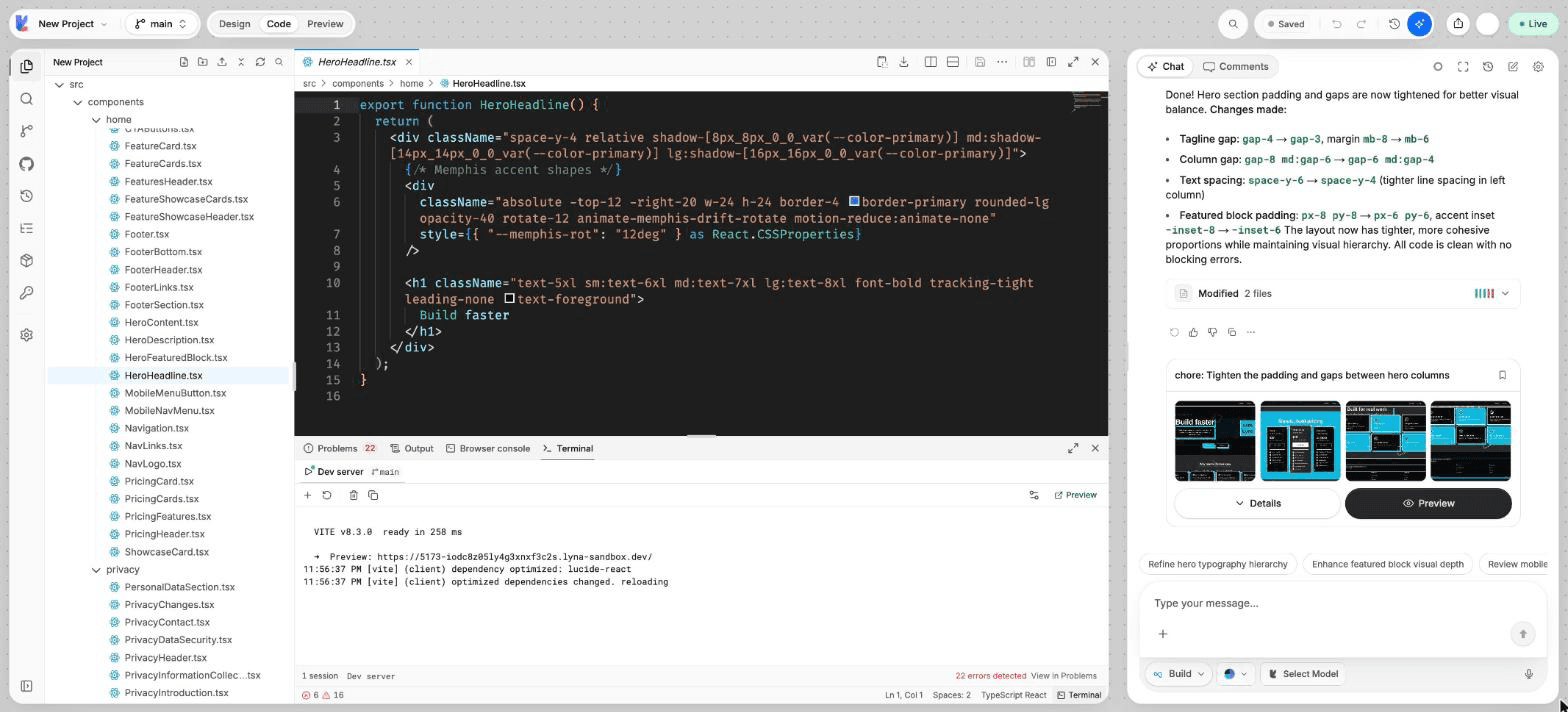
What you can do
- Read the live output of the dev server.
- Open up to 4 shell sessions and run any command.
- Search the output, copy it, or clear it.
- Send selected output to the AI.
- Restart the dev server, or open the preview in a new tab.
- Change the terminal theme, font and scrollback.
Open the terminal
Press Cmd/Ctrl + J, choose Terminal in the status bar, or run Toggle Terminal from the command palette. The bottom panel opens with four tabs:
| Tab | What it shows |
|---|---|
| Problems | Type errors, lint warnings and build errors. See Problems. |
| Output | The last run of each channel: TypeScript, Lint and Server logs. |
| Browser console | The console messages of your preview. |
| Terminal | The dev server session and your shell sessions. |
Run a command
Open a shell
On the Terminal tab, choose New Terminal. Each project branch can have up to 4 shell sessions.
Type the command
For example, bun add date-fns or bun run build.
Close it when done
Choose Kill Terminal to stop the session.
The Dev server session is always there. It shows the dev server's output. When it prints errors, the terminal shows how many were found, with View in Problems.
Terminal actions
| Action | What it does |
|---|---|
| New Terminal | Opens a new shell session. |
| Kill Terminal | Stops the current session. |
| Clear Terminal | Clears the output. |
| Copy Terminal | Copies the output. |
| Search terminal | Finds text in the output, with Next and Previous. |
| Send Selection to AI | Adds the selected output to your chat message. |
| Restart Dev Server | Stops and starts the dev server. |
| Open Preview in New Tab | Opens the running app in a browser tab. |
When the preview stops updating
Choose Restart Dev Server first. If the sandbox itself is stuck, restart the sandbox from the bottom bar of the editor.
Terminal settings
Open Terminal settings. Changes apply to every open terminal.
- Theme: Lyna, Default dark, Light, Solarized Dark, Monokai, Ember or Aurora. It can follow the app theme.
- Font size and Line height.
- Font: App mono or System mono.
- Blinking cursor.
- Emulation engine: Complete (full escape sequence and Unicode support) or Lightweight (a smaller core with basic escape sequences).
- Scrollback: Compact, Standard or Extended.
- Reset to defaults.
Shortcuts
| Action | Shortcut |
|---|---|
| Show or hide the bottom panel | Cmd/Ctrl + J |
| Command palette | Cmd/Ctrl + K |