Problems
See type errors, lint warnings, and build problems in one list.
The Problems list gathers the errors and warnings of your project in one place: type errors, lint problems and build errors. Open each one at its line, or ask the AI to fix it.
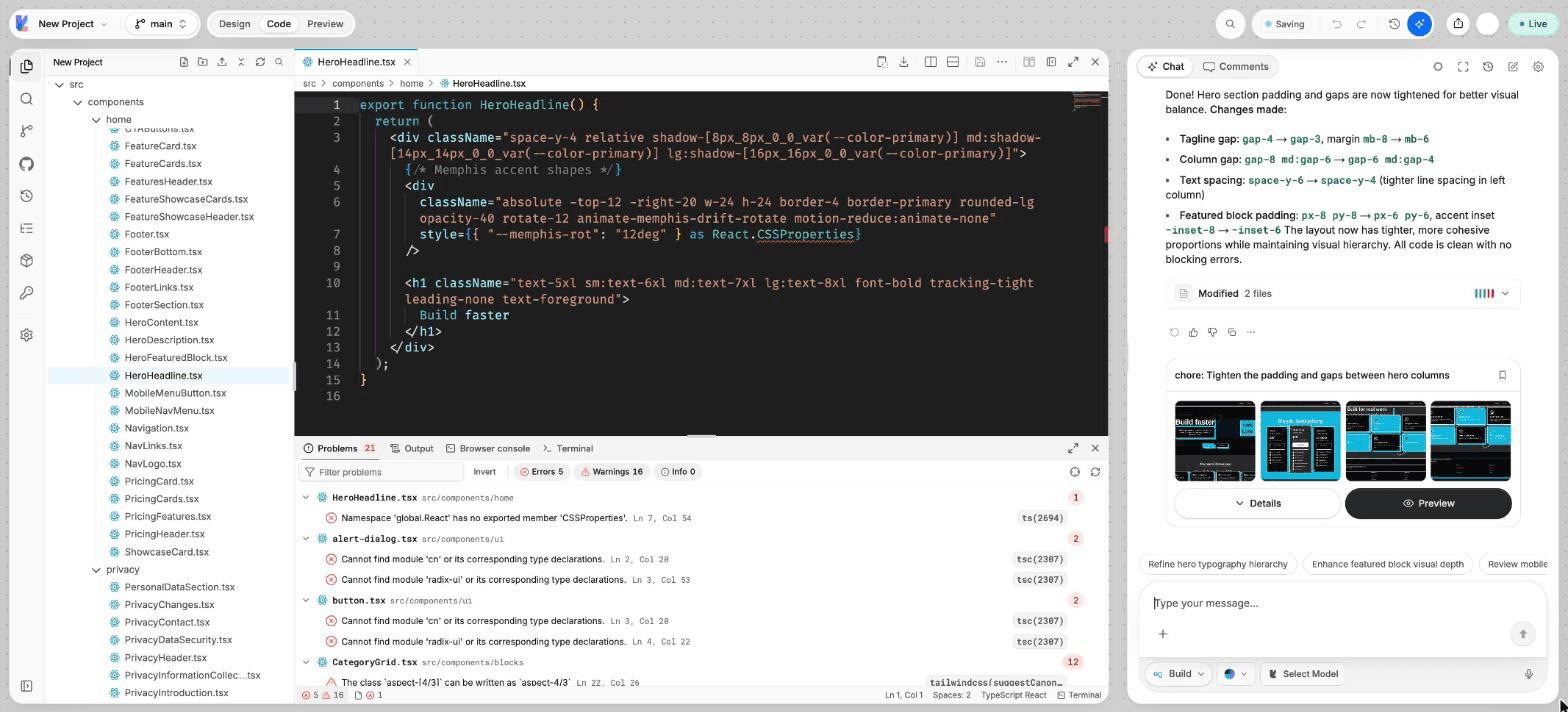
What you can do
- See every error, warning and info message, grouped by file.
- Filter by level, by text, or to the open file only.
- Run a full check of the project.
- Open a problem at its line.
- Fix one problem, or all of them, with the AI.
Open Problems
Press Cmd/Ctrl + J to open the bottom panel and choose Problems. You can also click the error and warning counts in the status bar of the code editor.
Check the whole project
Run a check
Choose Run check. Lyna runs the type checker and the linter on the whole project. Last checked shows when the list was last updated.
Narrow the list
Turn the Errors, Warnings and Info filters on or off, type in Filter problems, or turn on Active file only.
Fix
Click a problem to open the file at its line. Choose Fix with AI on one problem, or Fix all to send every problem to the AI. Choose Dismiss to hide a problem you do not want to fix now.
Open files versus the whole project
While you edit, the list shows the type errors of the files open in the editor. Choose Run check for the full compiler and lint results of the whole project.
If the type checker or the linter could not run, the list says so, so an empty list never hides a check that did not happen.
Build errors on the canvas
When your app fails to build, the frame shows Build error with the message. Choose Fix with AI to send it to the chat, Open file to go to the line, or Dismiss.
The dev server output in the Terminal also counts the errors it finds, with View in Problems.
Errors in the chat
When the preview reports errors, the chat shows how many were found above the message box. Choose Fix to ask the AI to fix them.
Shortcuts
| Action | Shortcut |
|---|---|
| Show or hide the bottom panel | Cmd/Ctrl + J |