Lyna Cloud
The backend for your project: a managed SQL database, user sign-in, file storage, secrets, edge functions, an API, payments and reports, all managed from project settings.
Lyna Cloud gives your app a real backend, and you manage all of it from Settings > Lyna Cloud without leaving the editor.
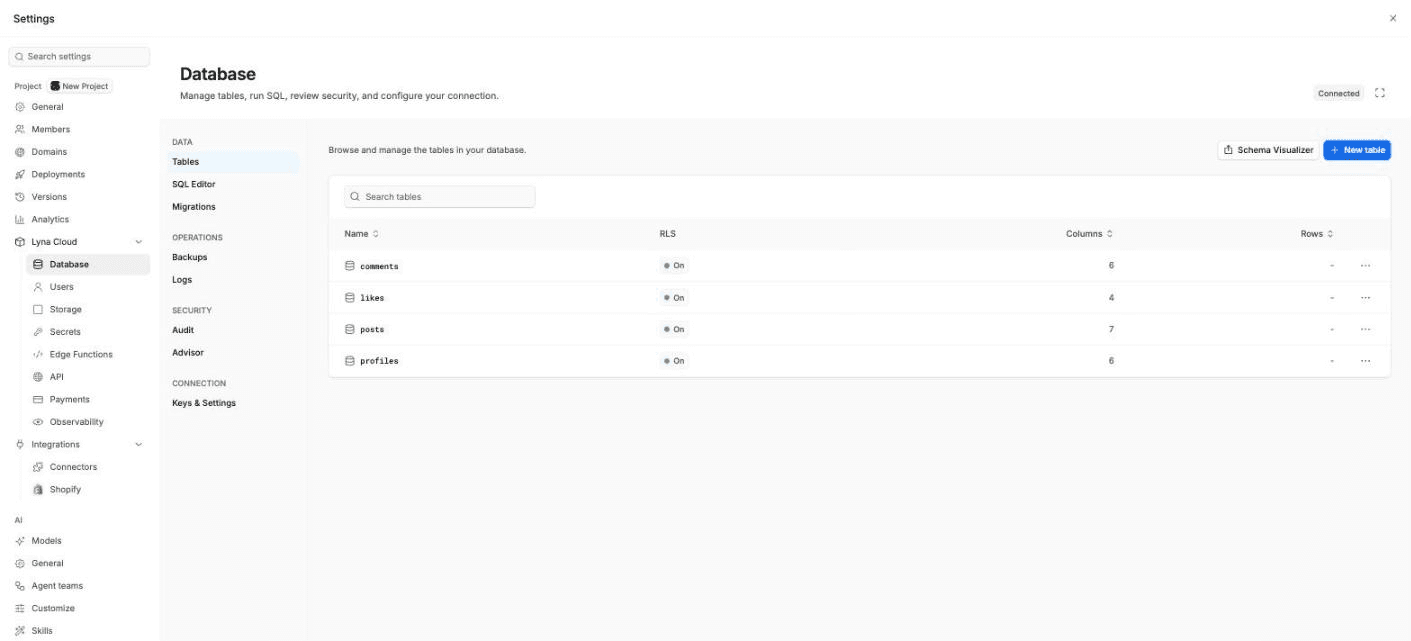
What you can do
- Create a managed Lyna database in one step, or connect a Supabase project you already own.
- Edit tables and rows, run SQL, apply migrations and restore backups.
- Let people sign up and sign in to your app, and manage their accounts.
- Upload files to buckets and serve them to your site.
- Keep API keys out of your code with secrets.
- Write, deploy and call edge functions.
- Try every REST, GraphQL, auth and storage request in the API studio.
- Connect your own Stripe account and query your payment data with SQL.
- Follow traffic, slow queries and errors in Observability.
The Lyna Cloud pages
| Page | What it holds |
|---|---|
| Database | Tables, SQL editor, migrations, backups, logs, security audit, advisor, keys and settings. |
| Users | Your app's users, sign-in methods, email templates and advanced auth settings. |
| Storage | Buckets, folders and files. |
| Secrets | App secrets in .env and edge function secrets. |
| Edge Functions | Your functions, their code, logs and calls. |
| API | The API studio and your connection keys. |
| Payments | Your own Stripe account, connected to your database. |
| Observability | Reports on the database, the API, auth, functions and storage. |
Set up a database
Every Lyna Cloud page runs on the project database. Until you add one, each page shows Add a database first with a Set up a database button.
Open the setup
Open Settings > Lyna Cloud > Database and choose Set up a database. The Set up database window opens.
Pick a method
- Lyna Database (Recommended): Lyna creates and configures a database for you. Pick a region close to your users.
- Connect Your Supabase: sign in with Supabase, then choose one of your projects, or create a new one with an organization, a name and a region.
Wait for it to finish
Lyna starts your project database, authentication, storage, realtime and the API keys, then saves the keys to your project's environment. This takes about a minute. The page opens on its own when the database is ready.
Your app is wired for you
When the database is ready, Lyna writes the project URL and the publishable key to your project's .env. The code the AI writes reads them from there, so you never paste keys into your code.
Managed or connected
| Lyna Database | Your Supabase project | |
|---|---|---|
| Who creates it | Lyna, in one step | You, in your Supabase account |
| How you connect | Nothing to do | Sign in with Supabase (OAuth). No keys to copy. |
| Leave it | Delete database removes it and all its data | Disconnect unlinks it and keeps your data, or Delete database removes it |
If Lyna loses access to your Supabase account, the pages show a reconnect banner. Choose Reconnect and sign in again.
Who can use it
- Plan: Lyna Cloud needs a paid plan. On Free, each page shows what it offers and a See plans button. See Plans and credits.
- Role: viewers can read the Lyna Cloud pages but cannot change anything, and keys stay hidden. Editors and above can make changes. See Members and roles.