Members and roles
The four roles in Lyna (Owner, Admin, Editor, Viewer), what each one can do in a workspace and in a project, and how to change them.
Every person in a workspace and in a project has a role. The role decides what they can see and change.
The roles
Workspaces and projects use the same four roles: Owner, Admin, Editor and Viewer.
In a project
| Can | Viewer | Editor | Admin | Owner |
|---|---|---|---|---|
| Open the project and read its settings | Yes | Yes | Yes | Yes |
| Edit, chat with the AI, publish, use Lyna Cloud | No | Yes | Yes | Yes |
| Invite people, change roles, remove members | No | No | Yes | Yes |
| Delete the project or move it to another workspace | No | No | No | Yes |
A project has one owner: the person who created it. Ownership is never given by an invitation. A workspace owner or admin can also delete or move any project of the workspace.
Viewers see the project read-only. Controls they cannot use show as locked, and some pages, such as Members, Domains and the AI settings, are hidden.
In a workspace
| Can | Viewer | Editor | Admin | Owner |
|---|---|---|---|---|
| See the workspace's projects | Yes | Yes | Yes | Yes |
| Create projects | No | Yes | Yes | Yes |
| Invite people | No | Viewers only | Up to Admin | Any role |
| Change roles and remove members | No | No | Yes, except owners | Yes |
| Change the workspace name, handle and avatar | No | No | Yes | Yes |
A workspace always keeps at least one owner. To leave a workspace you own alone, first make someone else an owner.
From workspace to project
When a project is shared with Everyone in workspace, each member gets a project role from their workspace role:
| Workspace role | Project role |
|---|---|
| Owner | Admin |
| Admin | Admin |
| Editor | Editor |
| Viewer | Viewer |
A role set on the project itself always wins over the one from the workspace.
Manage project members
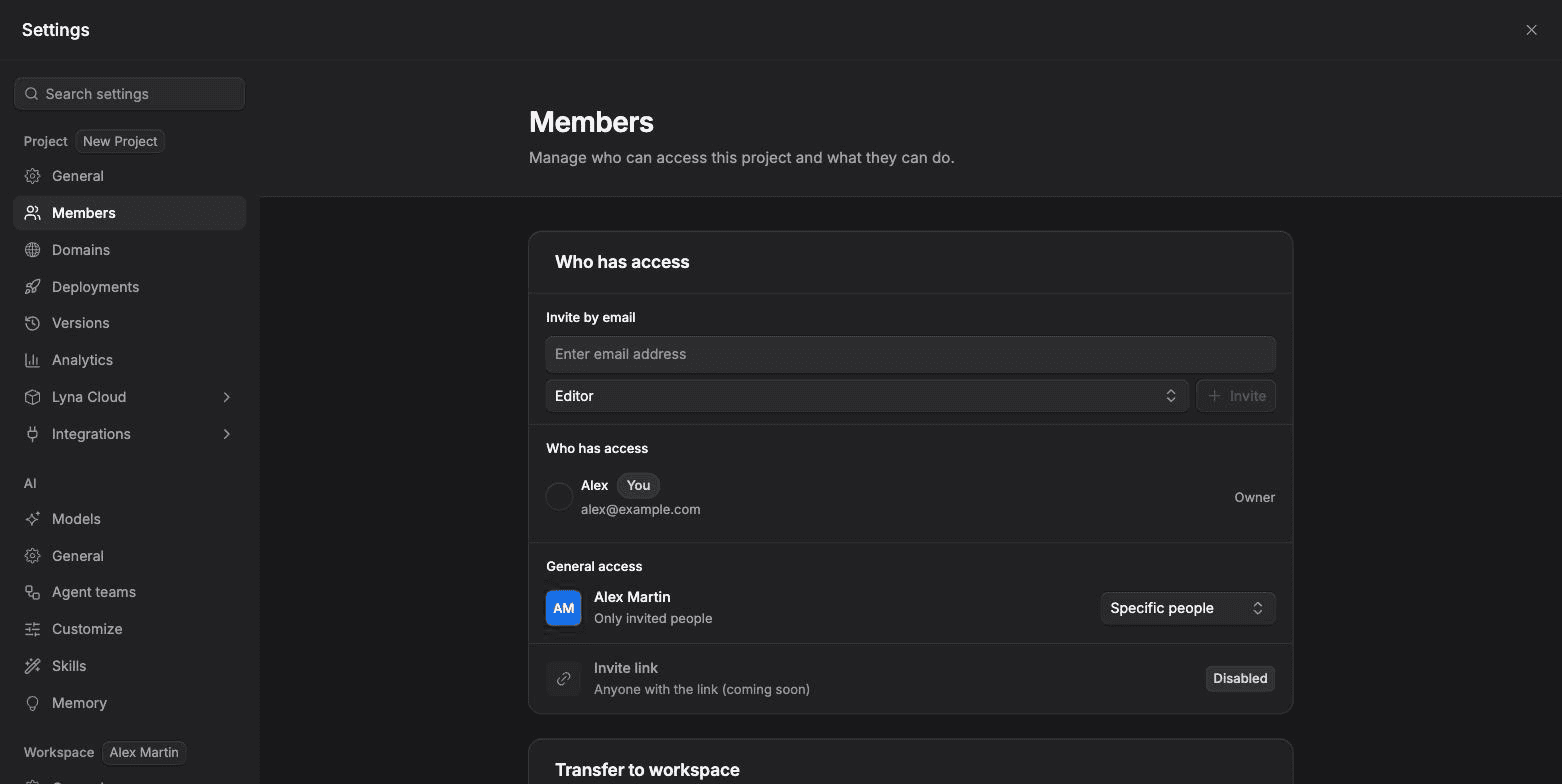
Open Members
Open Settings > Project > Members. Only editors and above see this page.
Change a role
Choose the role next to a member and pick a new one. You cannot give a role higher than your own.
Remove someone
Choose Remove and confirm. They lose access to the project.
Manage workspace members
Open Settings > Workspace > People. Change a member's role, remove them, or see pending invitations. See Workspaces.
Move a project
On the Members page, Transfer to workspace moves the project to another workspace you can manage. Collaborators keep their access.