Workspaces
Group projects and people in a workspace. Create workspaces, switch between them, set a name, handle and avatar, and manage who belongs.
A workspace groups projects and the people who work on them. You start with a personal workspace. Create more for a team, a client or a company.
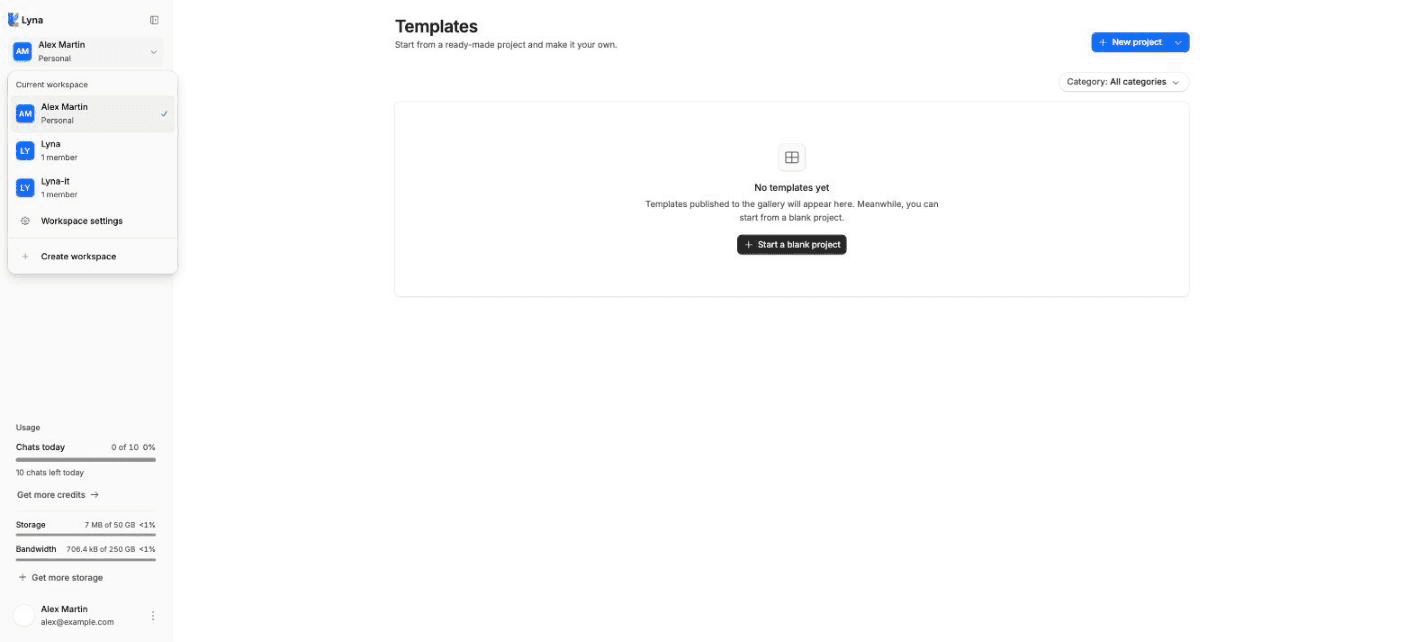
What you can do
- Create workspaces and switch between them.
- Set a workspace's name, handle and avatar.
- Invite people and give each one a role.
- Move projects between workspaces.
- Leave a workspace.
Create a workspace
Open the switcher
On the projects page, open the workspace switcher and choose Create workspace.
Name it
Enter a Workspace name and choose Create workspace. You are its owner, and Lyna switches to it.
Invite your team
Open Settings > Workspace > People and invite people by email. See Invitations.
Switch workspace
Open the switcher and pick a workspace. The projects page shows the projects of the current workspace. Your personal workspace is marked Personal.
Workspace settings
Open Settings > Workspace > General:
- Name and Avatar.
- Workspace handle: a unique name of 3 to 30 letters, numbers,
_or-, used in shared links. Lyna checks that it is free and suggests others. Changing it can break links you shared before. - Your role and Your workspaces.
- Leave workspace: you lose access to the workspace and its projects.
Owners and admins can change the name, handle and avatar.
You cannot leave your only workspace, and the last owner cannot leave. Make someone else an owner first.
People
Settings > Workspace > People lists the Members with their role and join date, and the Pending invitations. Owners and admins can change roles and remove members. See Members and roles.
Bring projects into a workspace
- From a project: Settings > Project > Members > Transfer to workspace.
- From the projects page of the workspace: Add projects brings projects from your other workspaces into this one.
Next steps
Members and roles
The four roles in Lyna (Owner, Admin, Editor, Viewer), what each one can do in a workspace and in a project, and how to change them.
Invitations
Invite people to a workspace or a project by email, copy or resend an invite link, change a pending invite's role, and accept an invitation you receive.