Database
Browse and edit tables, run SQL, apply migrations, restore backups, read logs, check row level security and get your connection keys.
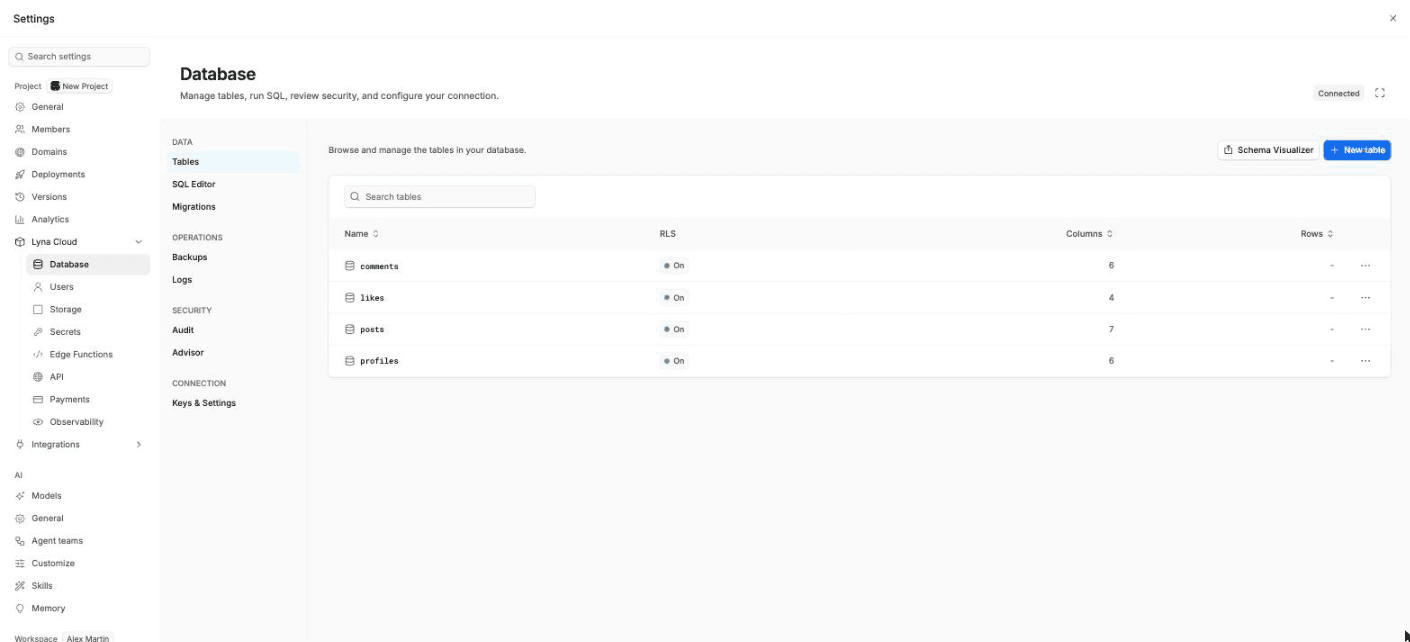
Your project database is a managed SQL database. Manage it from Settings > Lyna Cloud > Database. If the project has no database yet, see Set up a database.
What you can do
- Create, edit and delete tables, columns and foreign keys.
- Add, edit, filter and delete rows.
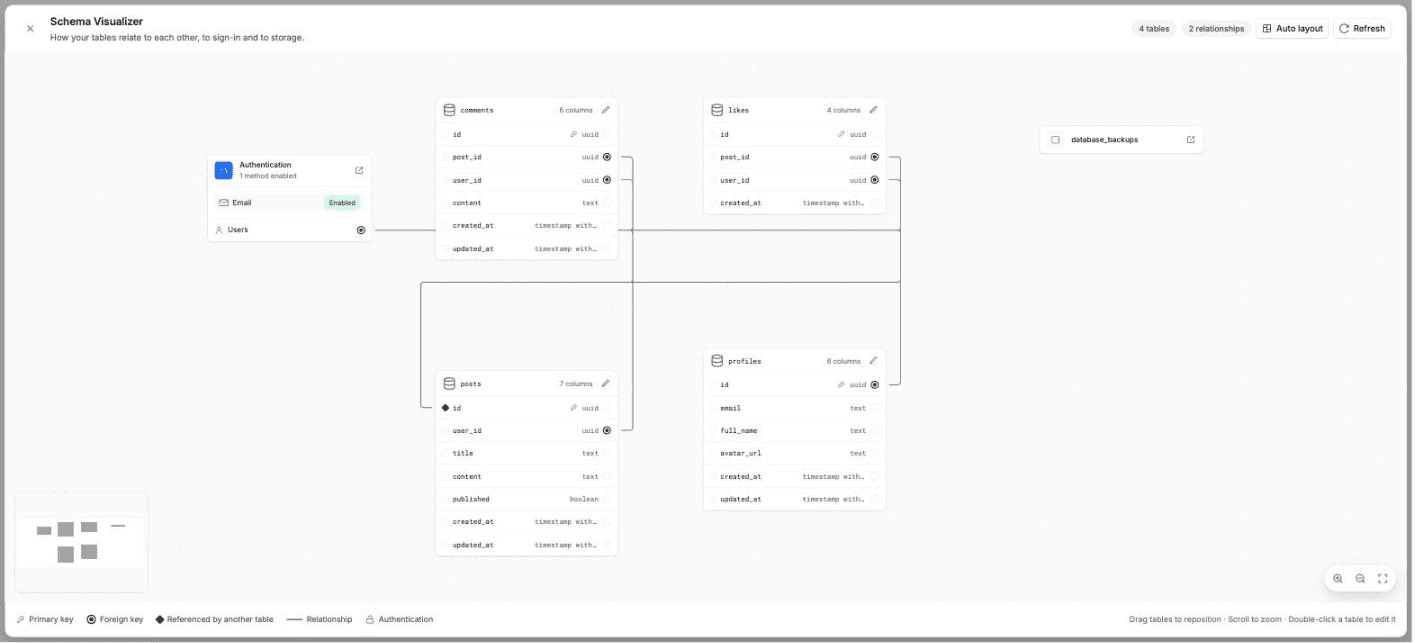
- See how your tables relate in the Schema Visualizer.
- Run SQL, chart the results and export them.
- Start from a ready-made schema template.
- Save queries as migrations and apply them.
- Create, restore and download backups.
- Read the database logs.
- Turn row level security on or off and read each table's policies.
- Apply the advisor's performance and security fixes.
- Copy your keys and save them to
.env.
The page groups its sections in four sets: Data (Tables, SQL Editor), Operations (Migrations, Backups, Logs), Security (Audit, Advisor) and Connection (Keys & Settings). Choose the full screen button to give the database the whole window.
Tables
The Tables list shows each table with its rows, columns and RLS state. Search it, open a table with View records, or use the table menu to Edit table or Delete table.
Create a table
Choose New table. Enter a Table name, then add columns with a name, a type, a default, and whether the column is the primary key (PK) or can be empty (Null).
Link it to other tables
Under Foreign keys, choose Add foreign key, pick the column, the table and the column it points to, and what happens On delete and On update (No action, Cascade, Set null or Restrict).
Save
Choose Create table. The table appears in the list.
Inside a table you get three tabs:
- Data: add, edit and delete rows. Use Filter to narrow rows with operators such as equals, greater than, like or in list. Select several rows to delete them together.
- Columns: each column's name, type, constraints, default and reference.
- Policies: the table's row level security policies, with their roles and their
USINGandWITH CHECKrules.
Deleting a table, a column or rows cannot be undone. Lyna asks you to type the table name before it deletes a table.
Schema Visualizer
Choose Schema Visualizer in the Tables list to see your tables as a map, with their keys, their relationships, the sign-in users table and your storage buckets. Drag tables to move them, scroll or pinch to zoom, choose Auto layout to tidy the map, and double-click a table to edit it.
SQL Editor
Write a query and choose Run (Cmd/Ctrl + Enter).
- Results shows the rows. Export downloads them as CSV or copies them as JSON or Markdown.
- Chart draws a bar, line or pie chart from a numeric column.
- Templates loads a ready-made schema: CRM, AI chatbot, Online store, Community forum, Photo sharing or Team workspace.
- Save as migration saves the query as a migration file in your project.
Migrations
Migrations are SQL files in your project's supabase/migrations folder. The Migrations section lists them with their status: Applied, Pending or Missing file.
- New migration creates an empty migration. Write the SQL, then Save.
- Apply runs a pending migration on the database. An applied migration is read-only.
- Repair recreates a migration file that is missing from your project. Repair all fixes every missing file at once.
Managing migrations needs a running sandbox, so keep the project open.
Backups
- Manual backups: choose Create backup to save a snapshot. You can Rename, Restore, Download or Delete each one. The number of manual backups depends on your plan; the counter shows how many you have used.
- Scheduled backups: on Pro, Lyna takes a backup every day and keeps it for 7 days.
Restoring overwrites your data
A restore replaces your current data with the backup. Data created after the backup is lost, and the database is briefly unavailable. Lyna first saves a Pre-restore backup so you can roll back.
Logs
The Logs section shows the last hour of activity. Pick a Log type in one of five groups: Database, Connections, Data API, Edge functions, or Auth, storage and realtime. Filter by Level, and open an entry to read its message and fields. Observability reports can open the logs on a given time window.
Audit
Audit checks row level security on every table. It shows how many tables are Protected or Unprotected, and warns when a table has RLS on but no policy (then nobody can read or write it through the API). Use Enable RLS, Disable RLS or View policies on each table.
Advisor
Advisor lists performance and security suggestions, such as a foreign key without an index, an unused or duplicate index, a public table without row security, or a policy that trusts user metadata. Filter by Security or Performance. When a suggestion can be fixed for you, choose Fix, check what it will do, then Apply fix. You can also copy the SQL of a fix.
Keys & Settings
- Project URL, Publishable key and Secret key. The publishable key is safe in a browser and is limited by your row level security policies. The secret key bypasses row level security: keep it on the server.
- Environment variables: choose Save to .env to write the keys your app needs to the project's
.env, or copy them. - Danger zone: Disconnect (your own Supabase project) or Delete database. You type
DISCONNECTorDELETEto confirm.
Never put the secret key in your app
Code in your app is downloaded by every visitor. Use the publishable key there, and use the secret key only in edge functions.
FAQ
Next steps
Lyna Cloud
The backend for your project: a managed SQL database, user sign-in, file storage, secrets, edge functions, an API, payments and reports, all managed from project settings.
Users and auth
Let people sign up and sign in to your app. Manage your app's users, choose sign-in methods, edit auth emails and tune sessions, MFA, rate limits and security.