Users and auth
Let people sign up and sign in to your app. Manage your app's users, choose sign-in methods, edit auth emails and tune sessions, MFA, rate limits and security.
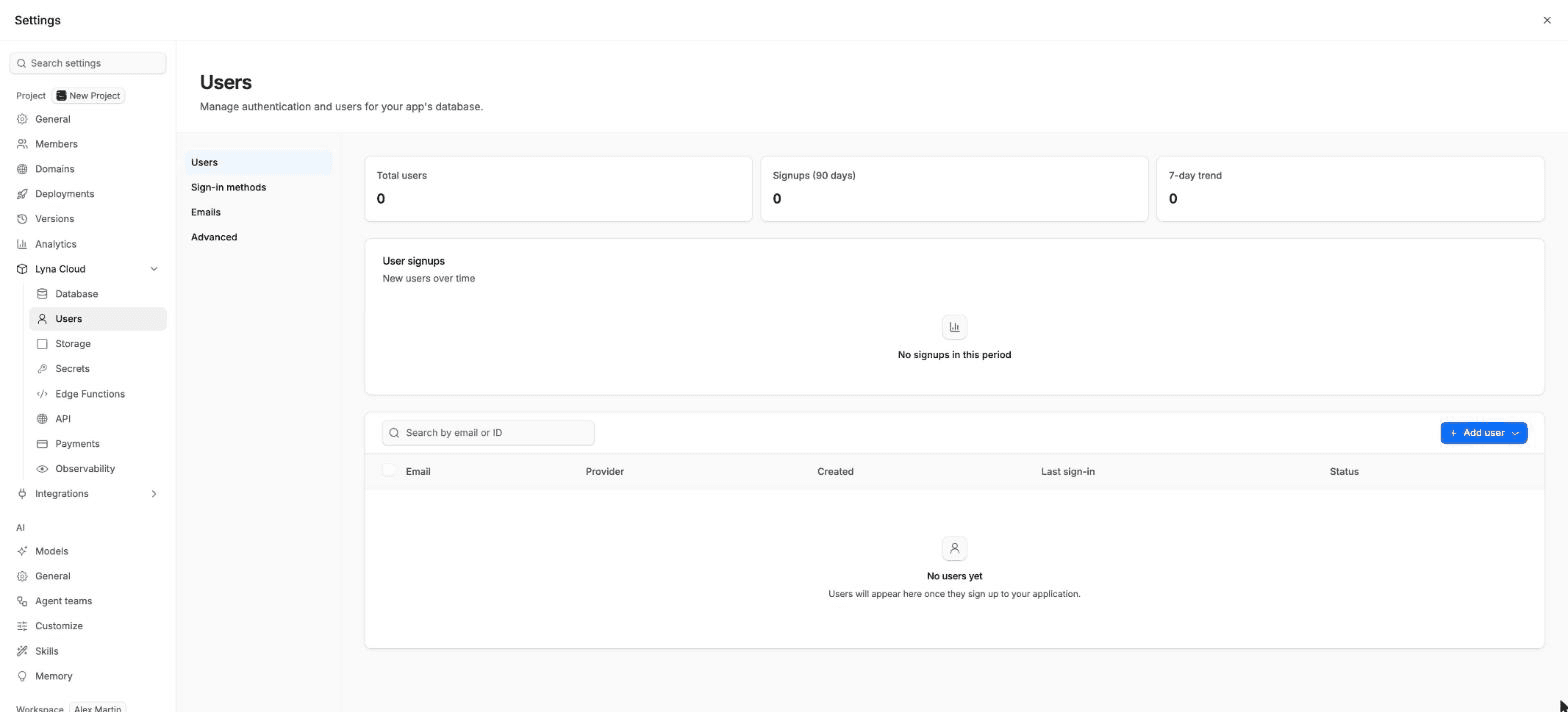
The Users page manages the people who sign in to your app (not the people who build it with you). Open Settings > Lyna Cloud > Users. It needs a project database: see Set up a database.
What you can do
- See your total users and the signups of the last 90 days.
- Create a user, or invite people by email with a magic link.
- Verify an email, ban, unban or delete users, one by one or in bulk.
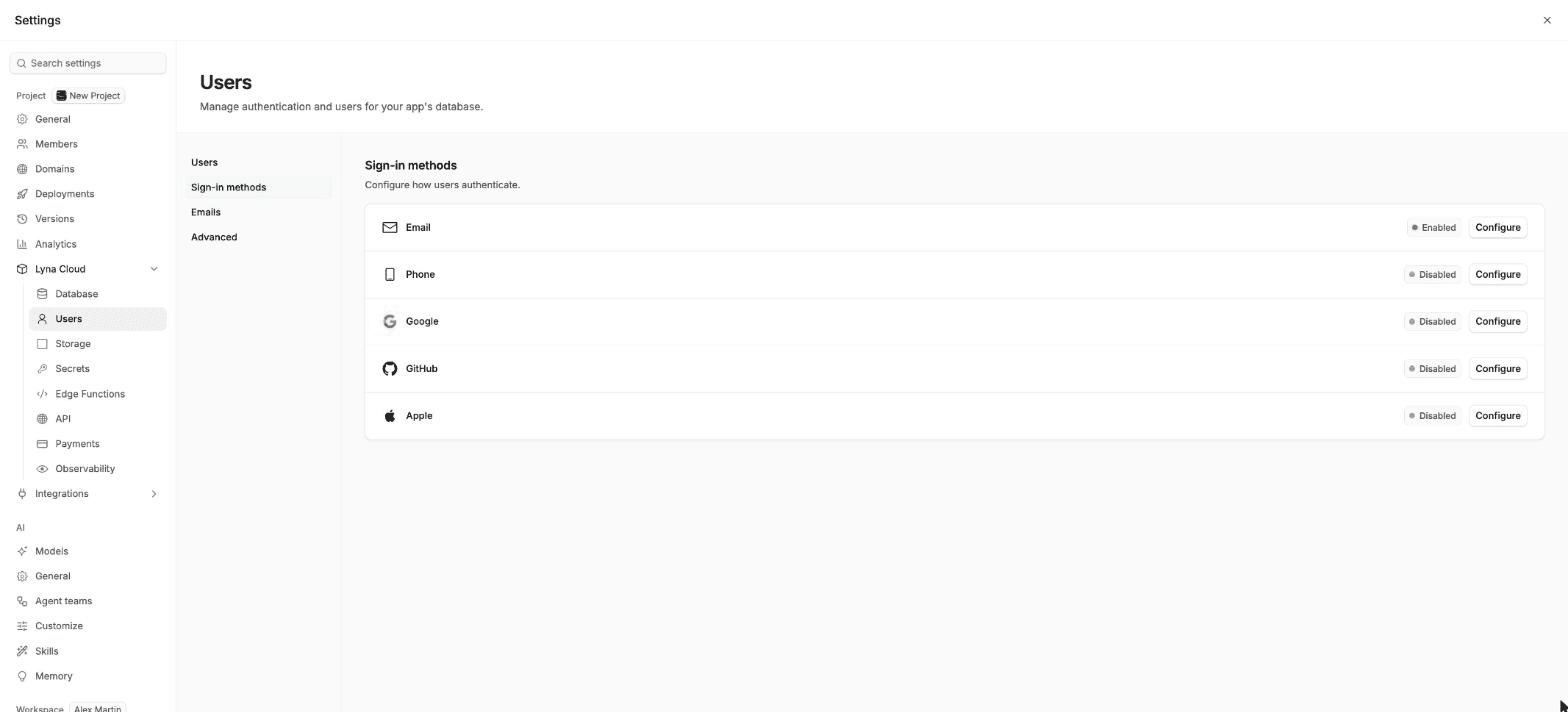
- Turn sign-in methods on: email, phone, Google, GitHub and Apple.
- Edit the emails your app sends for sign-up, invites, magic links, email changes, password resets and reauthentication.
- Set redirect URLs, sessions, multi-factor authentication, rate limits and security options.
The page has four sections: Users, Sign-in methods, Emails and Advanced.
Users
Search by email or ID. Each user shows the provider they signed in with, when they joined, their last sign-in and a status: Active, Banned or Unverified.
- Add user > Create new user: enter an email and a password (at least 6 characters). The email is confirmed automatically.
- Add user > Invite by email: enter one or more addresses. Each person gets a magic-link invitation.
- The row menu offers Verify email, Ban user, Unban user and Delete user. Banning and deleting ask you to type the user's email.
Sign-in methods
Choose Configure on a method to turn it on and fill in its settings.
| Method | What you set |
|---|---|
| Email sign-in, automatic confirmation, secure email change, password length and requirements, leaked password check, code length and lifetime. You can also turn off new sign-ups or allow anonymous sign-ins. | |
| Phone | Phone sign-in and an SMS provider (Twilio, Twilio Verify, MessageBird, Textlocal or Vonage) with its credentials, the message text, code length and lifetime, and test numbers. |
| Your OAuth client IDs and client secret. | |
| GitHub | Your GitHub OAuth app's client ID and secret. |
| Apple | Your Apple Services ID and secret key. |
Emails
Edit the subject and HTML body of each template: Confirm signup, Invite user, Magic link, Change email address, Reset password and Reauthentication. Choose Save template.
Editing templates needs a custom SMTP provider. Projects on the built-in mailer cannot change the templates.
Advanced
- Redirect URLs: the addresses sign-in can send users back to. Lyna recommends them from your preview and published domains. Set the Site URL and Allowed redirect URLs under General.
- Database user sync: choose Enable user sync to copy sign-in users into a table in your public schema, so you can join them with your own tables and use them in policies.
- Multi-factor authentication: authenticator apps, phone codes and security keys or passkeys, and how many factors a user can add.
- Sessions: a time limit, an inactivity timeout, one session per user, refresh token rotation and access token lifetime.
- Rate limits: emails and text messages per hour, and verifications, token refreshes, code requests and anonymous sign-ins per IP address.
- Security: CAPTCHA protection (hCaptcha or Cloudflare Turnstile) and manual identity linking.
Choose Save to apply your changes, or Discard to drop them.
Publish before you set redirect URLs
Sign-in links send people back to your site. Publish once, or connect your custom domain, so Lyna can suggest the right redirect URLs.
Add sign-in to your app
Ask the AI in the chat, for example: "Add email and password sign-up and sign-in pages, a sign-out button, and protect the dashboard route so only signed-in users can open it." The AI writes the pages with the app's router and the database client already set up in your project.