DevTools
Built-in developer tools to debug, profile, and inspect your app without leaving Lyna.
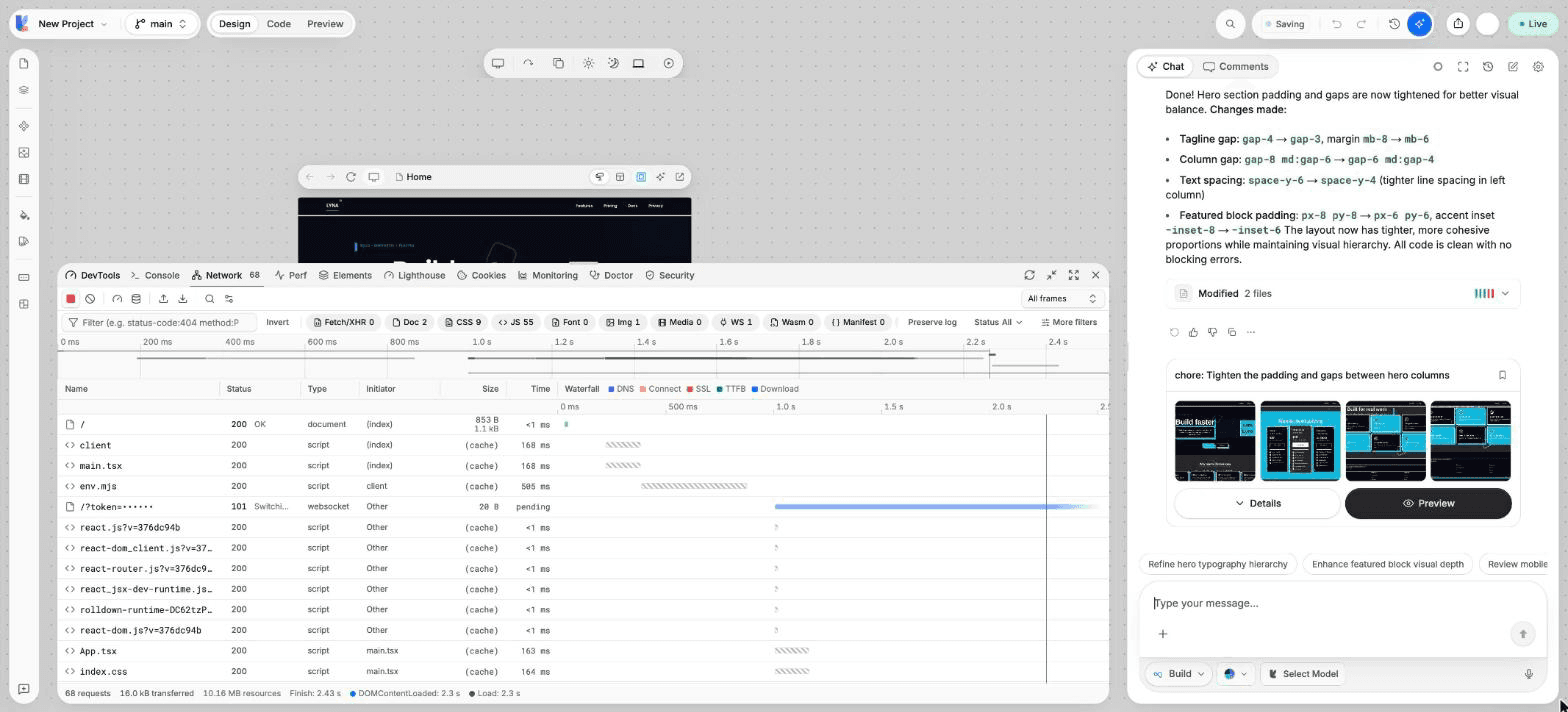
DevTools is a panel of browser developer tools for the preview of your app. Read the console, inspect network requests, measure performance, run audits and check your sandbox, all inside the editor.
What you can do
- Read console messages and run JavaScript in the preview.
- Inspect, filter, replay and block network requests.
- Measure Core Web Vitals and record a performance trace.
- Browse the element tree and its styles.
- Run Lighthouse audits on one page or all pages.
- Read and edit cookies, local storage and session storage.
- Watch the CPU, memory and disk of your sandbox.
- Check code health with Doctor and vulnerabilities with Security.
Open DevTools
Choose DevTools in the bottom bar of the editor. The panel opens under the canvas with nine tabs: Console, Network, Perf, Elements, Lighthouse, Cookies, Monitoring, Doctor and Security.
If several frames are on the canvas, pick the one to inspect in Inspected frame. Refresh Preview reloads it. Use the header buttons to make the panel larger, full screen, or to close it.
Console
- Filter by level: Errors, Warnings, Info, Logs and Debug, or type in Filter logs....
- In Console settings, turn on Group repeated messages, Show timestamps or Preserve log (keep messages across reloads).
- Type in Run JavaScript in the preview to run code in the page and see the result.
- On a message, choose Open in the code editor to jump to its source, or Ask the agent to fix this to send it to the chat.
Network
- Every request of the preview is listed with its status, type, size and time. Turn recording on or off, and turn on Preserve log to keep requests across reloads.
- Filter by type: All, Fetch/XHR, Doc, CSS, JS, Font, Img, Media, WS, Wasm, Manifest and Other. The filter box also takes keys such as
status-code:404ormethod:POST. - Open a request to see its Headers, Payload, Preview, Response, Initiator and Timing. Streaming requests add EventStream, and WebSockets add Frames.
- Right-click a request to Copy as cURL or as fetch, Replay request, Block request URL or Block request domain.
- Disable cache and the throttling menu (Fast 4G, Slow 4G, 3G, Offline) help you test slow connections.
- Export HAR saves the list, and Import HAR opens a saved one.
Perf
- Live metrics shows LCP, CLS, INP, FCP and TTFB for the page, each rated Good, Needs improvement or Poor.
- Record and reload records a trace while the page loads. The result lists insights, and Fix with AI sends them to the chat.
Elements
Browse the element tree of the page and search it. Select an element to see its Styles, Computed values, Layout box and Attributes, and copy its selector.
To change the design of an element, use the Styles panel instead: it writes the change to your code.
Lighthouse
Choose the pages
Pick a page, or All pages, and Desktop or Mobile.
Generate the report
Choose Generate report. Lyna reloads each page and audits it.
Fix the issues
Read the Performance, Accessibility, SEO and Best Practices scores and the audits behind them. Choose Fix issues with AI to send them to the chat. Score history shows how the scores changed since the last run.
Cookies
Choose Cookies, Local Storage or Session Storage. Select an item to see its details, copy its value or delete it.
The preview's storage, not your browser's
This tab shows the storage of the sandboxed preview. Cookies marked HttpOnly are set by the server, so their values stay hidden.
Monitoring
Watch the CPU, Memory and Disk use of your sandbox, with its uptime. Pick a Time range (1m, 5m, 15m, 30m or All), pause or resume the collection, and turn memory alerts on or off.