Packages
Search npm, add packages to your project, and remove the ones you no longer need.
The Packages view searches the npm registry and installs a package in your project in one click. It also lists what your project already uses, so you can remove what you no longer need.
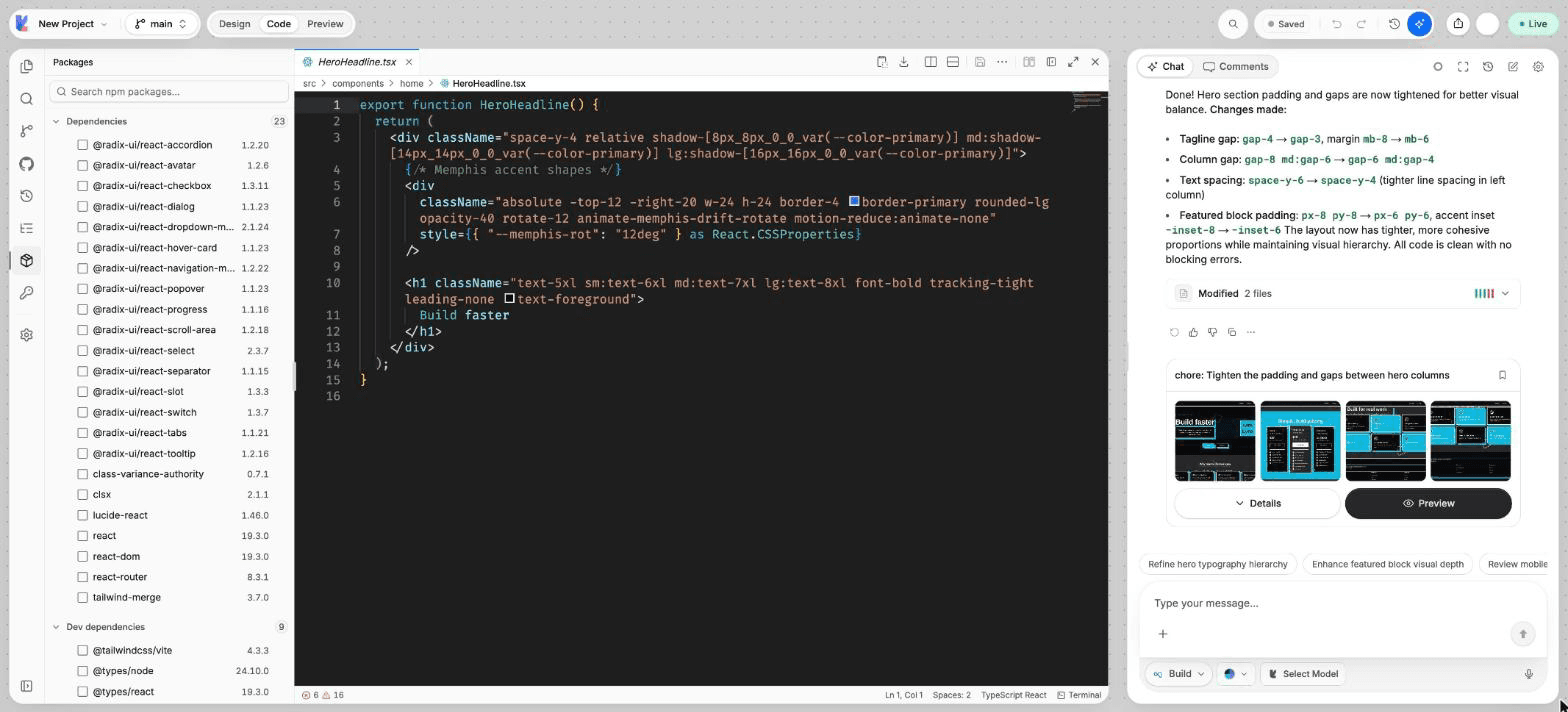
What you can do
- Search npm packages by name.
- See the latest version and weekly downloads of each result.
- Install a package in one click.
- See your Dependencies and Dev dependencies with their versions.
- Remove a package.
Add a package
Open Packages
In Code mode, choose Packages in the views rail. You can also run Packages from the command palette (Cmd/Ctrl + K).
Search
Type in Search npm packages.... Results come from the npm registry. Packages you already have are marked as installed.
Install
Click a result. Lyna runs bun add in your sandbox and shows a message when the package is installed. It is added to package.json as a dependency.
Remove a package
Find the package under Dependencies or Dev dependencies and choose its remove button. Lyna runs bun remove and updates package.json.
The sandbox must be ready
Installs and removals run in your sandbox. If you see Sandbox not ready, wait for the project to finish loading, then try again.
Check the code that uses it
Removing a package does not change the files that import it. Remove those imports too, or the app shows a build error. See Problems.
Other ways to add packages
- Ask the AI in the chat, for example "Add a date picker with date-fns". The AI installs what it needs.
- Run
bun add <name>in the Terminal. Usebun add -d <name>for a dev dependency. - UI components from the Components panel install their own files and dependencies. See Components.