SEO
Set your site title, description, favicon and social preview image so search engines and shared links show your site well.
Search engines and social networks read your site's title, description and images. Set them in Settings > Project > General.
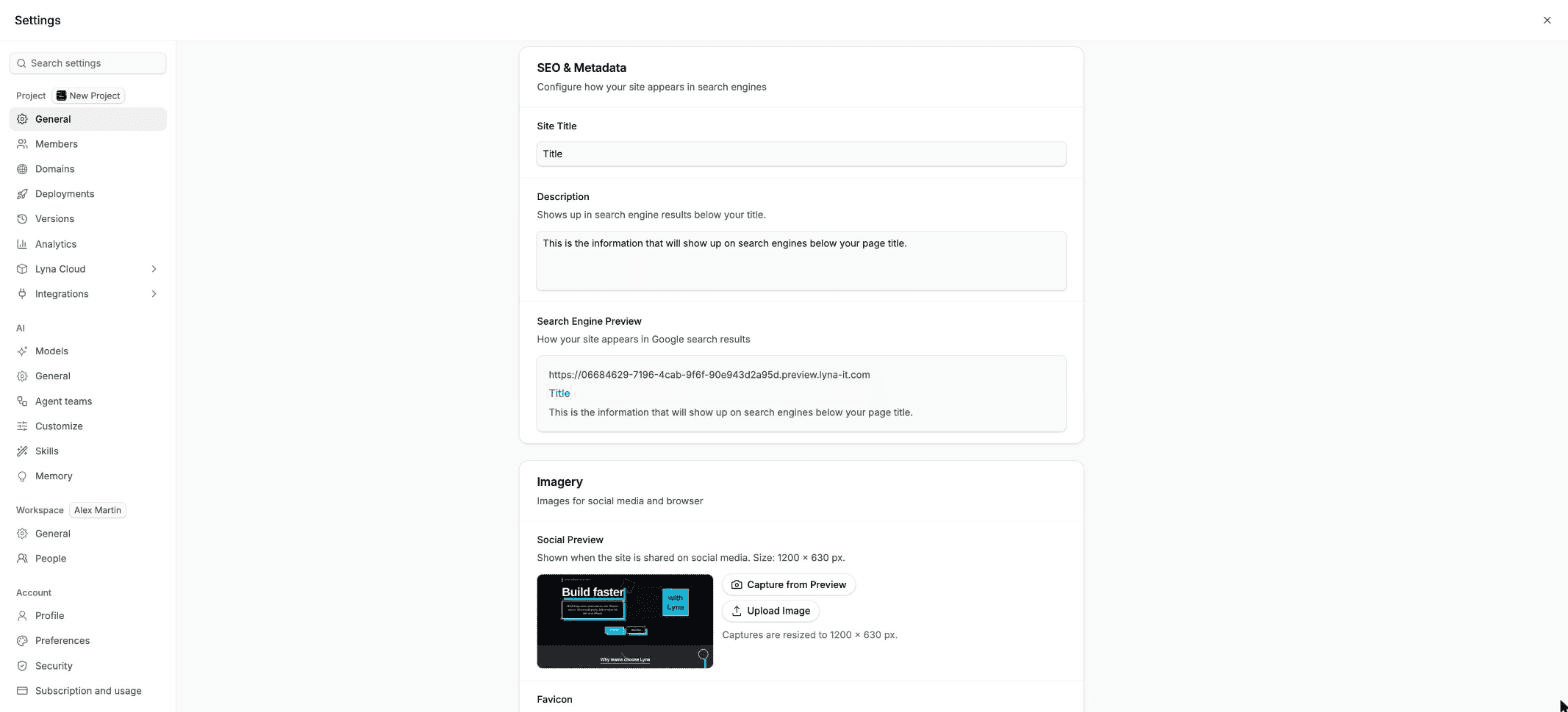
What you can do
- Set the Site Title and Description search engines show.
- See a Search Engine Preview as you type.
- Upload a Favicon, the small icon in browser tabs.
- Upload a Social Preview image for shared links, or capture one from your preview.
Set your title and description
Open project settings
Open Settings > Project > General and scroll to SEO & Metadata.
Write them
Enter a Site Title and a Description. The Search Engine Preview shows how they will look in results.
Save and publish
Choose Save changes, then publish or update your site so the new values go live.
Images
Under Imagery:
- Favicon: the icon in browser tabs. The panel shows the size to use.
- Social Preview: the image shown when someone shares your link. Upload one, or choose Capture from Preview to take a picture of your app. Captures are resized to the right size.
Tips
- Keep the title short and specific: what the site is and for whom.
- Write a description of one or two sentences that says what visitors get.
- Give each page its own title and description. Ask the AI, for example: "Set a unique title and meta description on every route."
- See SEO best practices for headings, sitemaps and more.
Next steps
Custom domains
Connect a domain you own to your published site. Add the DNS records Lyna gives you, check them, and HTTPS turns on by itself.
Analytics
Anonymous visitor analytics for your published site, without cookies. See visitors, pageviews, sources, pages, countries and devices, export CSV and share a read-only dashboard.