Publishing
Put your app online at a Lyna address in about a minute, with a security review before it goes live, then update it with one click.
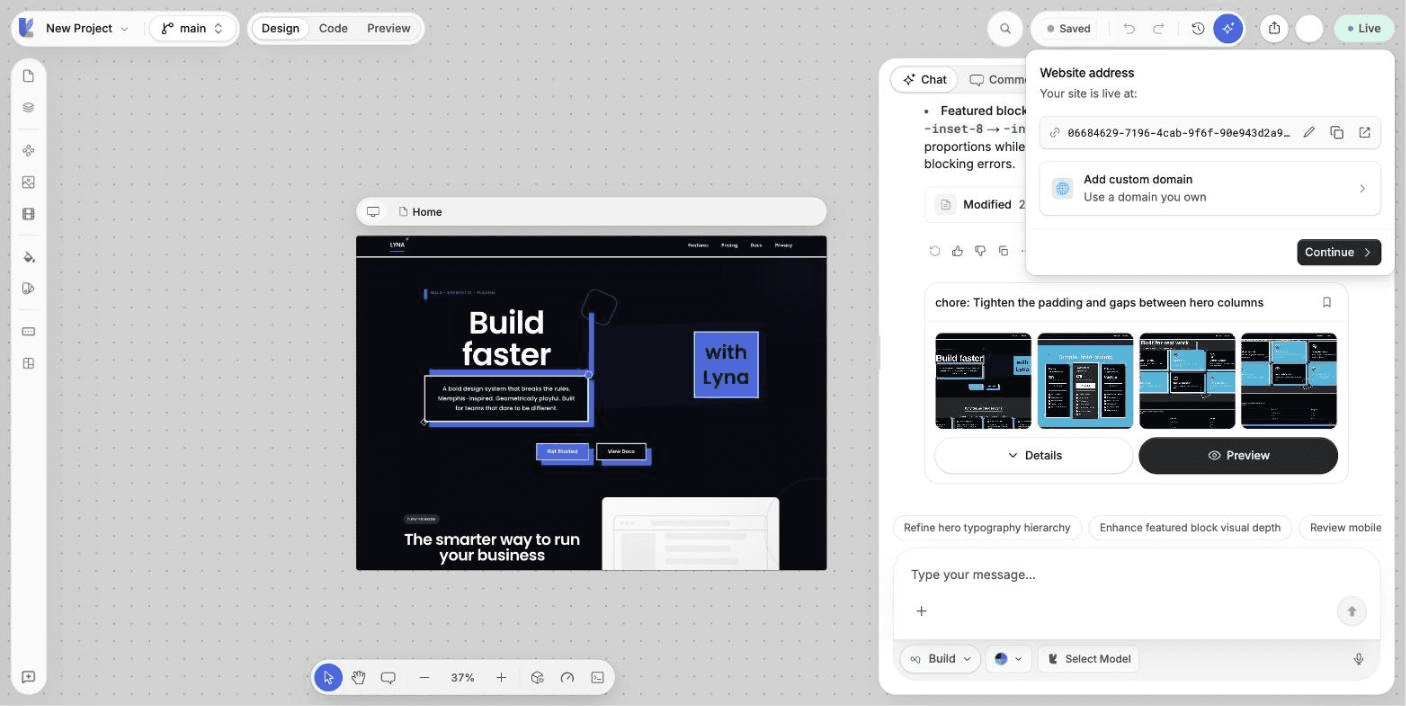
Publishing builds your app and puts it online at a Lyna address. Choose Publish in the top right of the editor.
What you can do
- Publish your app to a Lyna address and rename that address.
- Review the project name, visibility and security findings before you go live.
- Follow the build step by step, and read the build log if it fails.
- Update the live site with Update after each change.
- Share the address, or connect your own domain.
Publish for the first time
Choose Publish
In the top bar, choose Publish. The first step, Website address, shows the address your site will use. You can rename the address before you continue. Choose Continue.
Review
Ready to publish? shows the URL, the Project name, the Visibility and a Security check. If the scan finds issues, choose Show the findings to read them. Choose Publish.
Wait about a minute
Lyna runs five steps: Reserve the address, Save your latest edits, Build the site, Upload the files and Put it online. You can close the menu: publishing continues.
Your app is live
Your app is live! Choose View app to open it, Share to post the link on X, LinkedIn or Reddit or copy it, or Domain settings to add your own domain.
Update your site
After a change, the button shows Update. Choose it to publish the latest version. While it works, the button shows Publishing. When the site is up to date, the menu shows Live.
Lyna builds from your saved project. Edits you make while a publish runs go out with the next update.
If a publish fails
The button shows that the last publish failed. The menu names the step that failed, such as The build failed. Choose View build log to read the output, Copy log to share it, and Try again when you have fixed the cause. You can paste the log in the chat and ask the AI to fix the error.
Before a site goes online, Lyna checks its pages. A site that looks like a page collecting sign-in or payment details for another company is not published, and the publish window says why. If the check cannot run, try again in a moment. A page or script over 32 MB is too large to check: make it smaller, then publish again.
Your Lyna address
Every published project gets its own address on a Lyna subdomain. Change it in Settings > Project > Domains > Overview under Site address. The old identifier link keeps working after a rename. See Custom domains to use your own domain.
Take your site offline
Open Settings > Project > Deployments and use Unpublish at the bottom of the page. Visitors see a not-found page until you publish again. Your project and its history stay as they are. See Deployments.
Plan availability
| Free | Pro | |
|---|---|---|
| Publish to a Lyna address | Yes | Yes |
| Custom domain | No | Yes |
| Hide the Lyna badge | No | Yes |
| Analytics | No | Yes |
The number and size of published sites depend on your plan. See Plans and credits.