Deployments
See every publish of your project with its status, duration and security score, read its build log, redeploy or cancel it, and take the site offline.
Each time you publish, Lyna creates a deployment. Open Settings > Project > Deployments to see them all.
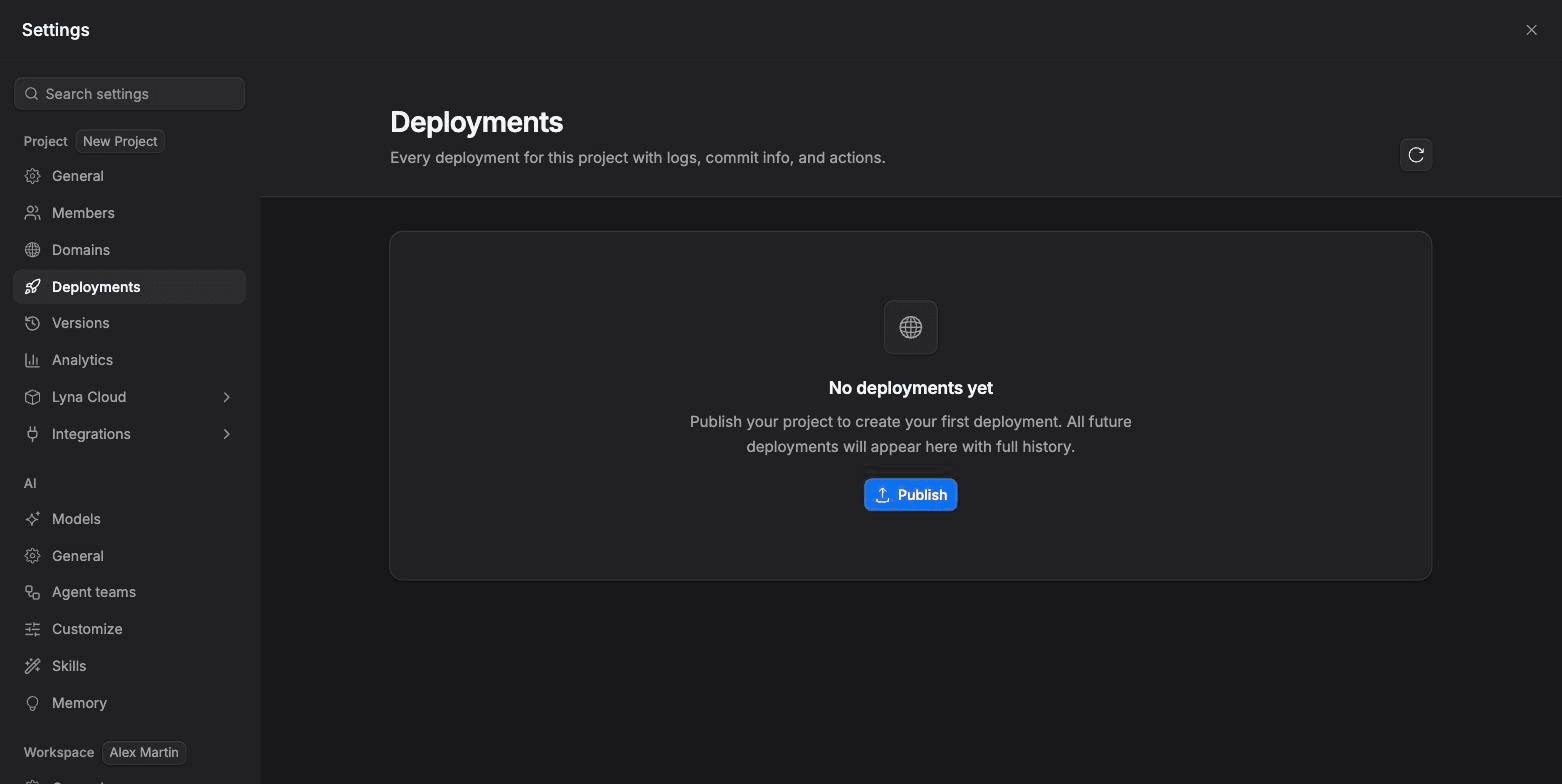
What you can do
- See every deployment with its status, who published it, when, and how long it took.
- Read the build log and search it.
- See the security score and findings of each deployment.
- Open a deployment's URL.
- Redeploy a build, or cancel one that is running.
- Unpublish your site.
The list
Each row shows the deployment, its Status (Ready, Building, Queued or Cancelled), its Duration, its Security score and when it was deployed. The list is paged; choose Refresh deployments to reload it.
The actions menu of a row offers Open URL, View deployment details, Redeploy and, while it runs, Cancel deployment.
Deployment details
View deployment details opens:
- Build Logs: the full output of the build. Use Find in logs to search it, Copy build log to share it, and Jump to latest to follow a running build.
- Deployment Summary: type, build script, duration, who deployed it, when, the commit and the branch.
- Deployment URLs: the addresses the deployment serves, to copy or open.
- Security Scan: the score out of 100 and the issues by severity (Critical, High, Medium, Low).
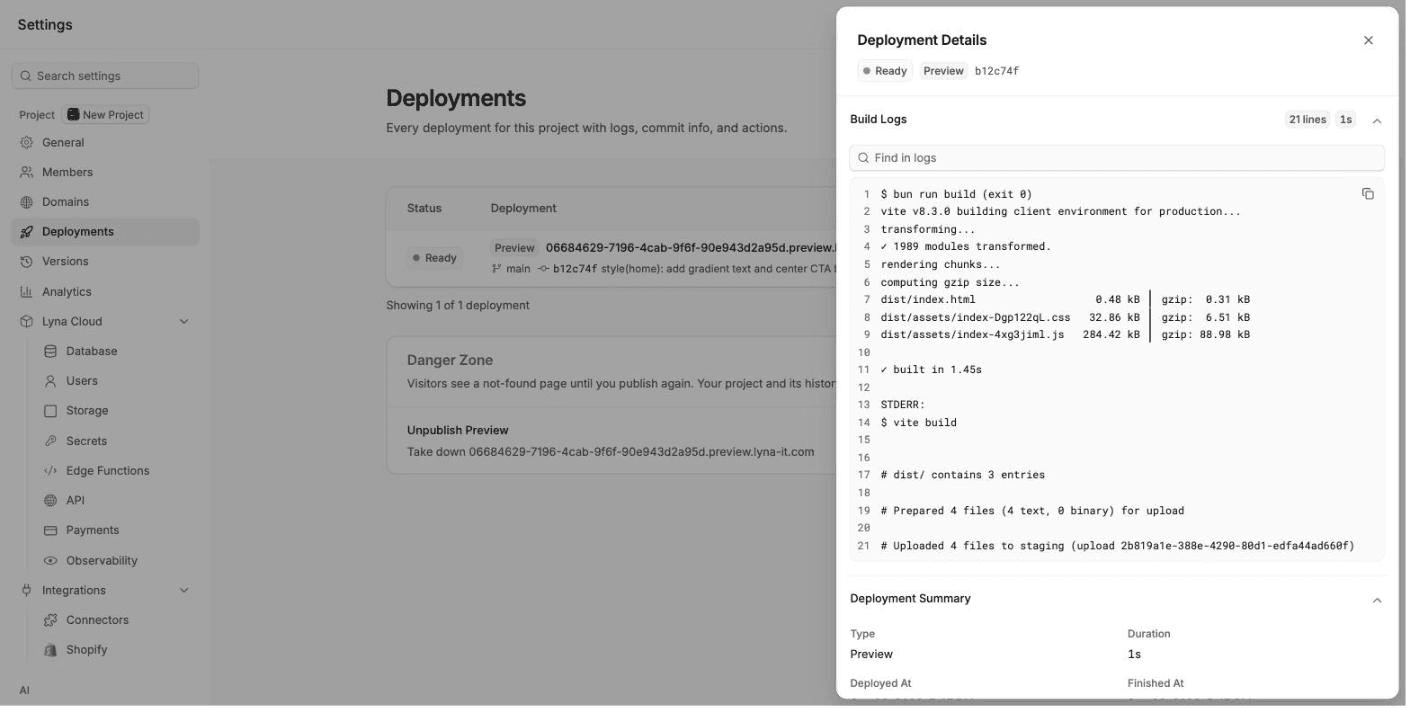
Redeploy or cancel
- Redeploy starts a new deployment with the same build configuration. The live site stays up until the new build succeeds.
- Cancel deployment stops a running build right away. You can redeploy later from the history.
Unpublish
At the bottom of the page, the Danger Zone lists your Lyna address and, if you have one, your custom domain. Choose Unpublish next to an address and confirm. The site stops answering there right away, and visitors see a not-found page. Your project and its history stay as they are. Publish again to bring it back.
When a build fails
Open the failed deployment, read the end of the build log, then copy it into the chat and ask the AI to fix the error. Publish again when the fix is in.
Next steps
Analytics
Anonymous visitor analytics for your published site, without cookies. See visitors, pageviews, sources, pages, countries and devices, export CSV and share a read-only dashboard.
Sharing and visibility
Choose who can see a project (Public, Workspace or Private), share it with people, and see who is in the project with you.