Quick start
Build and publish your first Lyna app, from your first prompt to a live address you can share.
This guide takes you from an idea to a published app. You need a Lyna account. If you do not have one yet, see Create an account.
What you will do
- Start a project from a description.
- Watch the AI build the first version.
- Change it with the chat and on the canvas.
- Save a version, then publish it.
Describe your app
On the Lyna home page, type what you want in Describe the site you want, then choose Start building. You can also pick an example under Try an example.
Already on the projects page? Choose New project > Blank project, then describe your app in the chat.
A good first prompt names the kind of site, who it is for and the pages you need:
A site for a neighborhood restaurant, with the seasonal menu,
opening hours and a table booking form. Warm colors, simple layout.
Wait for the project to open
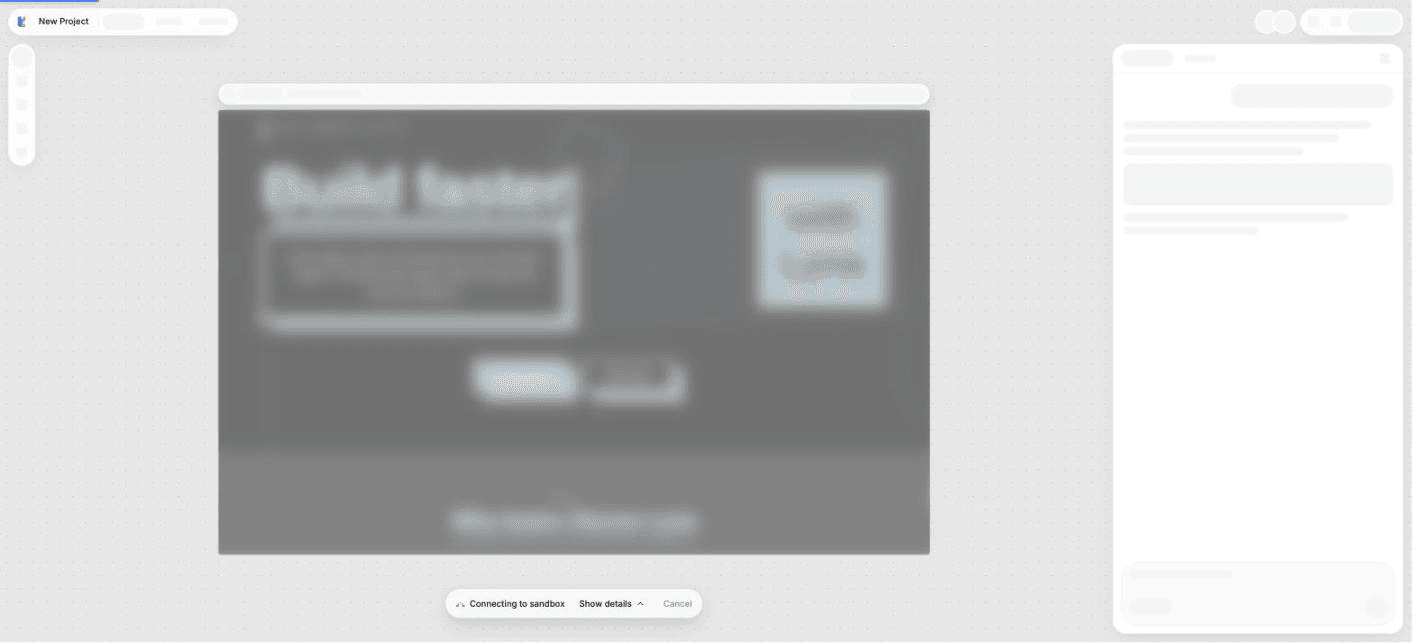
Lyna starts a cloud sandbox for your project, loads the files, installs the packages and starts the development server. The loading screen shows each step. This usually takes a short moment.
Let the AI build
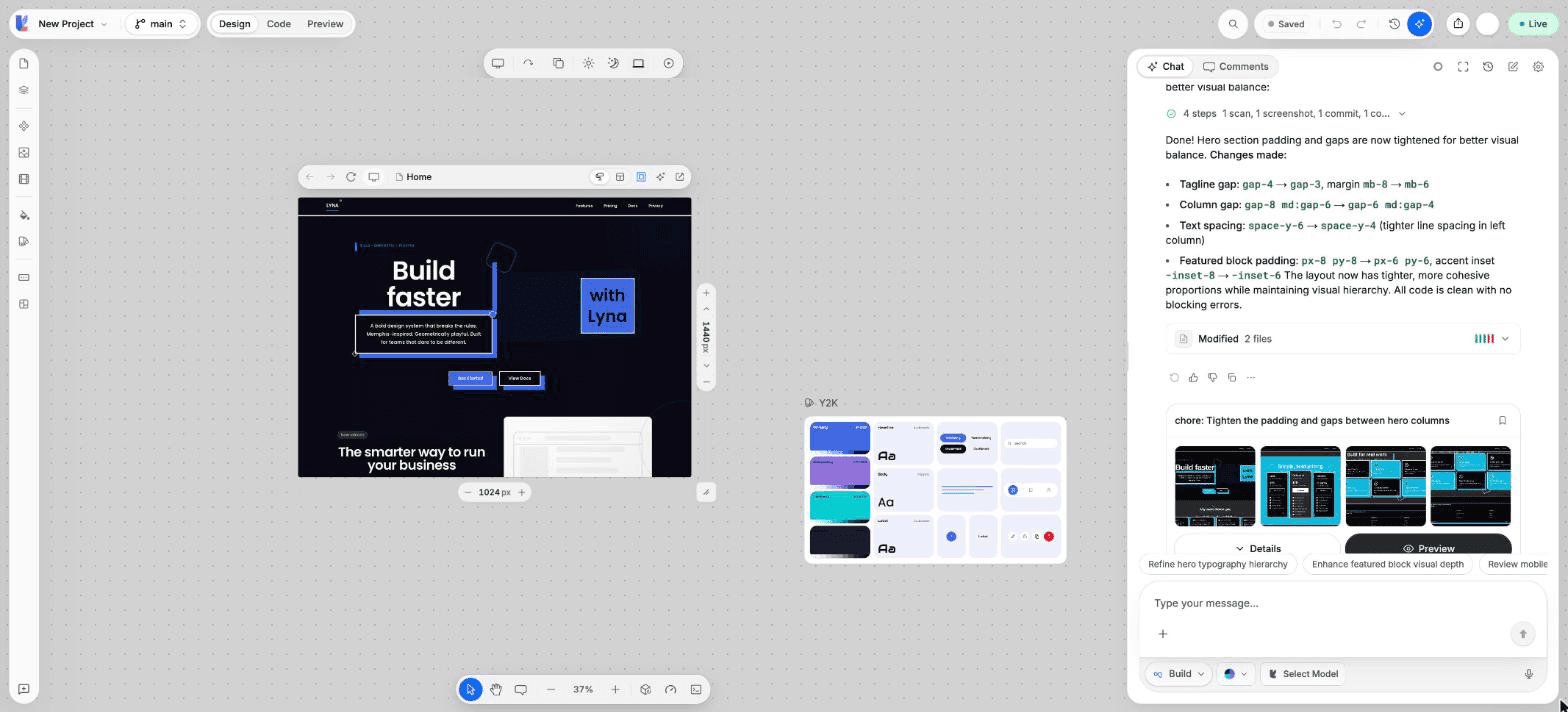
The chat opens in Build mode. The AI reads the project, writes the code and shows each step in the chat. The canvas updates as files change.
When the turn ends, the chat shows a version card with the changes. You can preview or revert that version at any time.
Refine with the chat
Ask for one change at a time:
Make the header sticky and add a "Book a table" button on the right.To point at something on the page, select it on the canvas first, then write your message. The AI gets the selected element as context.
Edit on the canvas
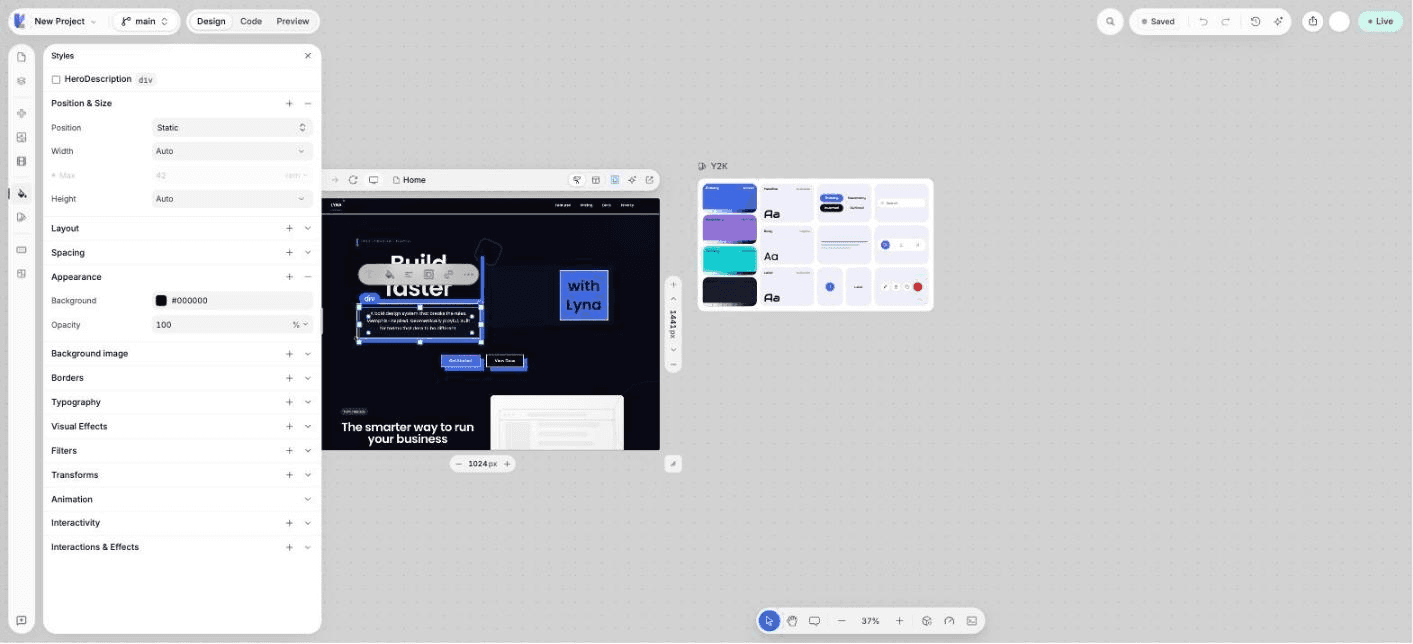
Switch to Design in the top bar. Select an element, then change its text, colors, spacing or size in the style panel. Every change is written back to the code.
Check it like a visitor
Switch to Preview to use the app full size. Click the links and fill the forms. Use the device controls on the frame to check phone and tablet sizes.
Publish
Choose Publish in the top bar, then Publish my site. Lyna builds your app and puts it online on a Lyna address. Copy the link and share it.
Stuck on an error?
If the preview shows an error, choose Fix with AI on the error, or type /fix in the chat. See Debugging with the AI.
Tips for your first project
- Start small. Get the main page right, then add pages one by one.
- Use Plan mode for bigger features. The AI proposes a plan before it writes code.
- Add your standards once in Rules so every answer follows them.