Editor tour
A map of the Lyna editor. Where the chat, the canvas, the panels, the toolbar and the code live.
The editor opens when you open a project. It has four areas: the top bar, the design panels on the left, the canvas in the middle and the chat on the right.
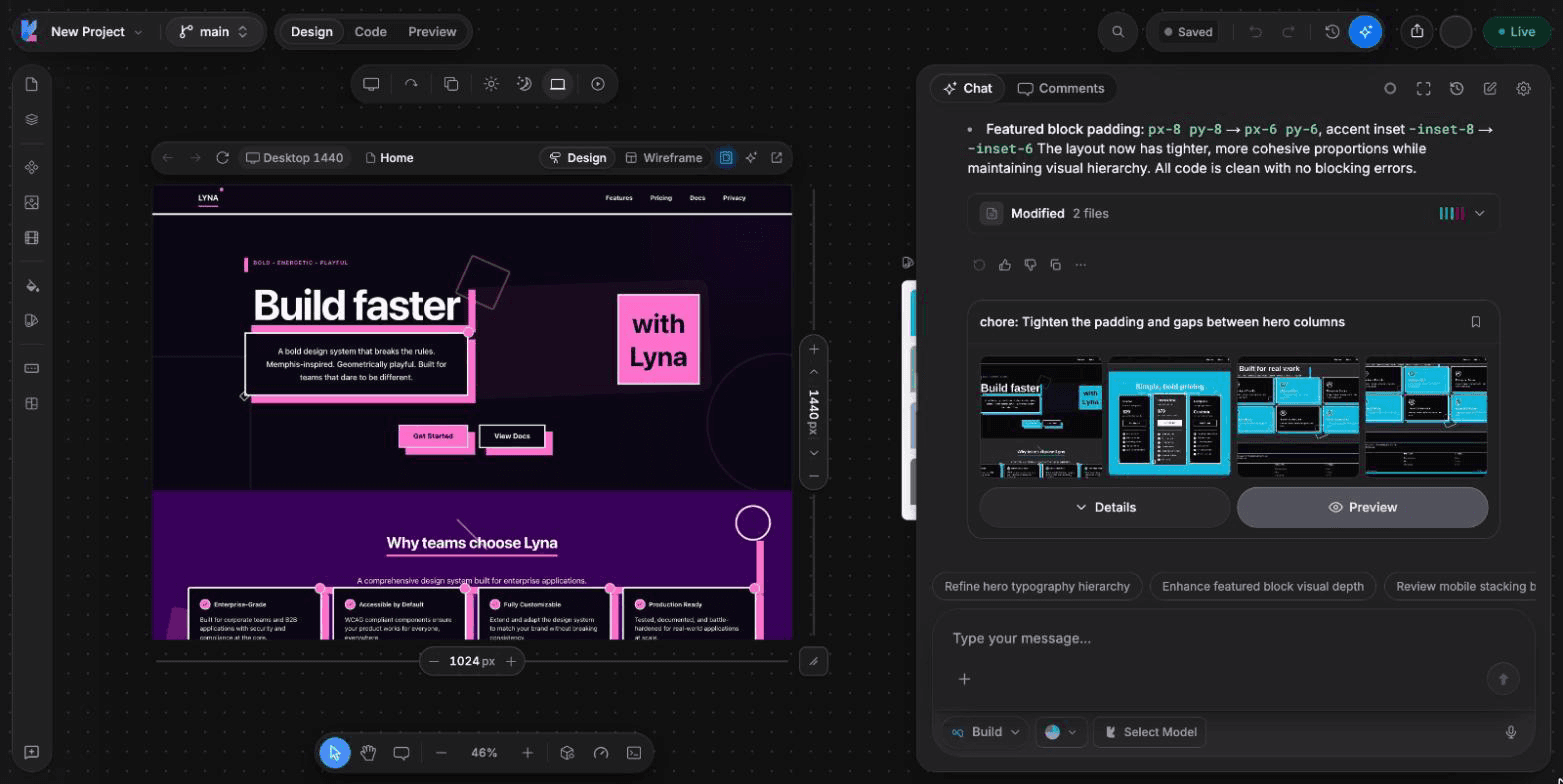
Top bar
| Control | What it does |
|---|---|
| Project menu | Rename or duplicate the project, open settings, download the code, go back to all projects. |
| Save state | Shows Saved, Unsaved, Saving or Backing up. Open it to save now or open the version history. |
| Undo / Redo | Undo or redo your last canvas edit. |
| Design / Code / Preview | Switch between the three views of your project. |
| People here | Shows who else is in the project right now. |
| Share | Invite people and manage who can open the project. |
| Publish | Put your app online or update the live site. |
The three views
- Design: the canvas with your app's frames. Select, edit and move elements.
- Code: the code editor with the file explorer, search, source control and the terminal.
- Preview: your app full size, for testing it like a visitor.
Design panels (left rail)
The rail on the left opens one panel at a time. The panels are grouped by job:
| Group | Panels |
|---|---|
| Navigate | Pages, Layers |
| Place assets | Components, Images, Videos |
| Shape the brand | Styles, Brand |
| Build | Forms, PRD |
Canvas and toolbar
The canvas shows one or more frames of your app. The canvas toolbar has:
| Tool | Key | What it does |
|---|---|---|
| Select | V | Select and change elements. |
| Pan | H | Move around the canvas. |
| Insert Container | R | Draw a new container. |
| Insert Text | T | Add a text element. |
| Comment | M | Pin a comment on an element. |
| Version History | Open the list of saved versions. | |
| Command Palette | Cmd/Ctrl + K | Search commands, files and settings. |
| DevTools | Cmd/Ctrl + Shift + I | Console, network, performance and more. |
Each frame has its own bar to change the device size and reload the page.
Chat panel
The chat on the right is where you work with the AI. The composer at the bottom has the mode menu (Build, Plan, Ask), the model picker, the + menu for attachments and knowledge, and the send button. See Chat.
Settings
Open Settings from the project menu (Open Settings). Settings are grouped in four sections:
- Project: General, members, domains, deployments, versions, analytics, Lyna Cloud and integrations.
- AI: Models, General, Agent teams, Customize, Skills and Memory.
- Workspace: General and People.
- Account: Profile, Preferences, Security, and Subscription and usage.
Use Search settings at the top to jump to any setting.
Useful shortcuts
| Action | Shortcut |
|---|---|
| Command palette | Cmd/Ctrl + K |
| Toggle left panel | Cmd/Ctrl + / |
| Toggle chat panel | Cmd/Ctrl + \ |
| Chat full screen | Cmd/Ctrl + Shift + \ |
| Toggle terminal | Cmd/Ctrl + J |
| Focus mode | Cmd/Ctrl + Shift + . |
| New AI chat | Cmd/Ctrl + L |
| Add selection to AI chat | Cmd/Ctrl + Shift + L |
| Open the chat mode menu | Cmd/Ctrl + . |
| Source control | Cmd/Ctrl + Shift + H |
| Show all shortcuts | Shift + / |
See every shortcut
Press Shift + / in the editor to open the full list, grouped by where each shortcut works.