Dashboard overview
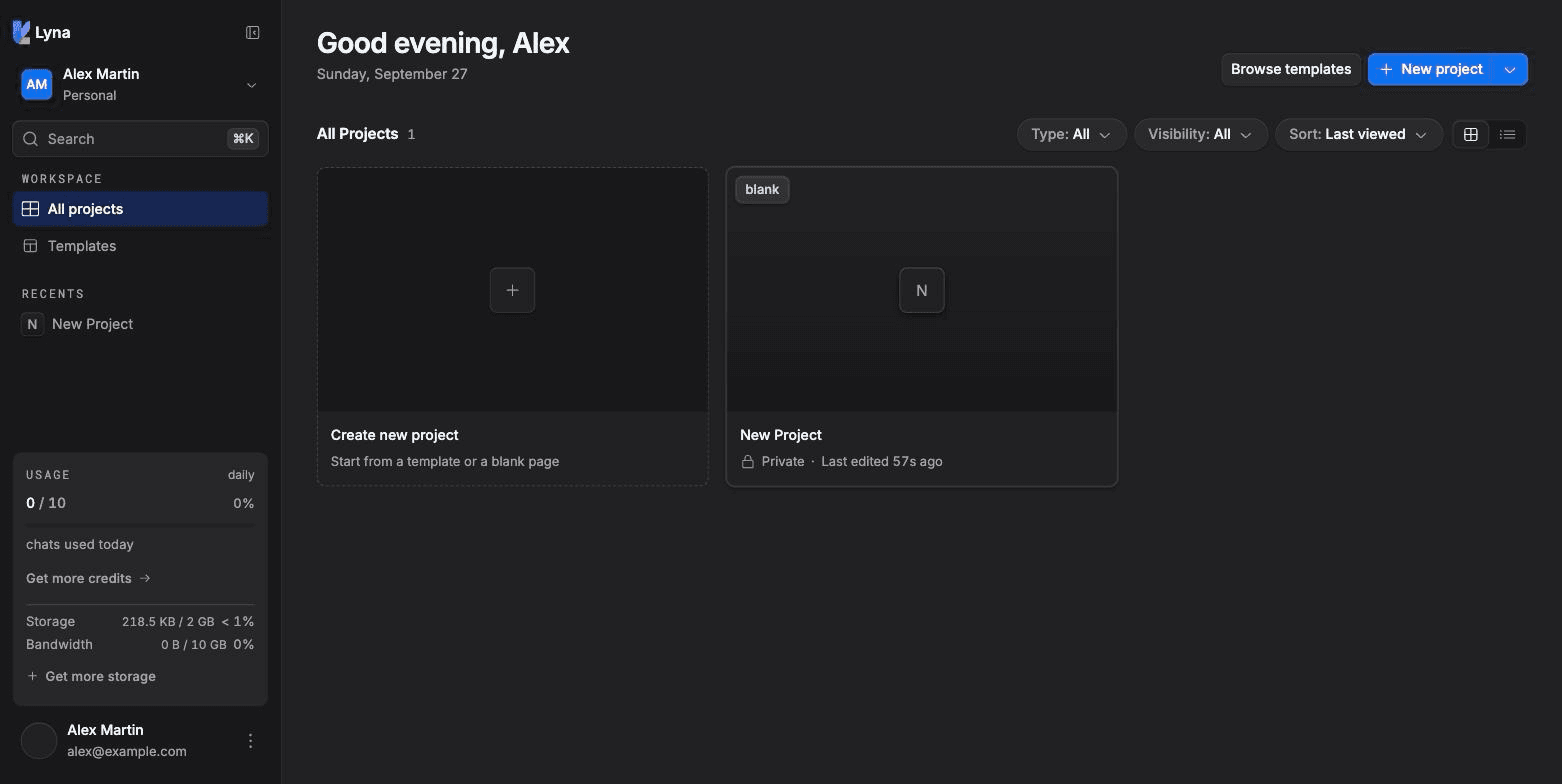
The projects page is your home in Lyna. Create projects, find them again and check your usage.
The projects page lists every project in your current workspace. It opens after you sign in.
What you can do
- Create a project: blank, from a template, or from a Figma import.
- Search, filter and sort your projects.
- Switch between a grid view and a list view.
- Open a project's settings from its card.
- Switch workspace and read your notifications.
- Check your credits, storage and bandwidth.
The sidebar
| Item | What it does |
|---|---|
| Workspace switcher | Shows the current workspace. Switch to another workspace or create one. |
| Search | Finds a project by name. |
| All projects | Lists every project in the workspace. |
| Templates | Opens the template gallery, where you remix a ready-made project. |
| Recents | The projects you opened last. |
| Notifications | Updates about your projects, such as a finished publish. |
| Usage | Your Credits, Storage and Bandwidth for the current period. |
| Account menu | Your profile, settings, subscription, theme and sign out. |
You can collapse the sidebar to a narrow rail with Collapse sidebar.
Create a project
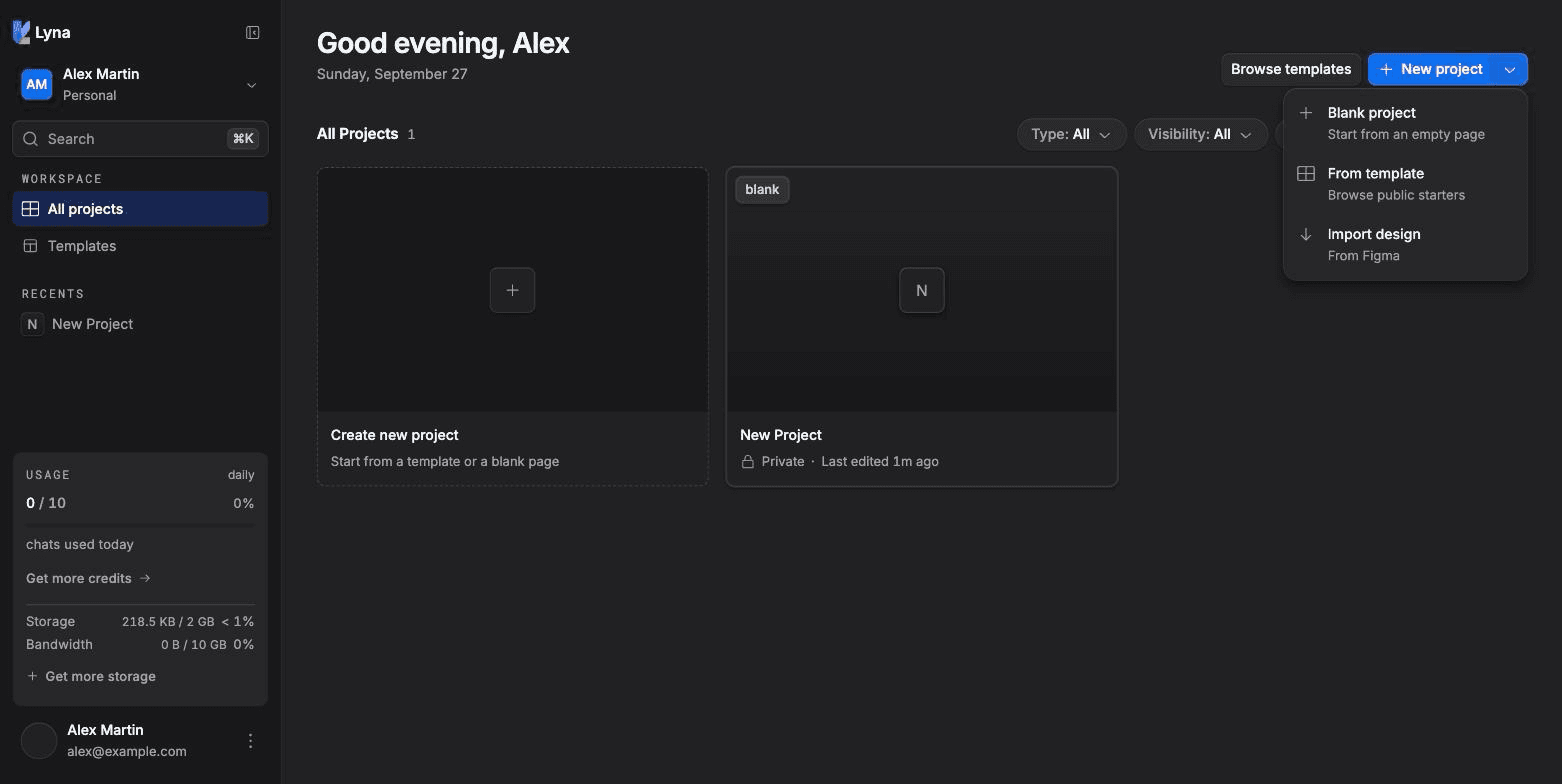
Choose New project. You get three options:
- Blank project: start from an empty page.
- From template: browse public starters and remix one.
- Import design: connect Figma, pick frames, then start a project with them attached to the chat.
The project list
The toolbar above the list has:
- Type: filter by category, such as Site, Tools, Personal, Consumer, B2B, Prototype or E-commerce.
- Visibility: filter by Public, Workspace or Private.
- Sort and view: sort by Alphabetical, Date created or Last viewed, newest or oldest first, and switch between Grid view and List view.
- Clear filters: go back to the full list.
Each card shows the project's cover, name and category. Select a card to open the project in the editor.
On a phone
On a small screen, the sidebar becomes a menu and a round button creates a new project.