Account
Notifications
Get a browser notification or a sound when the AI finishes, needs your approval or hits an error, and read project status notices in the notifications menu.
Lyna tells you when something needs your attention, even when its tab is in the background.
What you can do
- Get a browser notification when the AI finishes, asks for approval or hits an error.
- Play a sound for the same events, at the volume you choose.
- Read status notices about your projects in the notifications menu.
Browser notifications and sounds
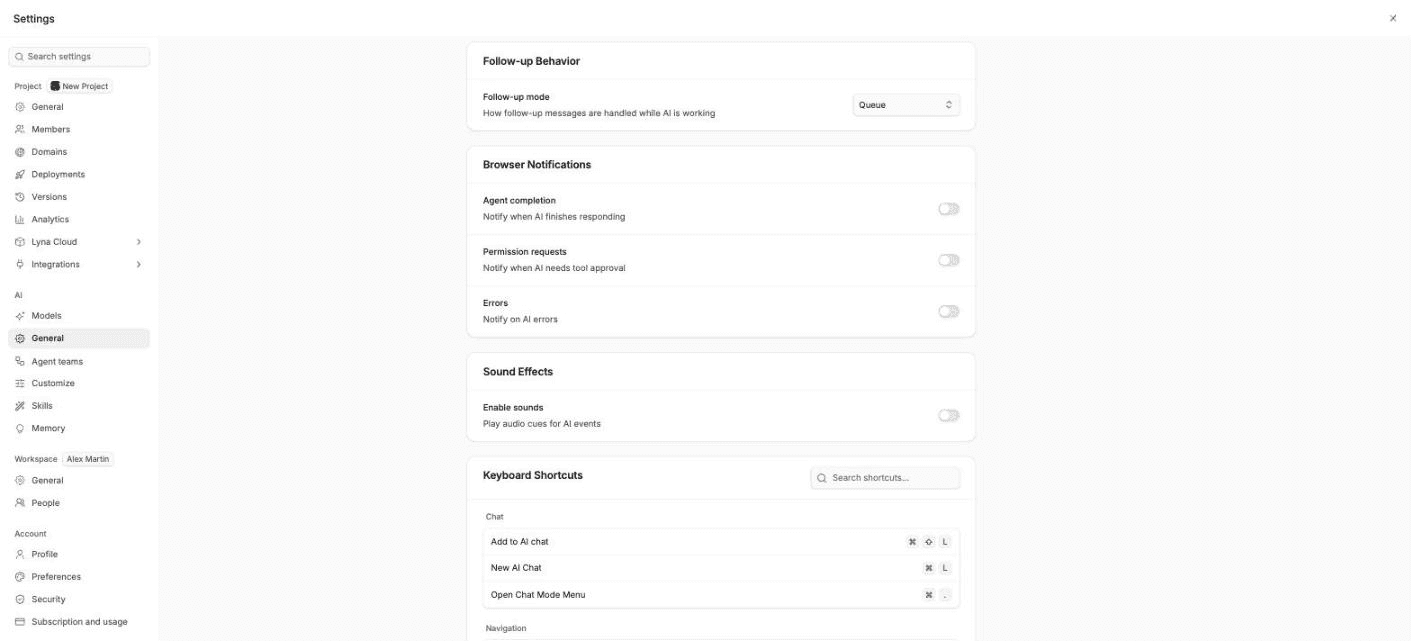
Open Settings > AI > General and find Notifications.
| Setting | What it does |
|---|---|
| Agent completion | Notify when the AI finishes responding. |
| Permission requests | Notify when the AI needs your approval for a tool. |
| Errors | Notify on AI errors. |
| Enable sounds | Play a sound for these events. Set the Volume, and use Test complete, Test permission or Test error to hear each sound. |
The first time you turn on a browser notification, your browser asks for permission. If the setting shows Blocked, allow notifications for Lyna in your browser's site settings.
The notifications menu
The bell in the top bar shows project notices, such as a project that is Under Review, Flagged or Blocked after a moderation review. Open a notice to see the details, or choose Mark all read.