Profile
Your username, email and profile visibility, and the public profile page that shows your projects, experience and skills.
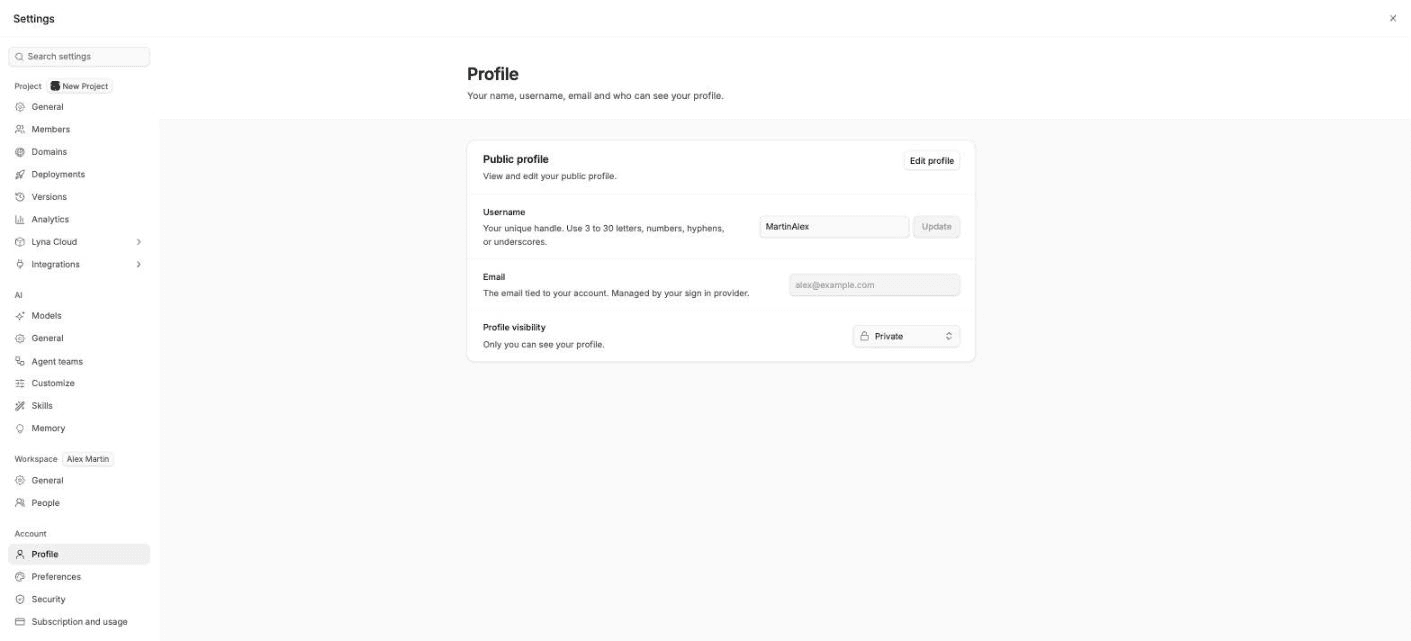
Your profile is how other people see you in Lyna. Manage the basics in Settings > Account > Profile, and the full page at Open profile.
What you can do
- Choose your username.
- See the email tied to your account.
- Make your profile public or private.
- Build a public profile with a headline, bio, links, experience, skills and more.
- Show your public projects and the projects you liked.
Profile settings
| Setting | What it does |
|---|---|
| Username | Your unique handle: 3 to 30 letters, numbers, hyphens or underscores. Lyna tells you if it is free. Choose Update to save it. |
| The email of your account. It comes from the way you sign in, so you cannot change it here. | |
| Profile visibility | Public: anyone can view your profile and public projects. Private: only you can see your profile. |
Choose Open profile to see your page, or Edit profile to change it.
Your profile page
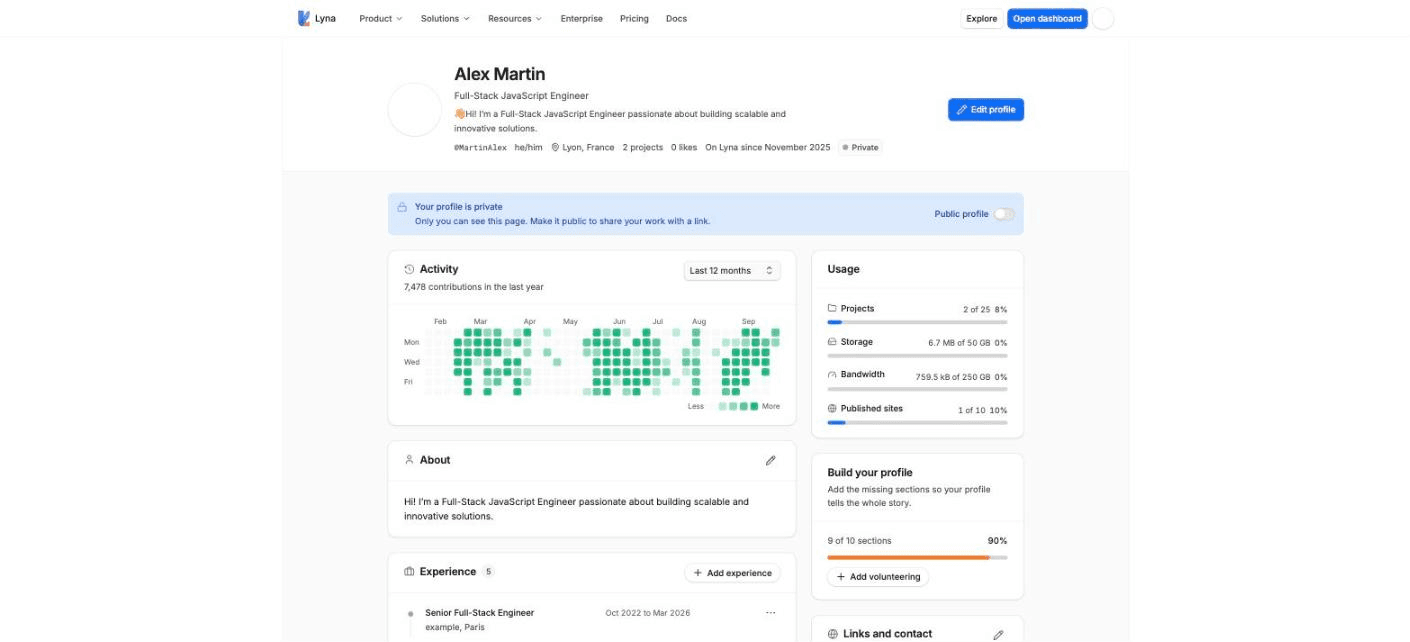
Your profile page shows your name, handle, headline, how many projects and likes you have and when you joined. Below it:
- About, Experience, Education, Skills, Certifications, Languages, Volunteering, Hobbies and interests and Links and contact.
- Public projects, Liked projects and your activity.
A Build your profile checklist shows which sections are still empty. Choose Add next to one to fill it in.
Edit your details
Choose Edit profile to change your Display Name, Headline, Pronouns, Bio, Location, Website, Public Email, Phone, X / Twitter and GitHub. Choose Save Changes.
Your public link
When your profile is public, anyone can open it at /u/ followed by your username. A private profile shows Profile Not Found to others.