Collaborate
Collaboration
Work on the same project at the same time. Invite members, assign roles, leave comments with canvas markers, and see live cursors as others edit. All powered by Supabase Realtime broadcast.
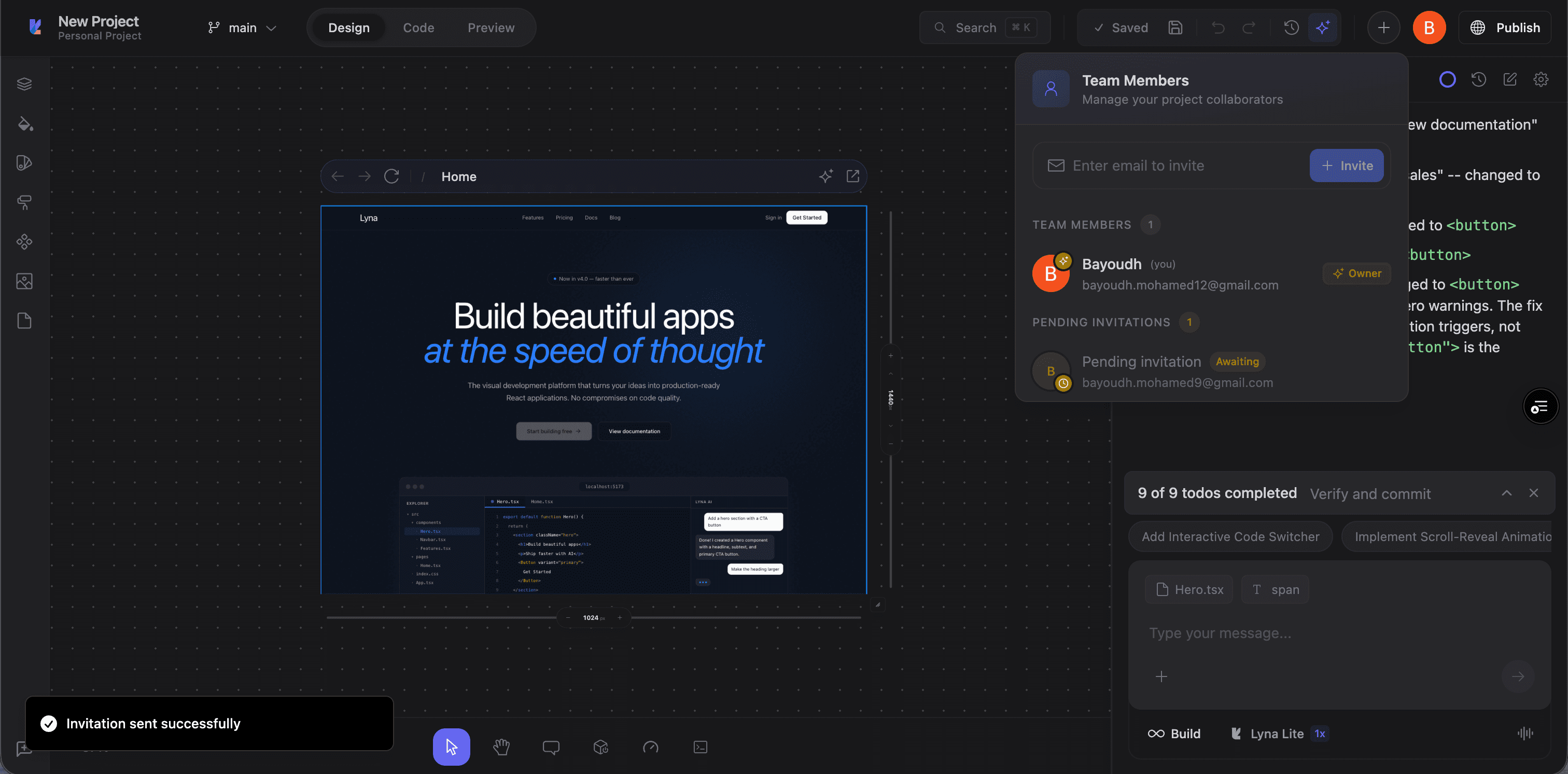
Team Members
Open the Members panel from the editor toolbar. It shows:
- Current members: avatar, name, and role.
- Pending invitations: email invites not yet accepted.
- Suggested teammates: users from your organization.
Roles
| Role | Permissions |
|---|---|
| Owner | Full control. Invite/remove members, change roles, delete project, manage all settings. |
| Admin | Invite/remove members, manage settings, edit project. Cannot delete or transfer ownership. |
| Member | View and edit the project. Cannot manage members or settings. |
Inviting Members
Owners and Admins see an invite input at the top of the Members panel.
Enter an Email
Type the email address and press Enter or click Invite.
Choose a Role
Pick Member or Admin.
Send the Invitation
The invitee gets an email with a join link. Their invitation shows in Pending Invitations until accepted.
You can cancel a pending invitation at any time.
Managing Members
Owners and Admins can:
- Change role: promote a Member to Admin or demote an Admin to Member.
- Remove: remove a member from the project.
- Transfer ownership: Owners can transfer ownership to another member.
Real-Time Presence
When multiple people are in a project, Supabase Realtime syncs presence:
- Live cursors: each collaborator's cursor appears on the canvas in a distinct color (10-color palette).
- Active indicators: avatars in the top bar show who is online.
- Concurrent editing: changes from different collaborators merge automatically.
Comments
Leave comments directly on the canvas to discuss specific elements.
- Canvas markers: comments are anchored to positions on the canvas.
- Threaded replies: start a conversation on any comment.
- Real-time updates: comments appear instantly for all collaborators.
- Unread indicators: shows which comments have new replies.
- Resolve/unresolve: mark comments as resolved when feedback is addressed.
- Comment panel: view all comments in a dedicated panel on the right side of the editor.